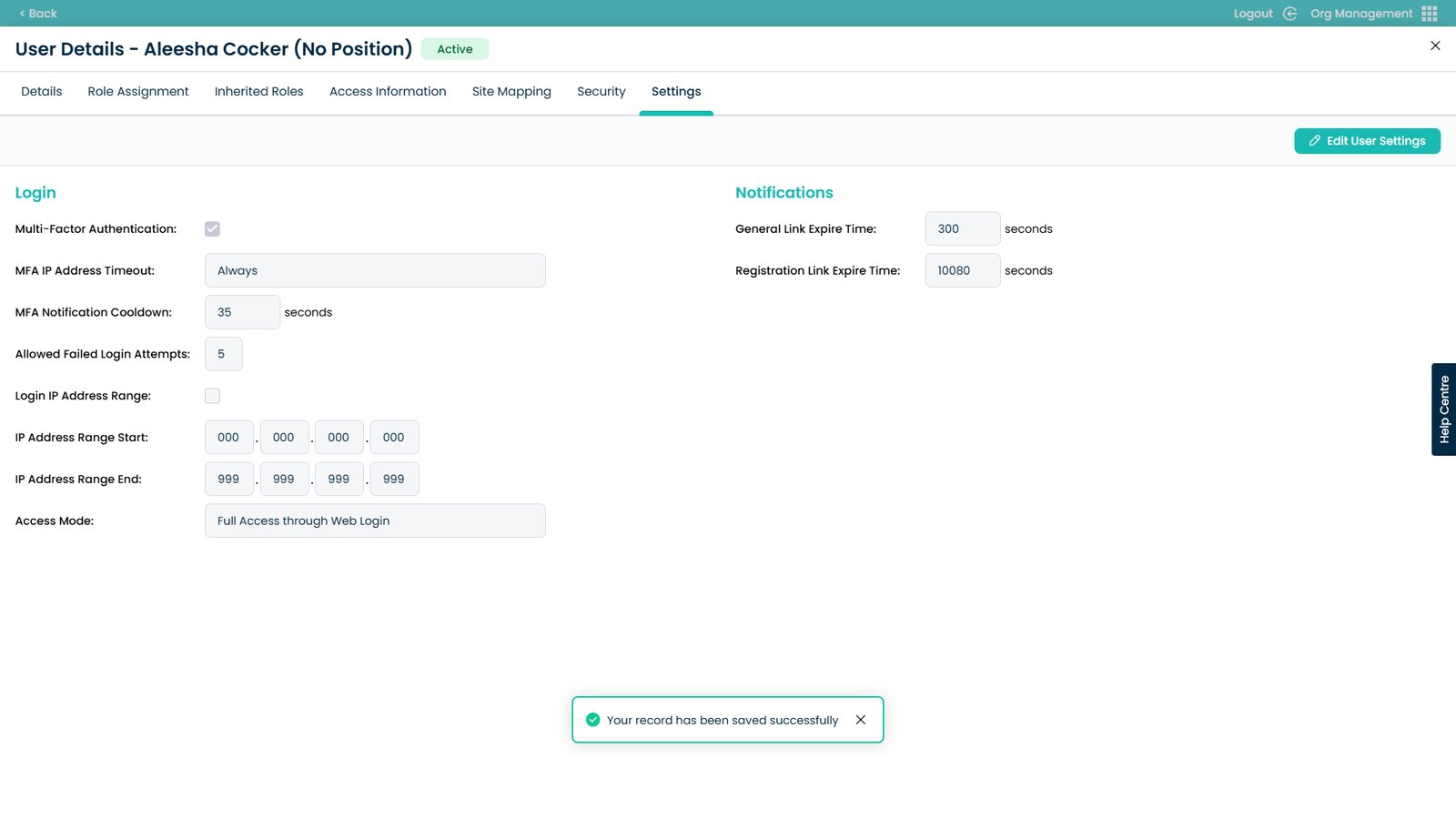
Enter the Org Management App
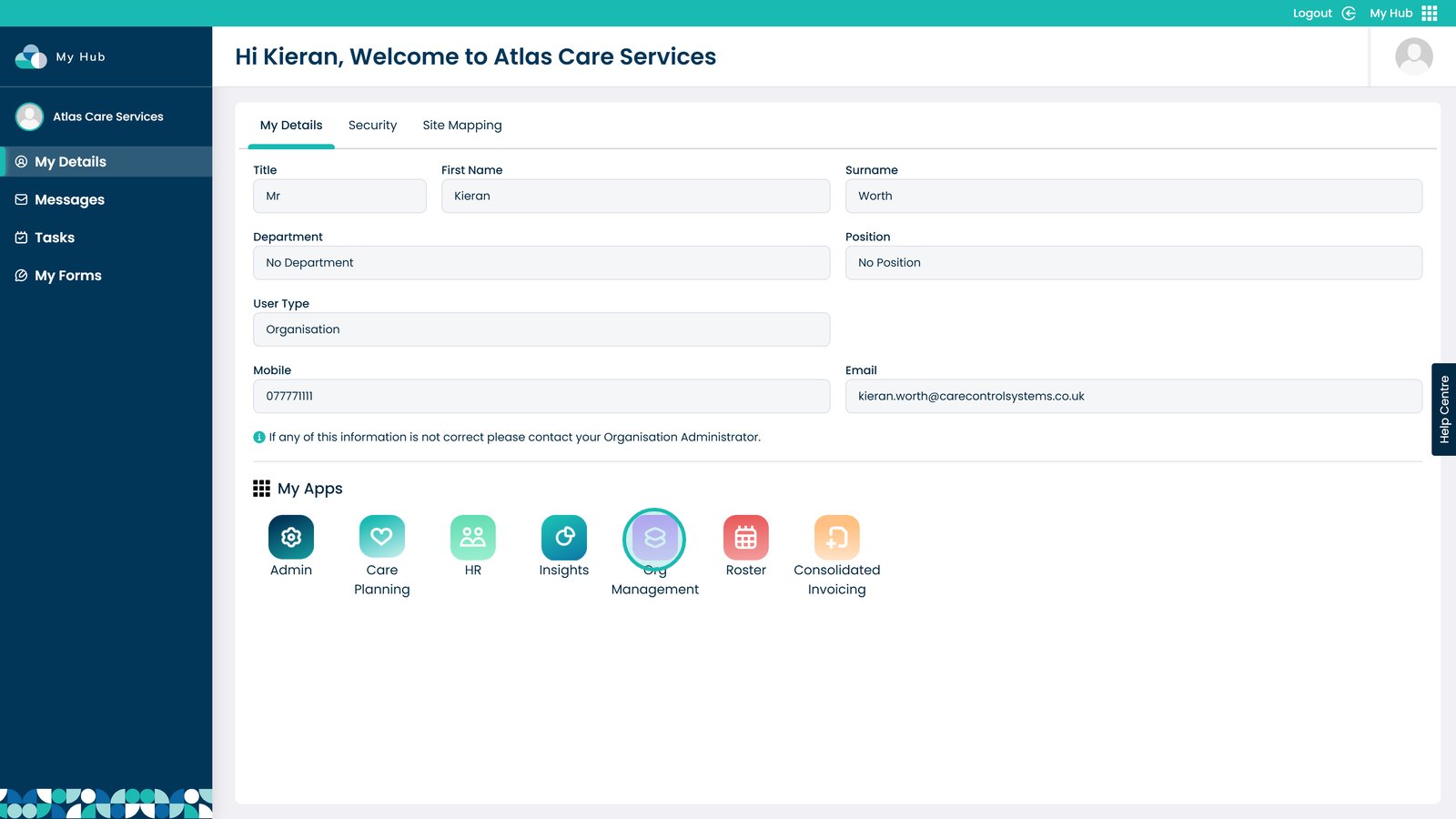
Visit the Users area
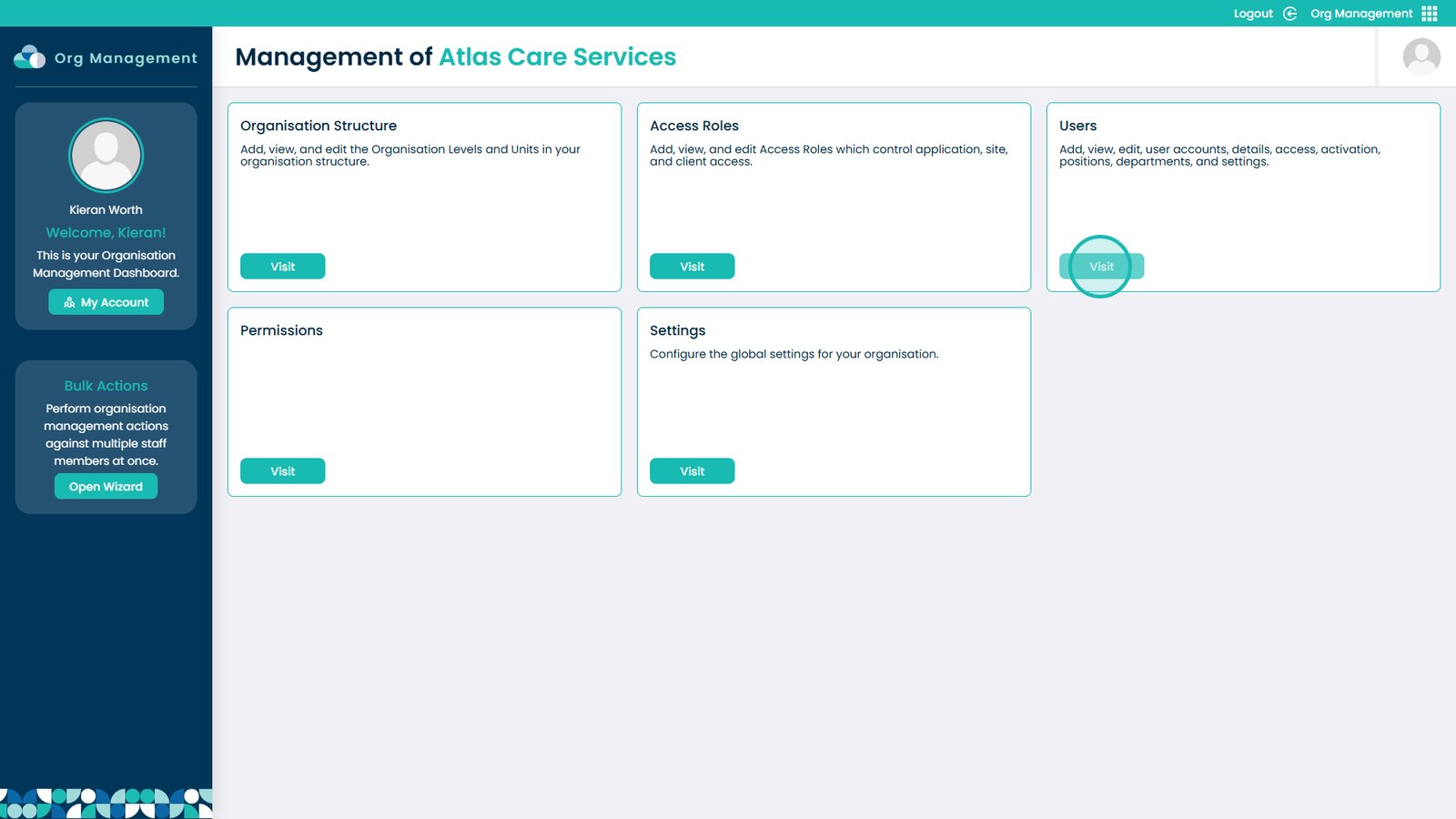
Click the eye icon next to the user you wish to modify
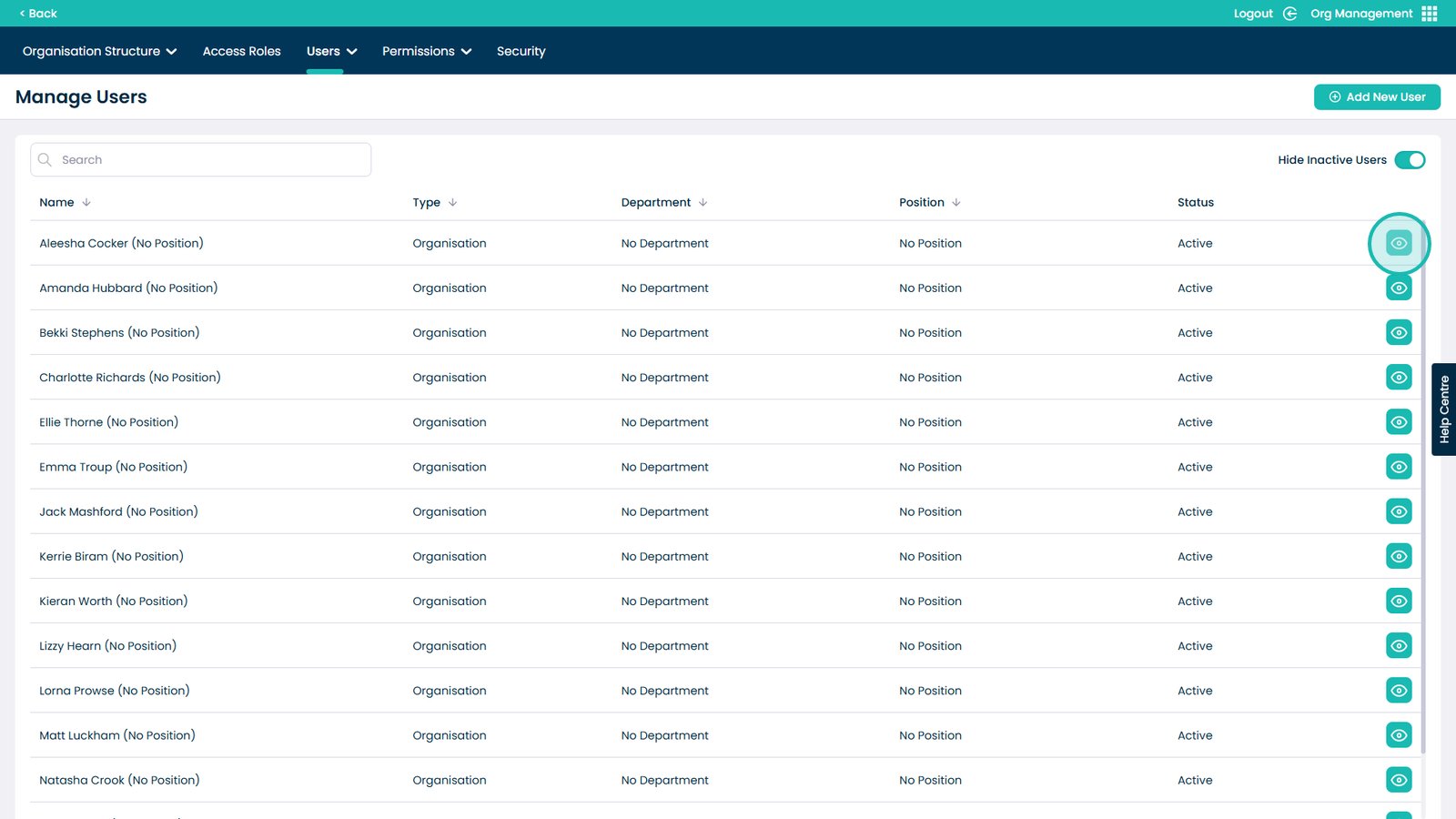
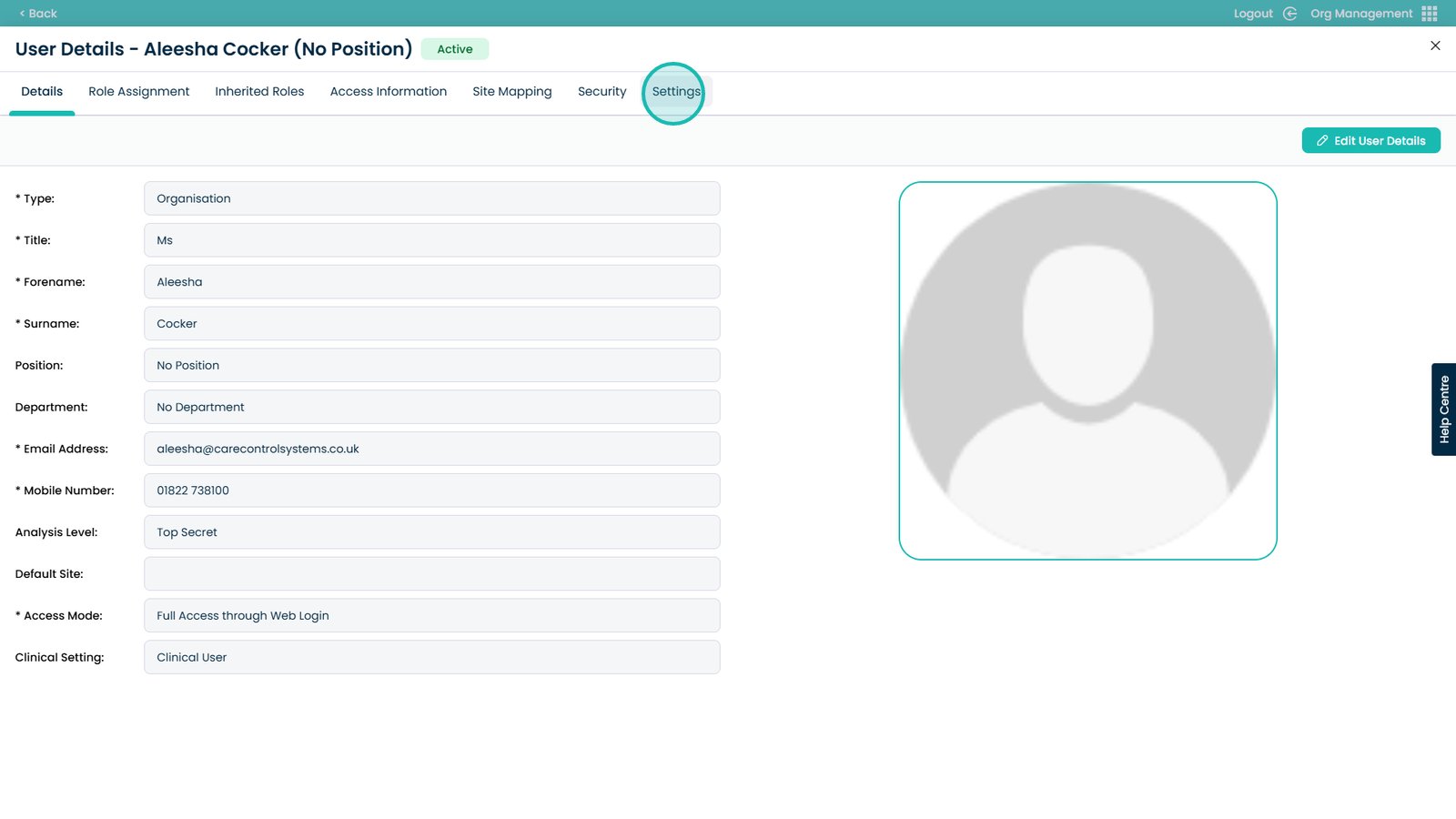
Enter the Settings tab on the user screen
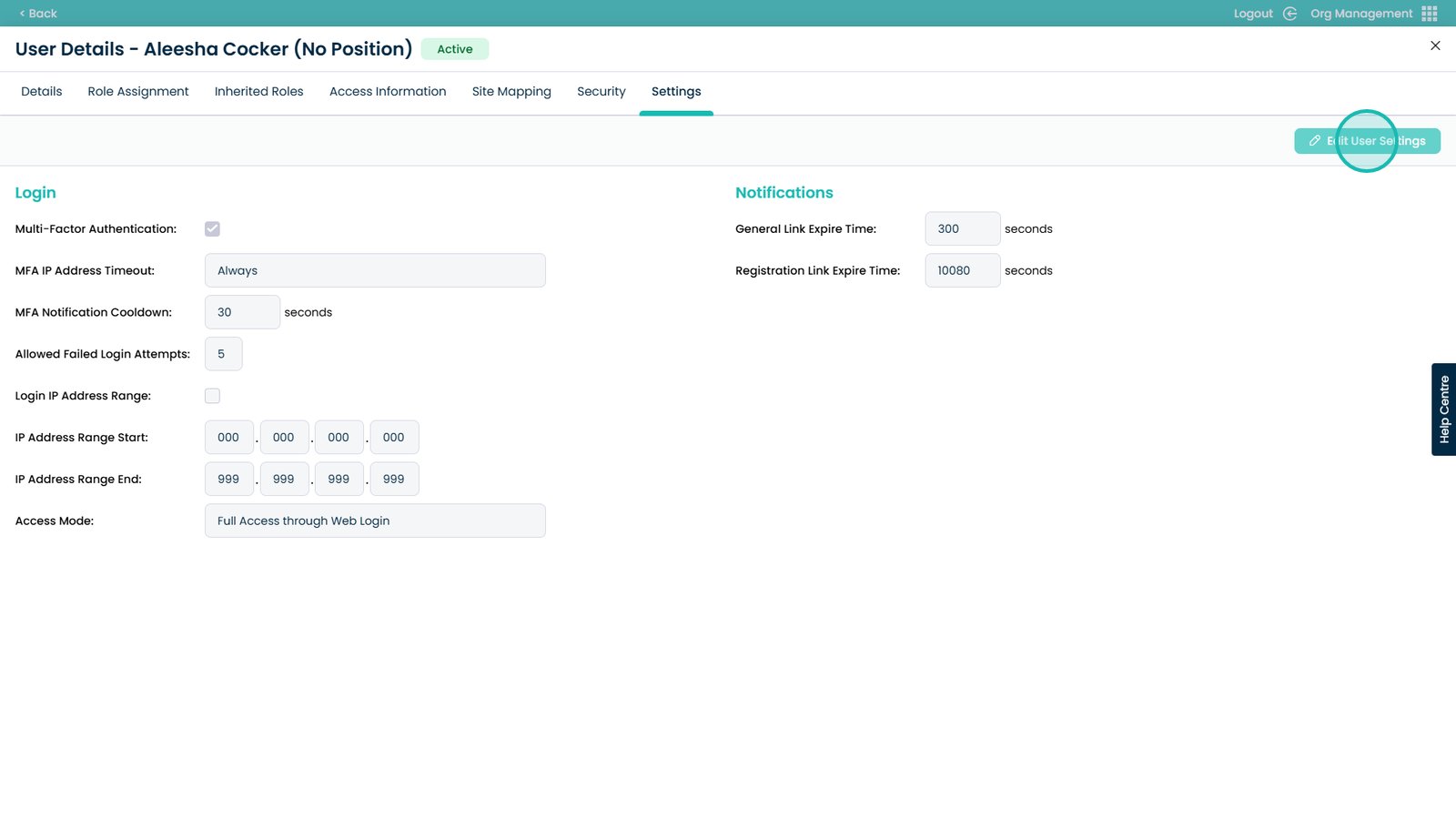
Click the Edit User Settings button
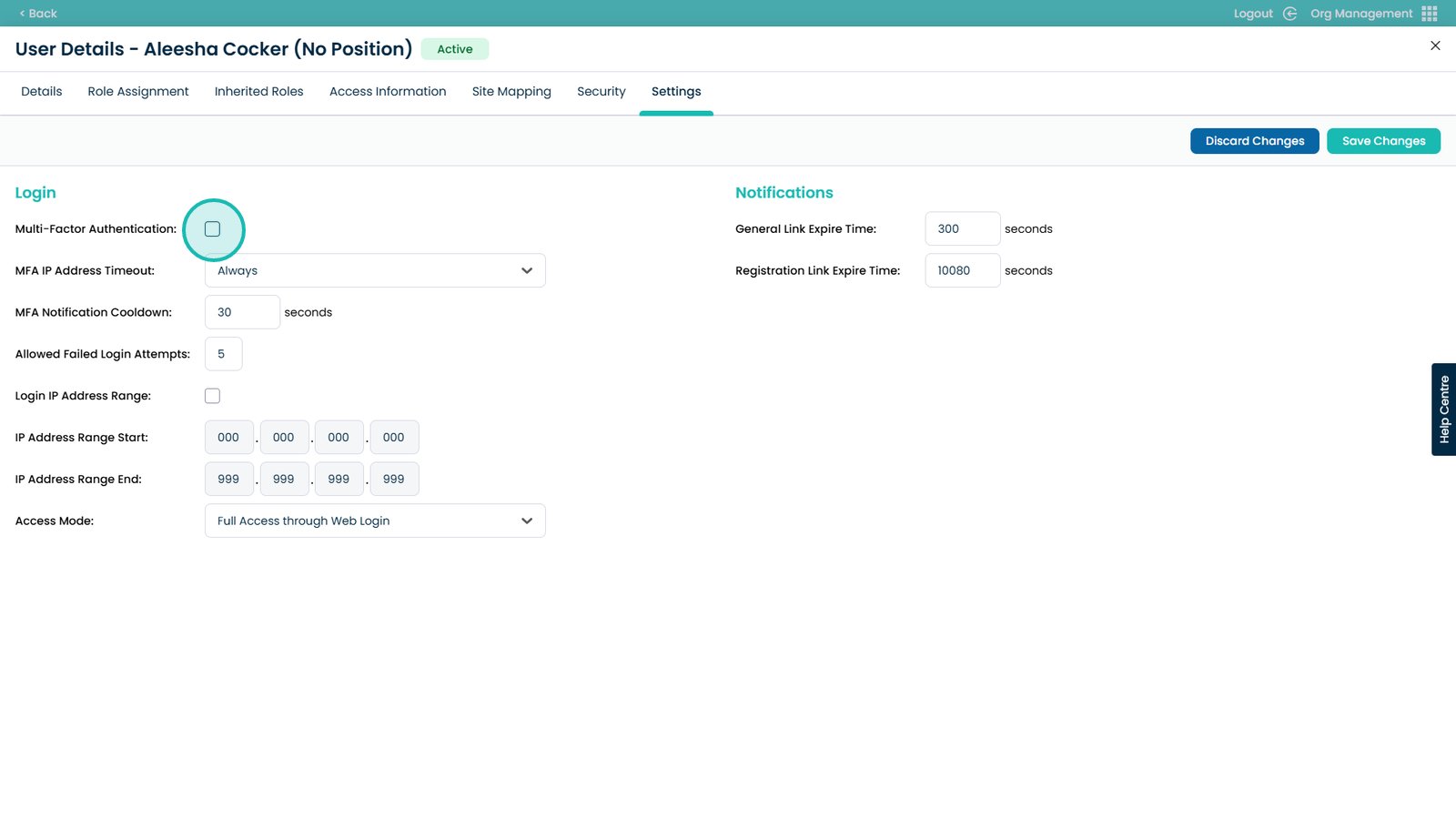
Click the Multi-Factor Authentication tick box
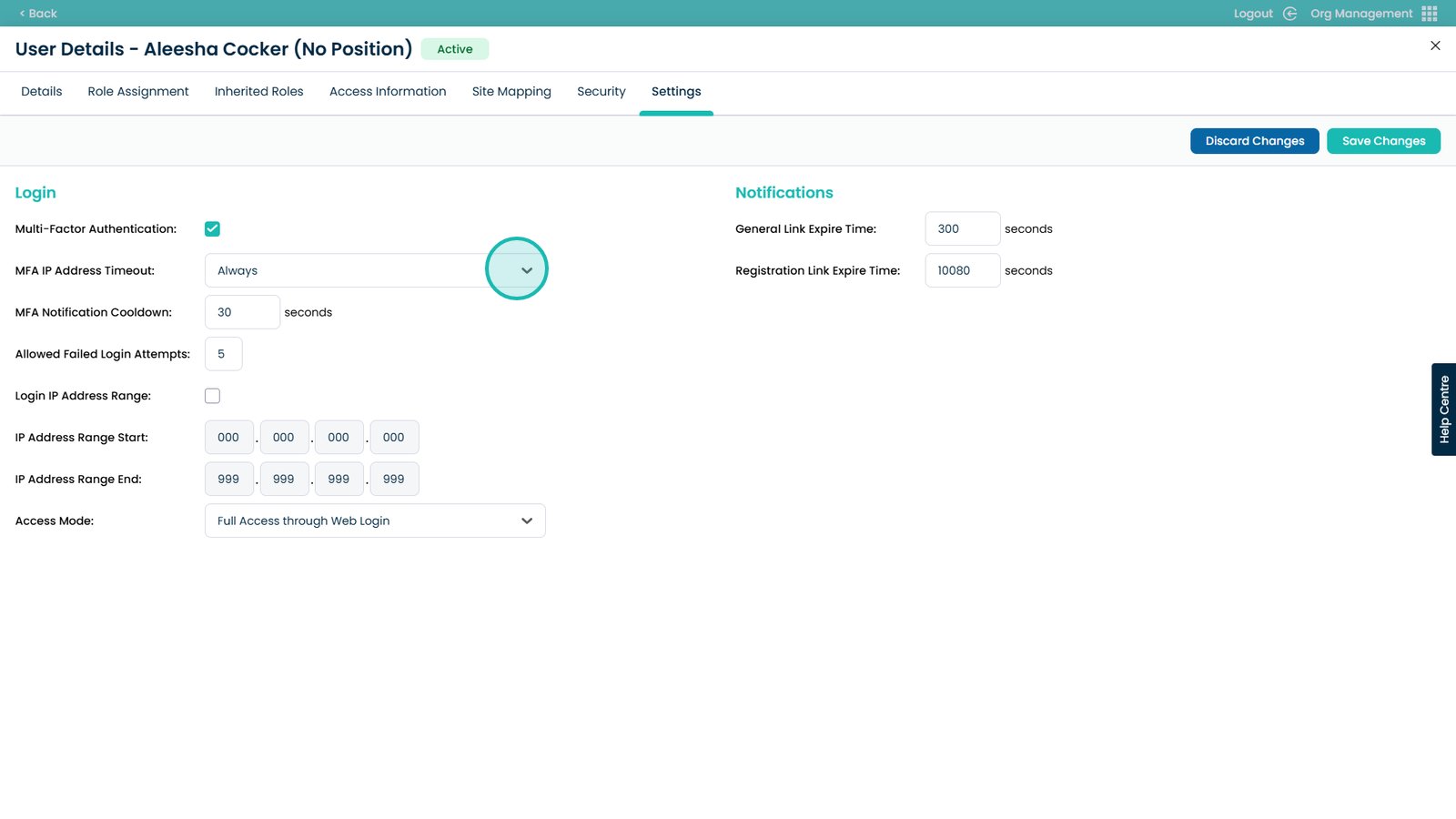
You can set a timeout with this drop-down for the IP address the request comes from
In this box you can enter how long the user will have to wait before requesting another SMS
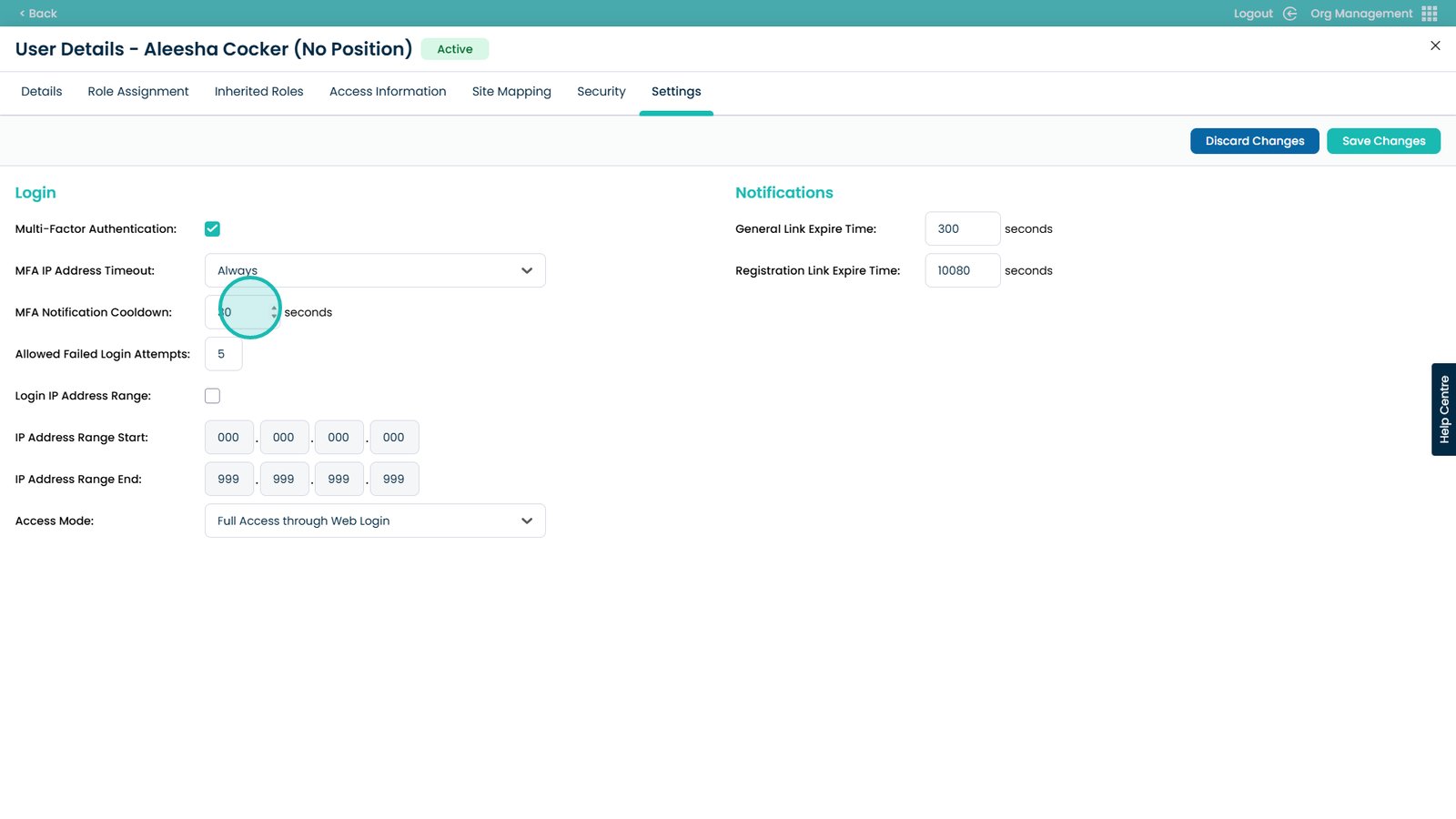
When happy with the settings, select Save Changes
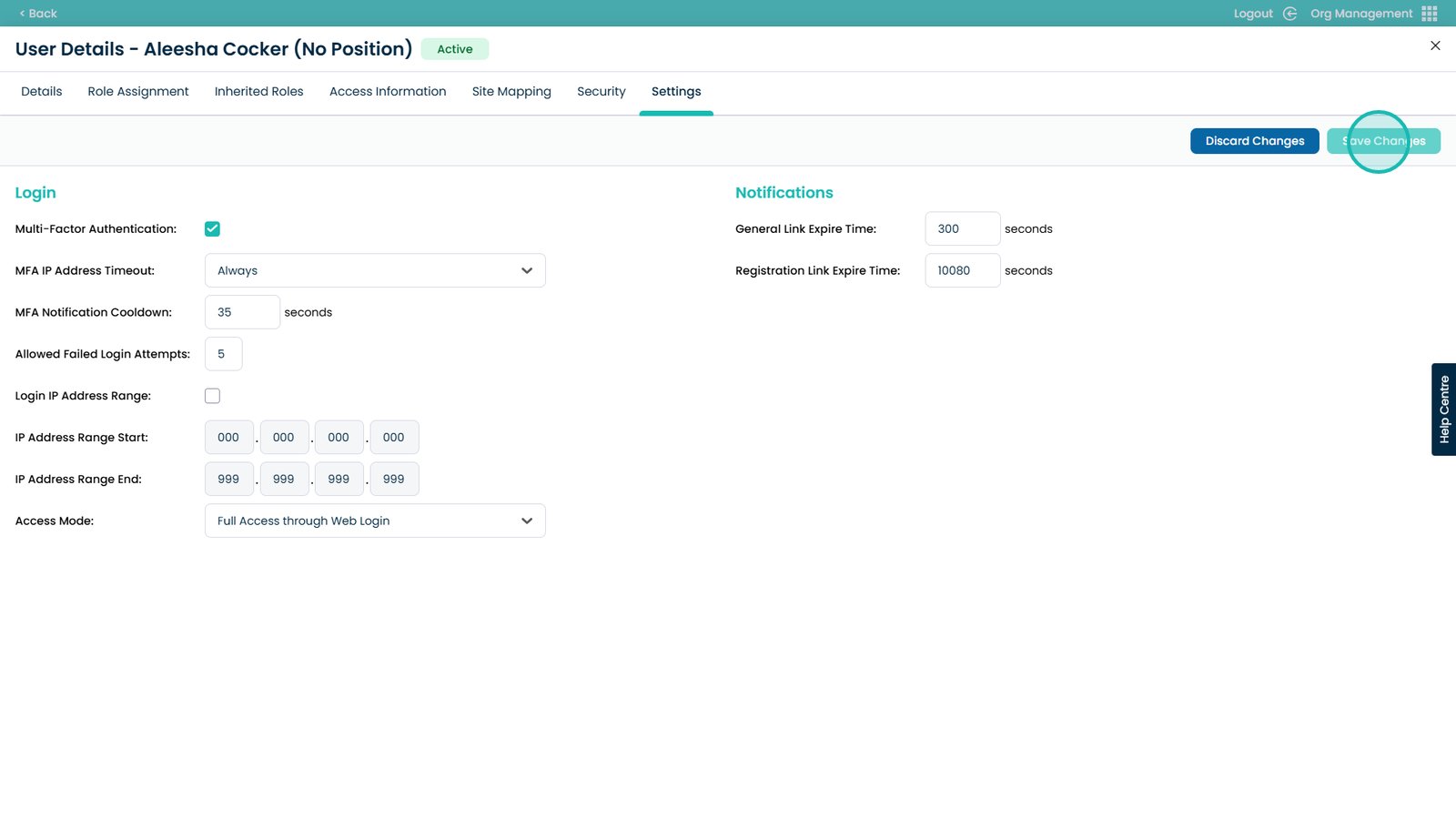
You have now enabled Multi-Factor Authentication