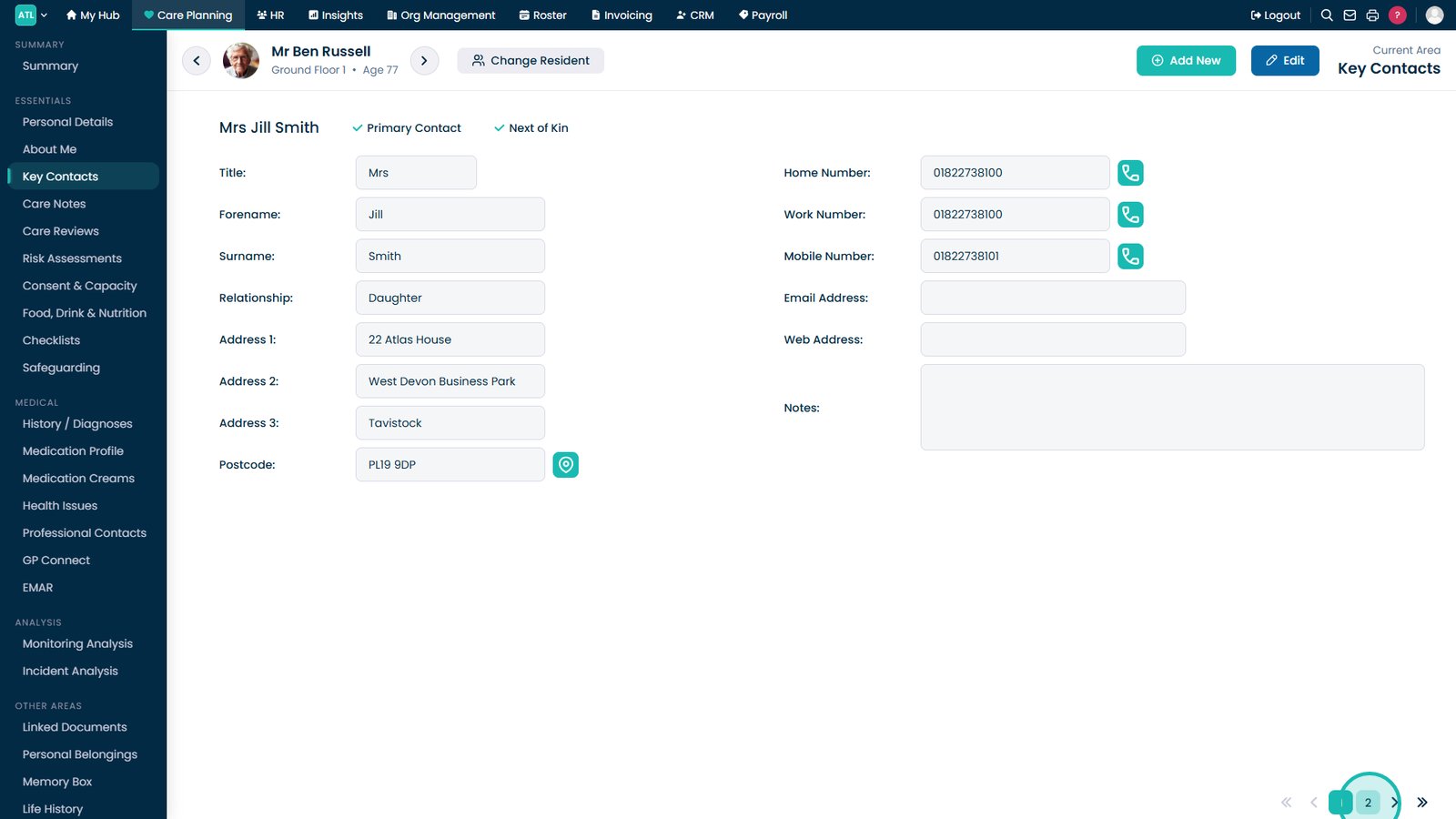
This guide explains how to view, edit, and add Key Contacts for a service user
Takes 5 minutes
For: Care Staff
Updated: 26th June 2026
Introduction
The Key Contacts section stores important contact information for each service user, including family members, representatives, and other significant contacts. Keeping this information up to date ensures staff always have access to accurate contact details when they are needed.
In this guide you'll learn how to:
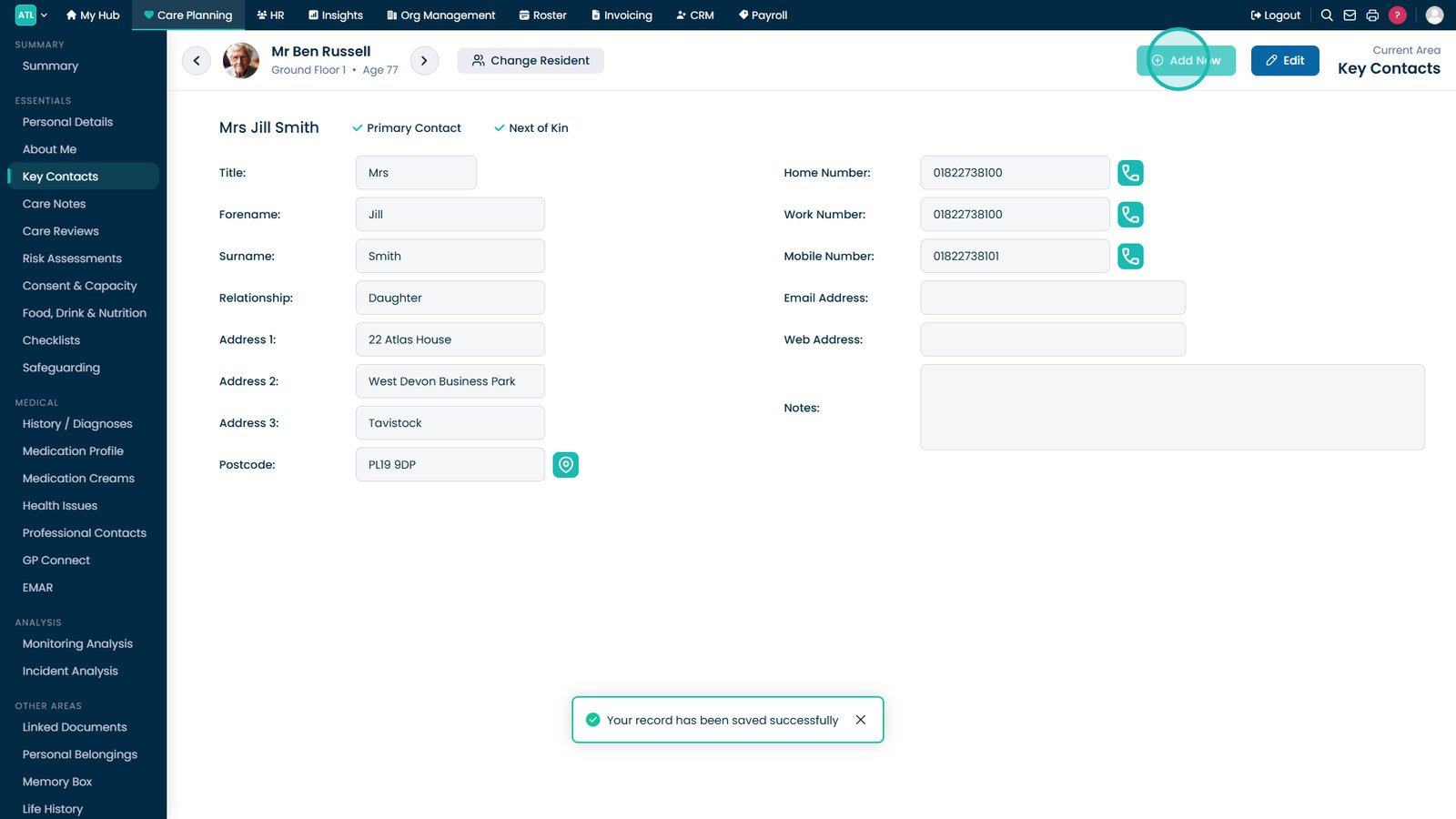
View existing key contacts
Edit contact information
Add a new key contact
Navigate between multiple contacts
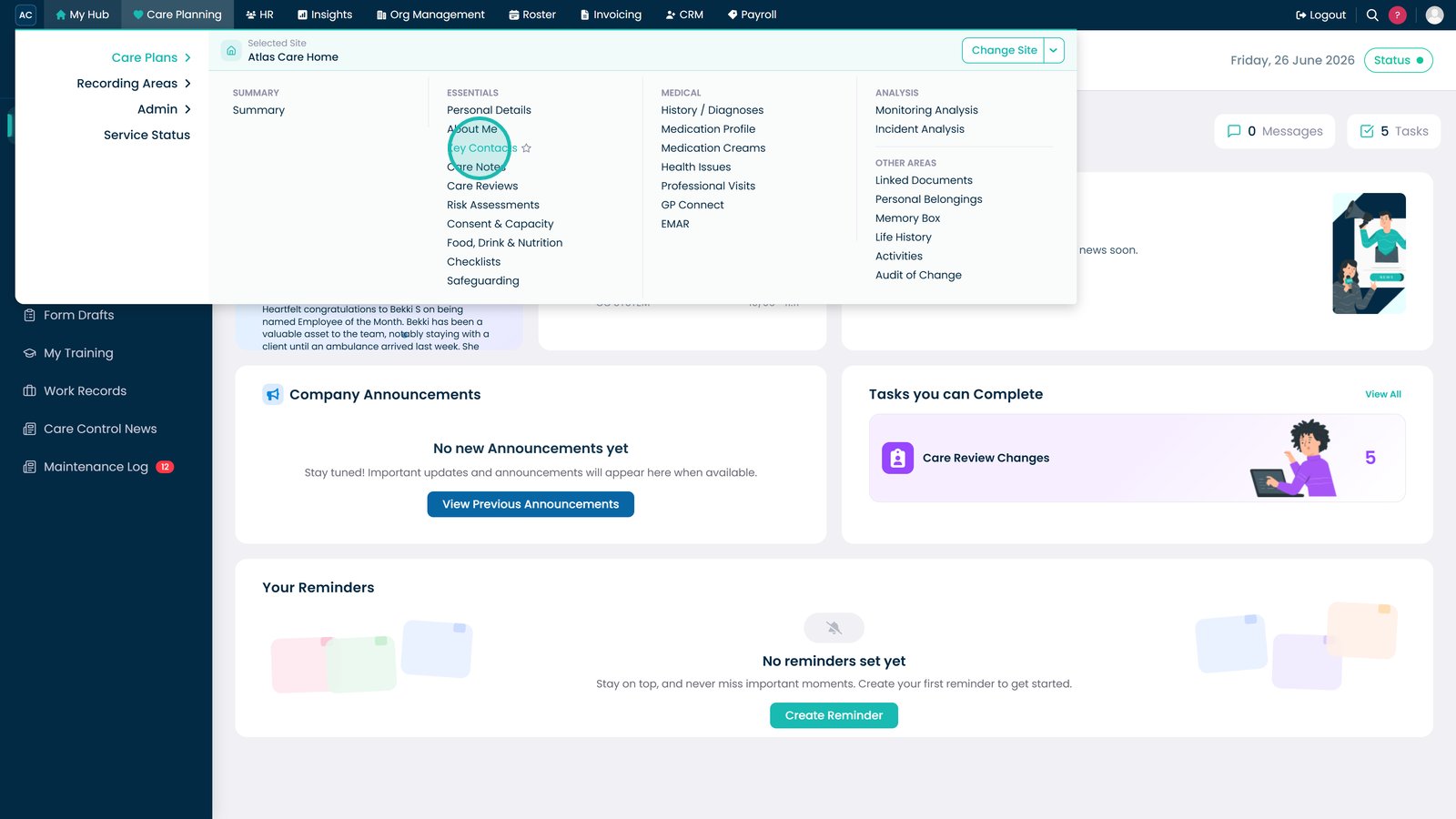
Open Key Contacts from the Care Planning menu.
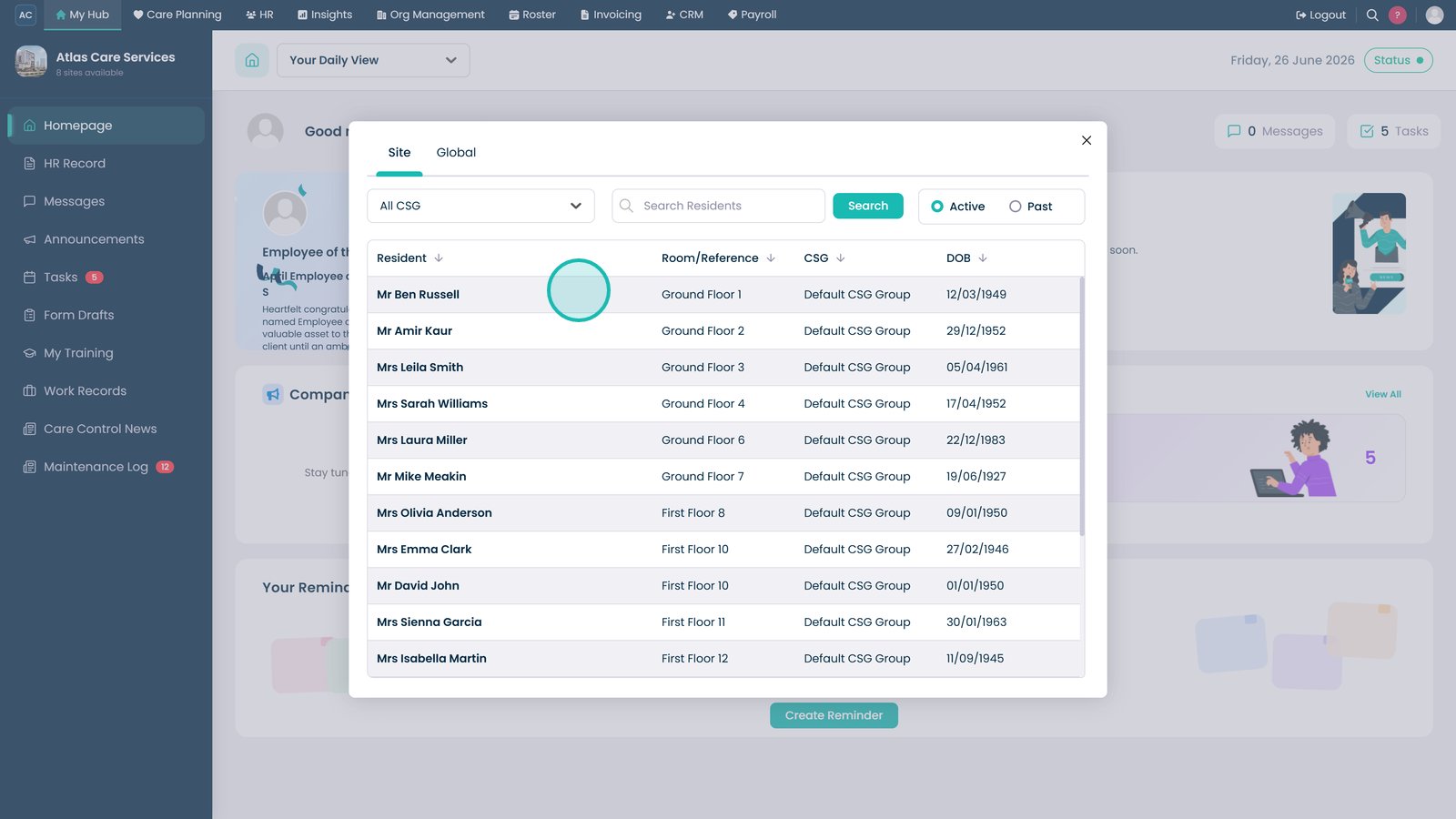
Select the service user whose key contacts you want to manage.
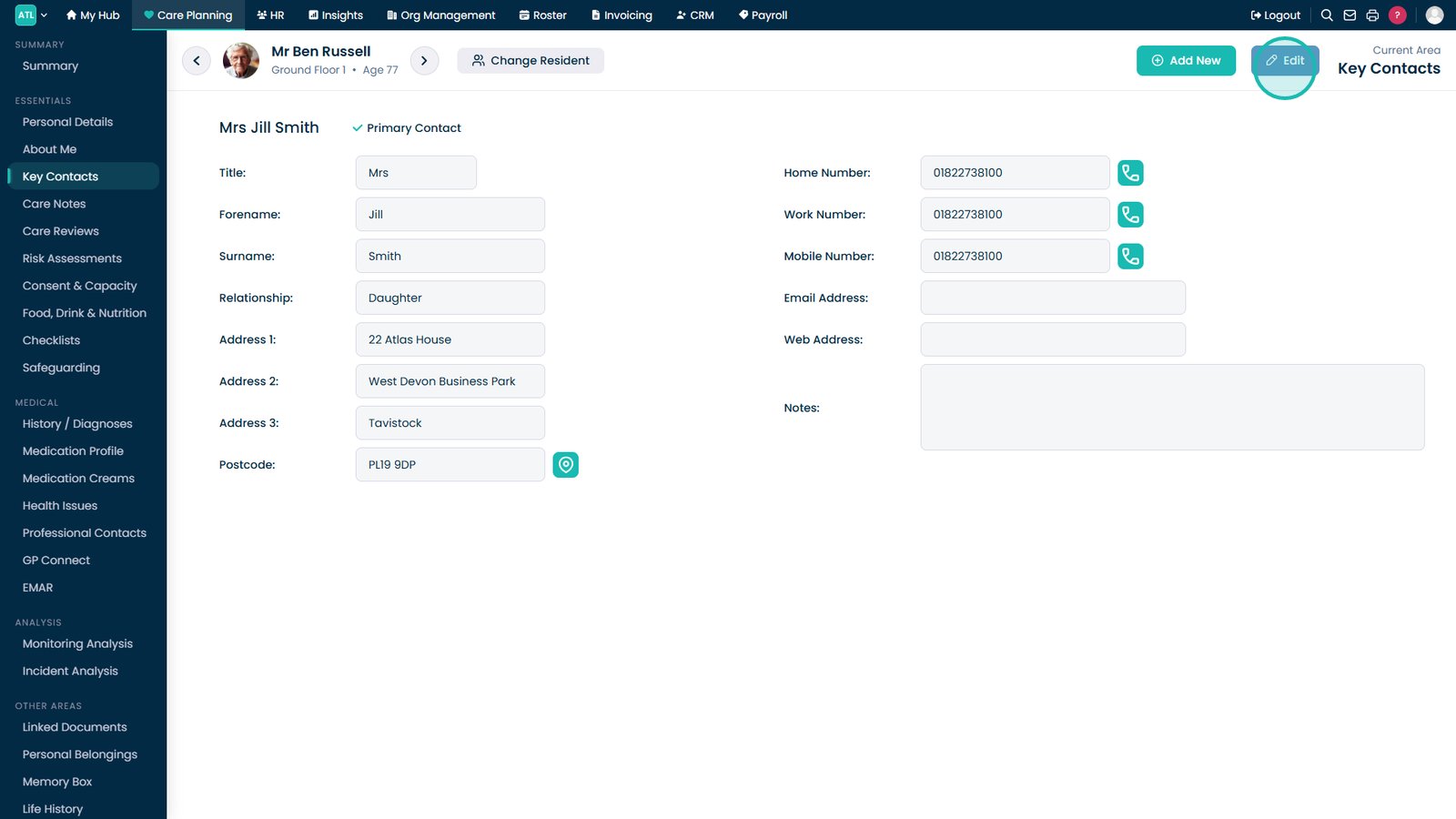
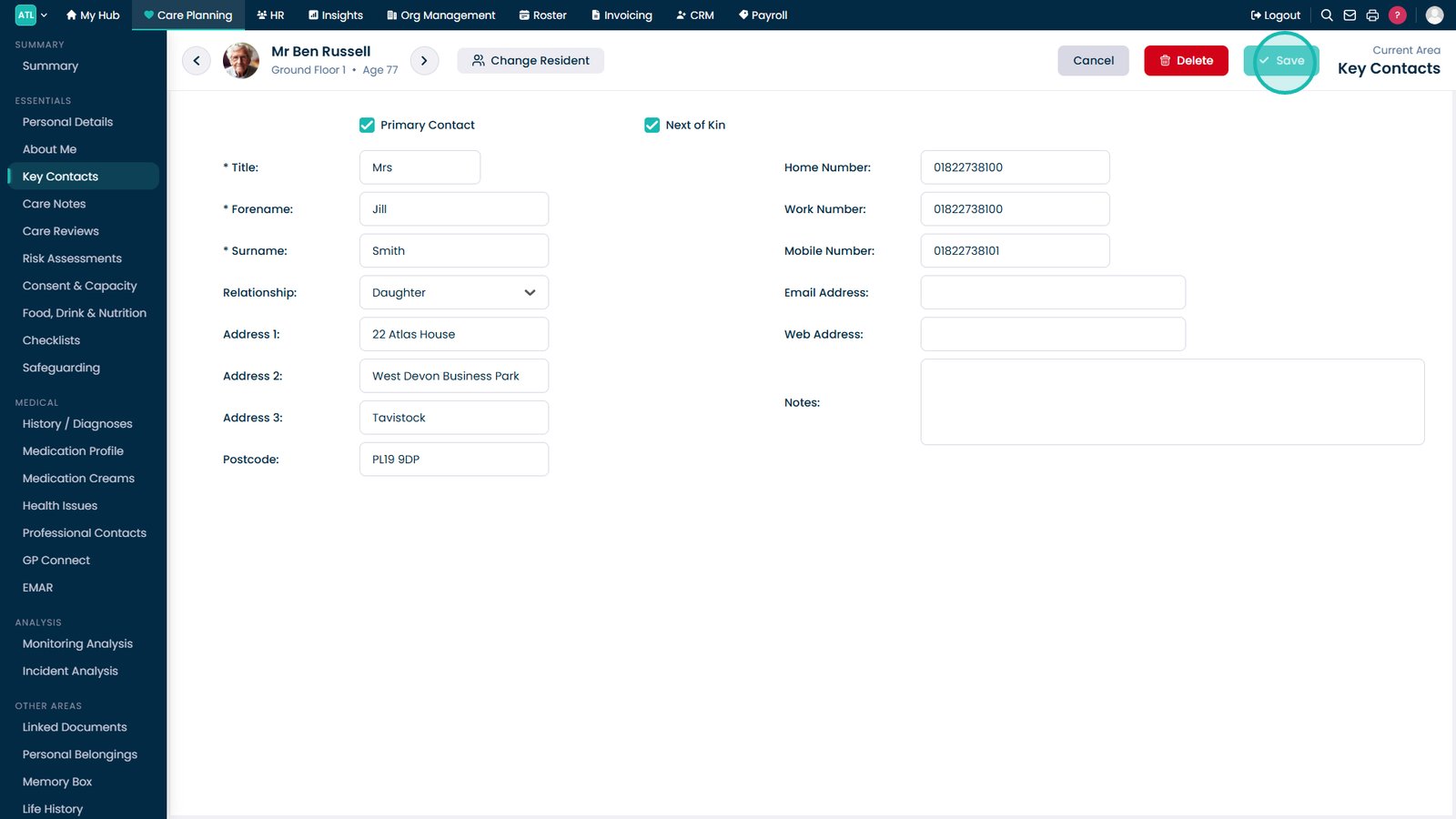
Select Edit to update the current key contact.
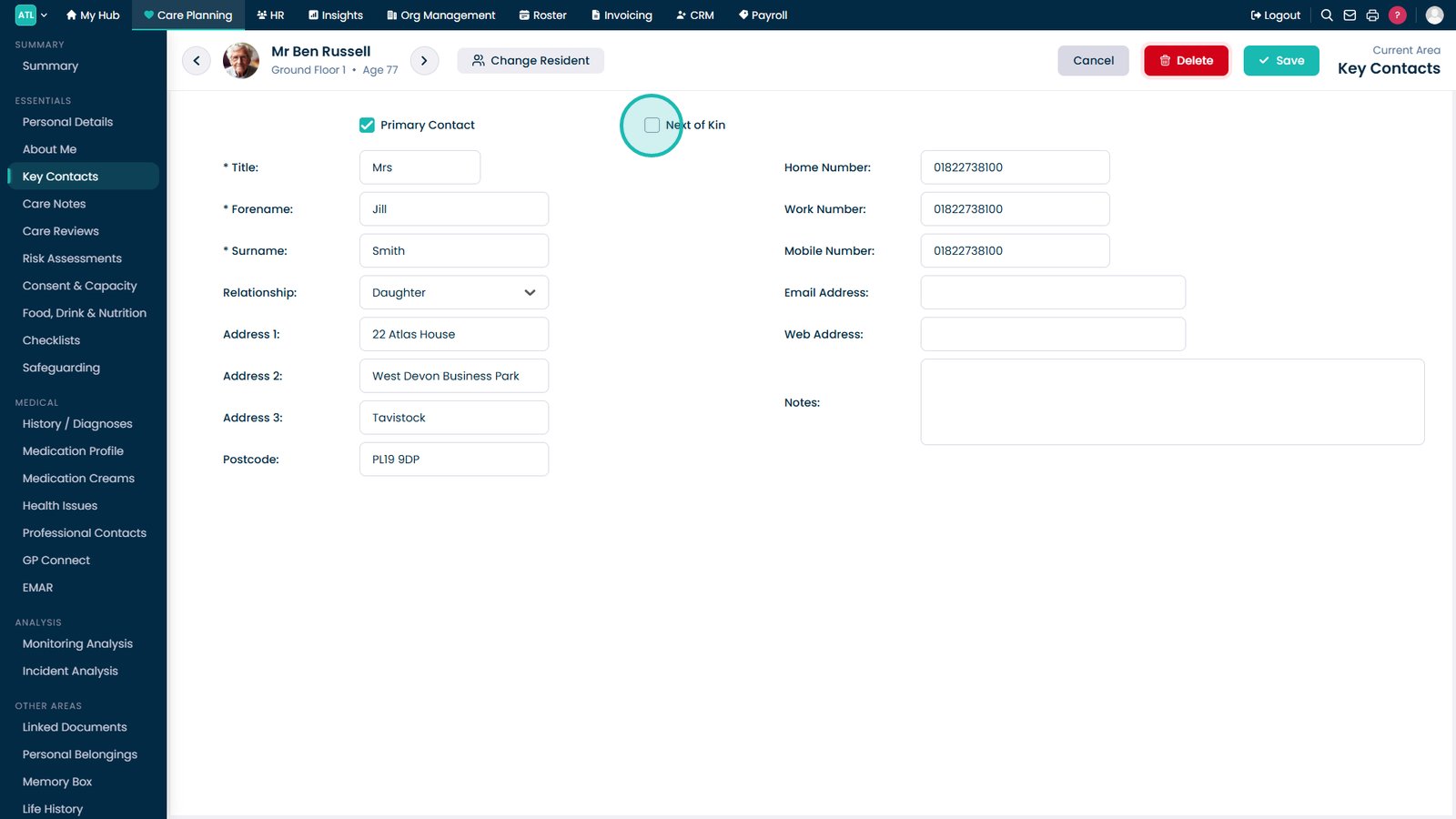
Update the contact information as required.
Select Save to apply your changes.
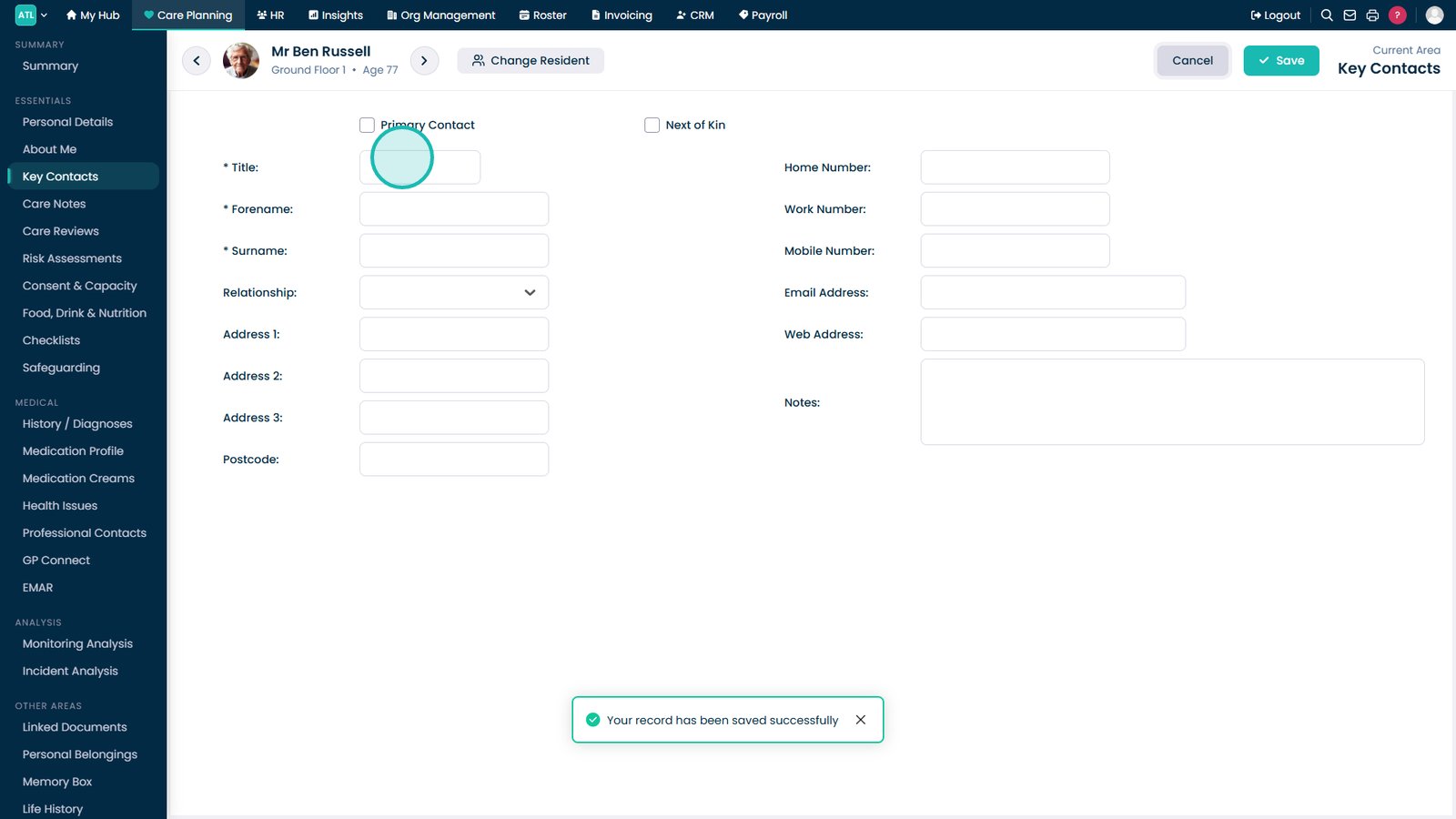
Select Add New to create another key contact.
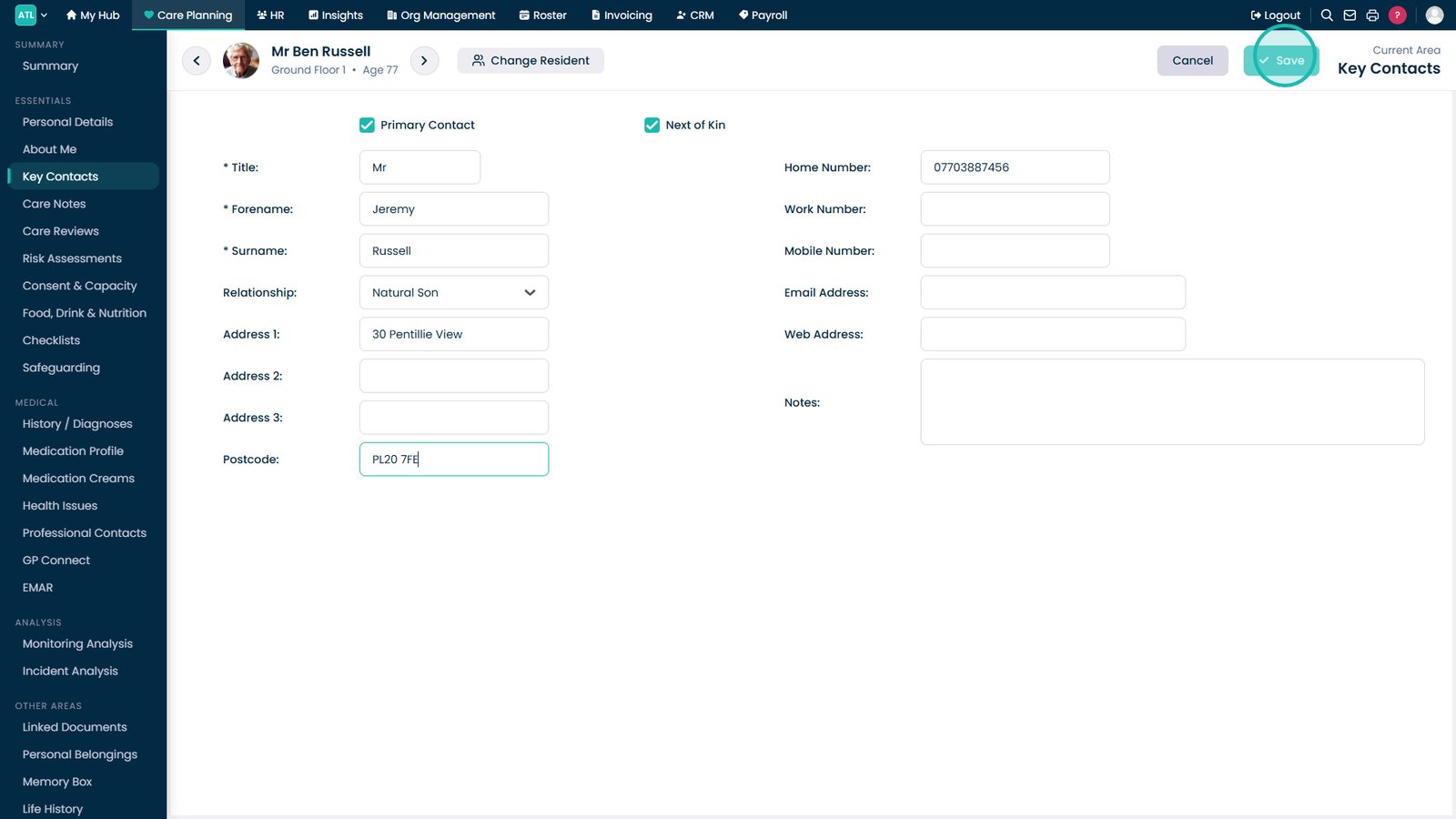
Complete the key contact details, ensuring all required fields are filled in.
Select Save to add the new key contact.
Use the navigation arrows to move between the service user's key contacts.
Top tip
Fields marked with an asterisk (*) are mandatory and must be completed before you can save a new key contact.