Bank Holiday Closure Notice: We will be closed on the 3rd April for the Easter bank holiday, so our customer service team will not be available on this day. If you need to get in touch, you can still use our customer contact form and we will get back to you as soon as possible. Even better, Margo will still be available on our phone lines to help with your queries whenever you need support. We hope you have a lovely Easter weekend 🐣
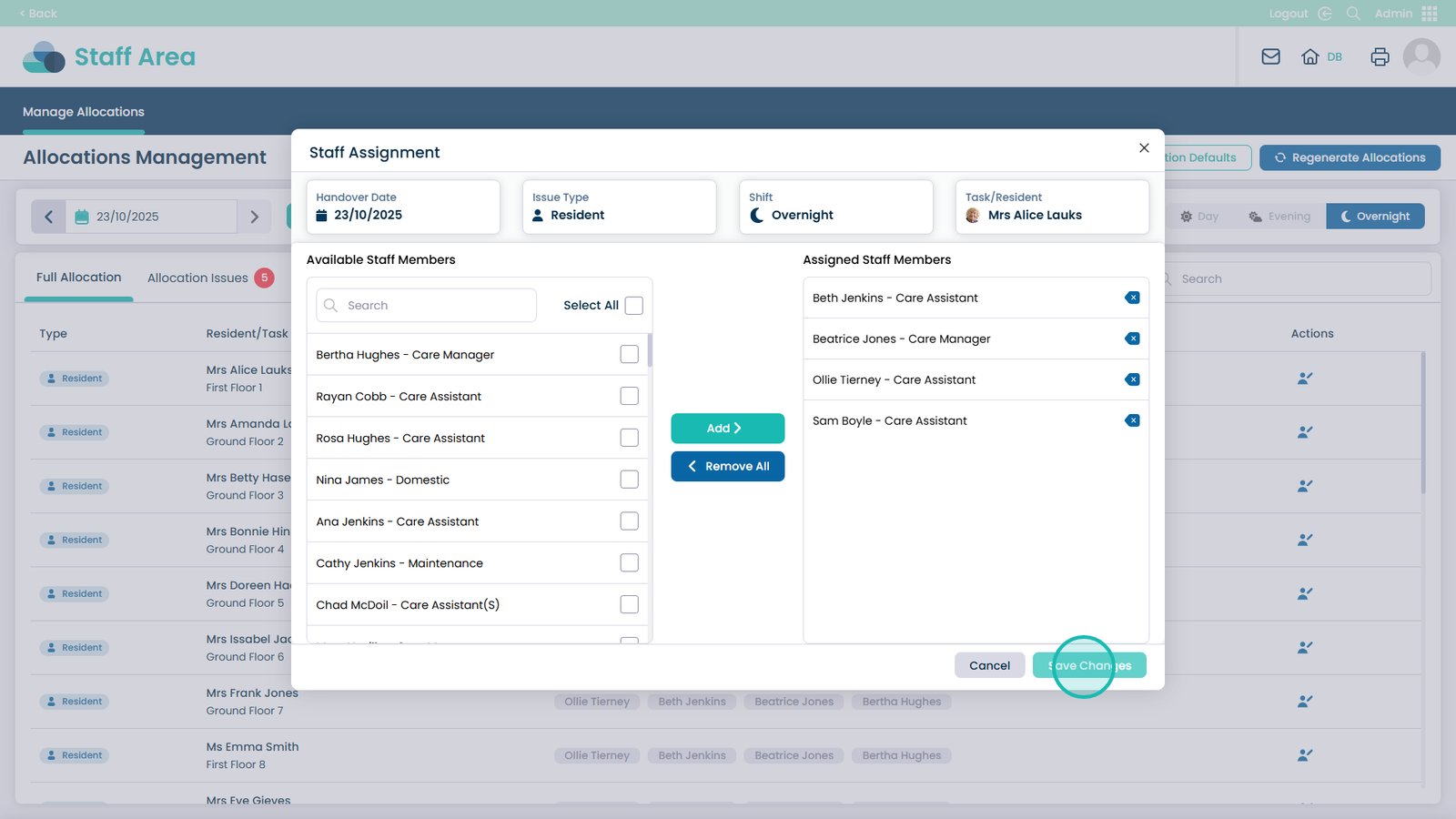
This guide explains how to edit or update staff allocations for a specific service user within the Care Control Admin App. It takes you through the process of accessing the Staff Area, navigating to Manage Allocations, and modifying assignments quickly and accurately. You’ll learn how to select service users, add or remove staff members, and save changes to ensure your care team is correctly assigned.
Following these steps helps maintain accurate staffing records, improves care coordination, and ensures that care delivery responsibilities are properly allocated. Keeping allocations up to date in the Admin App supports efficient workforce management and consistent quality of care.
Interactive Guide
Text based guide
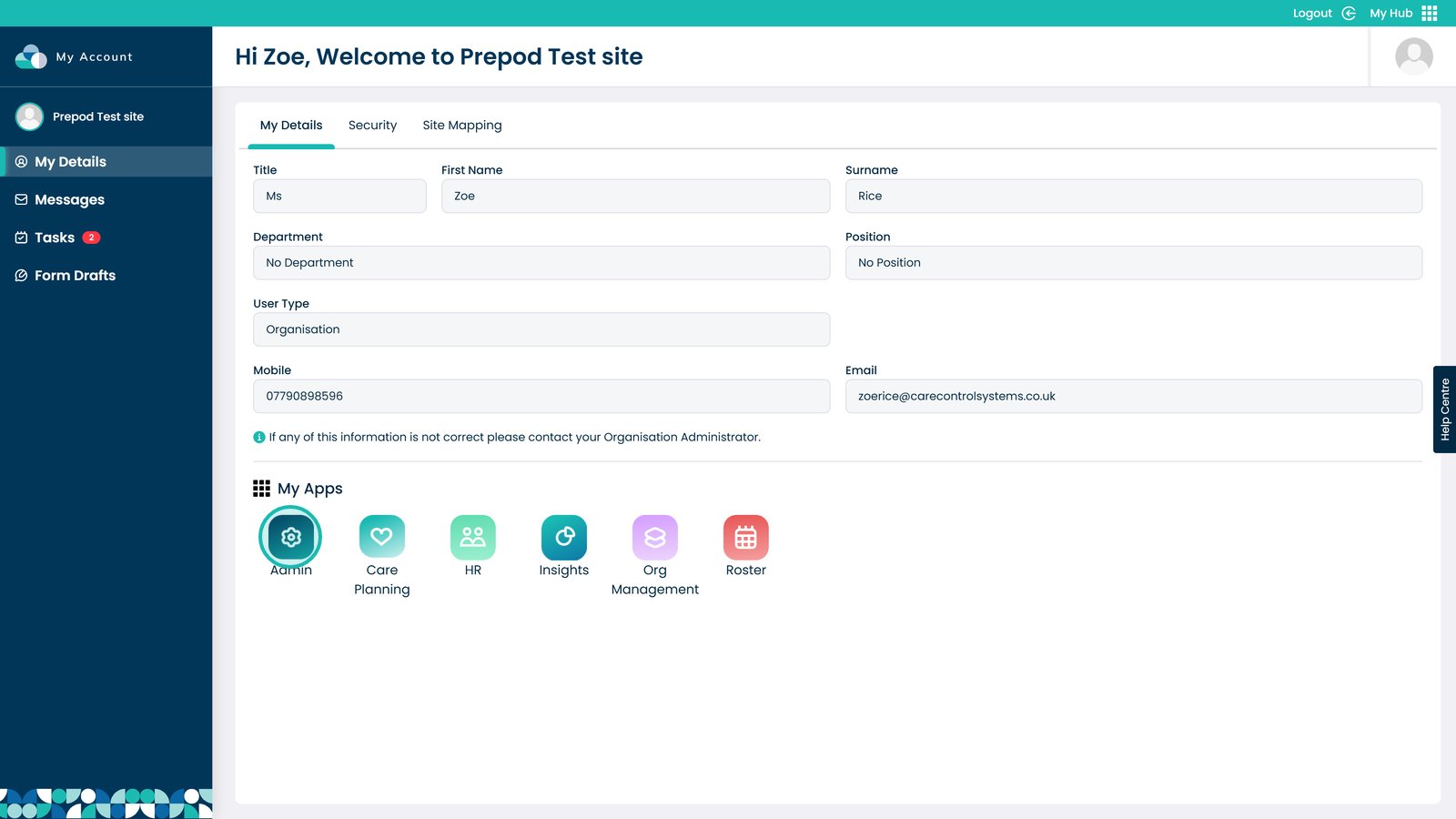
Enter the Admin App
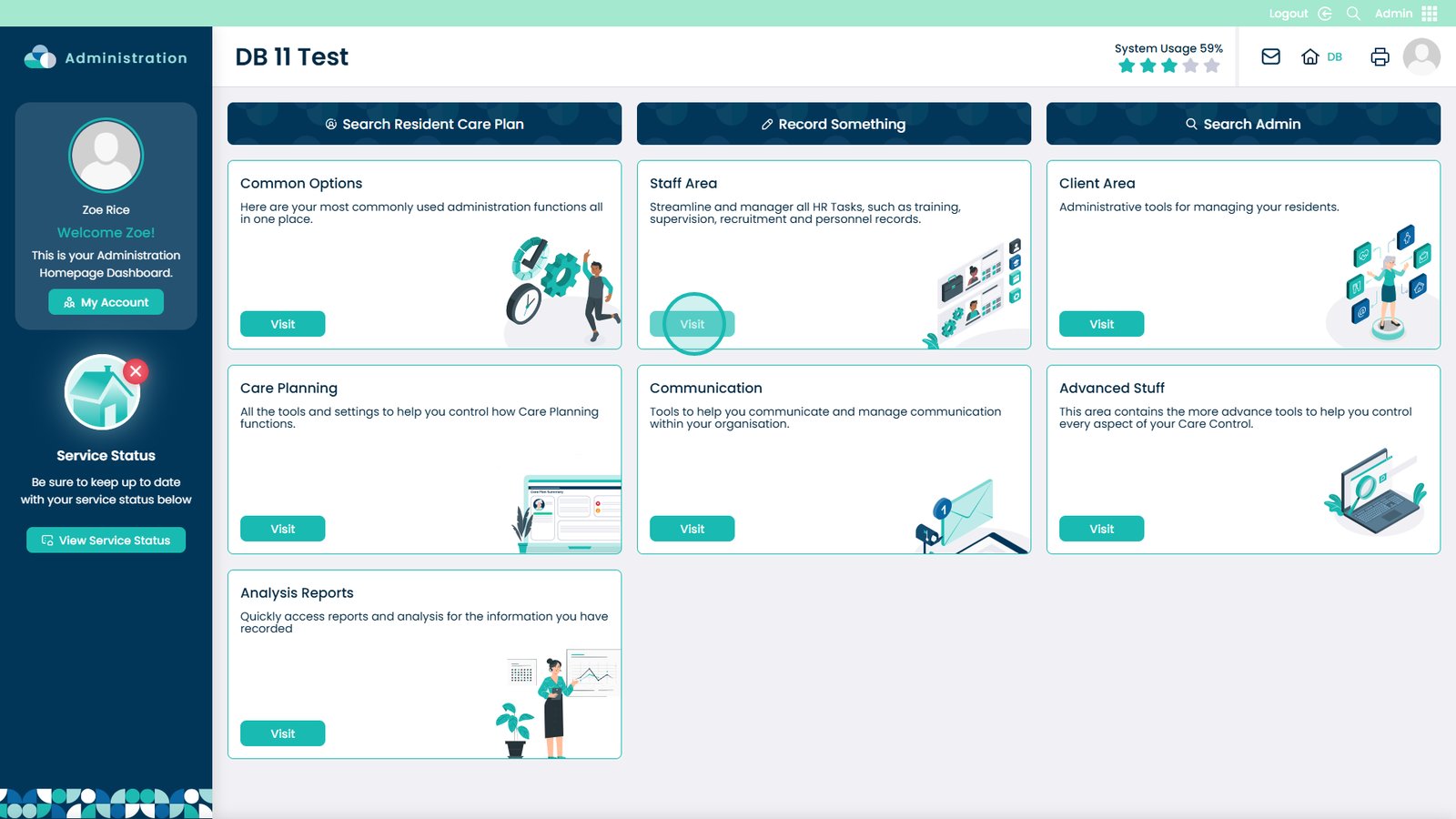
Select Visit under the Staff Area
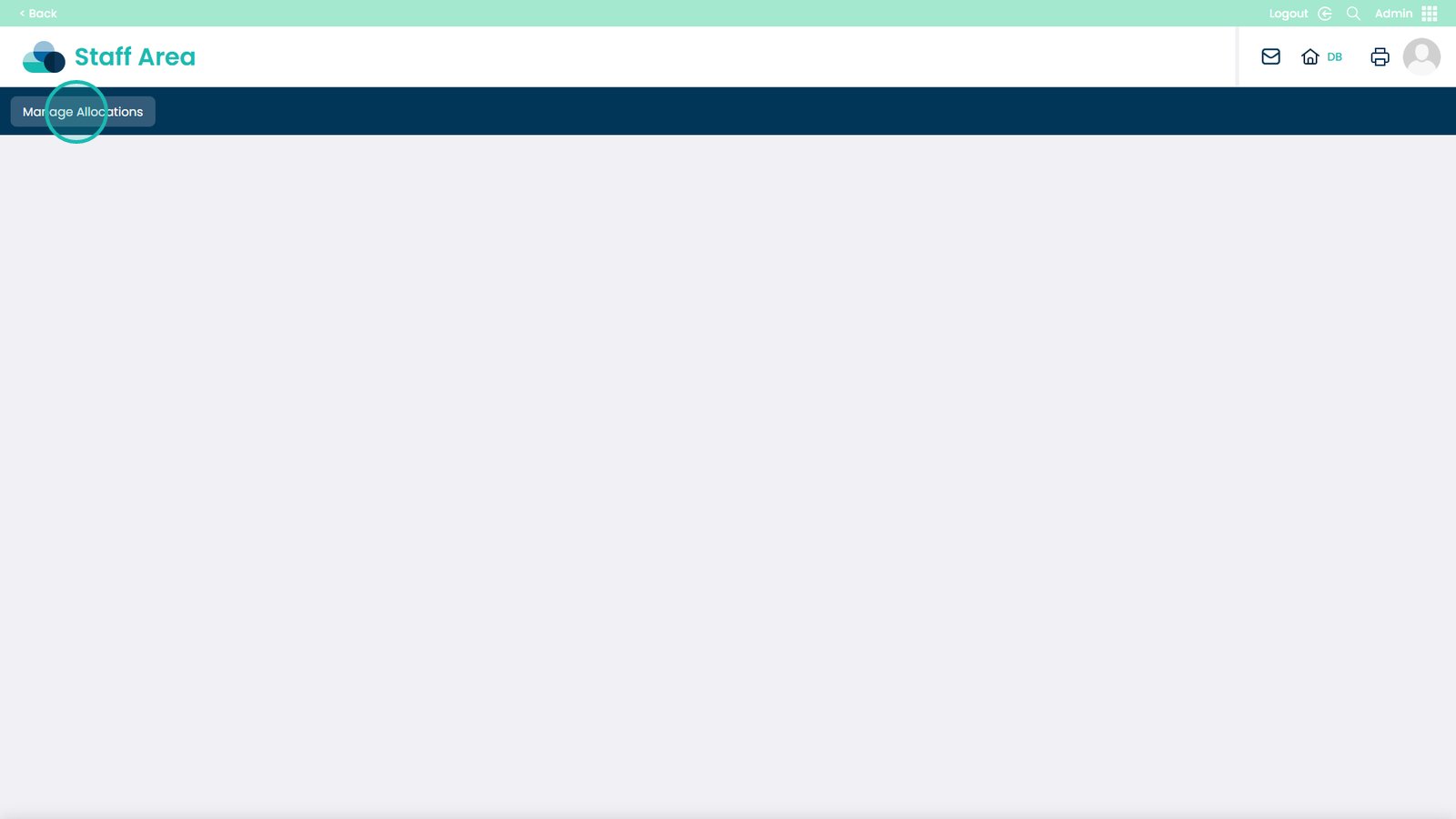
Choose Manage Allocations
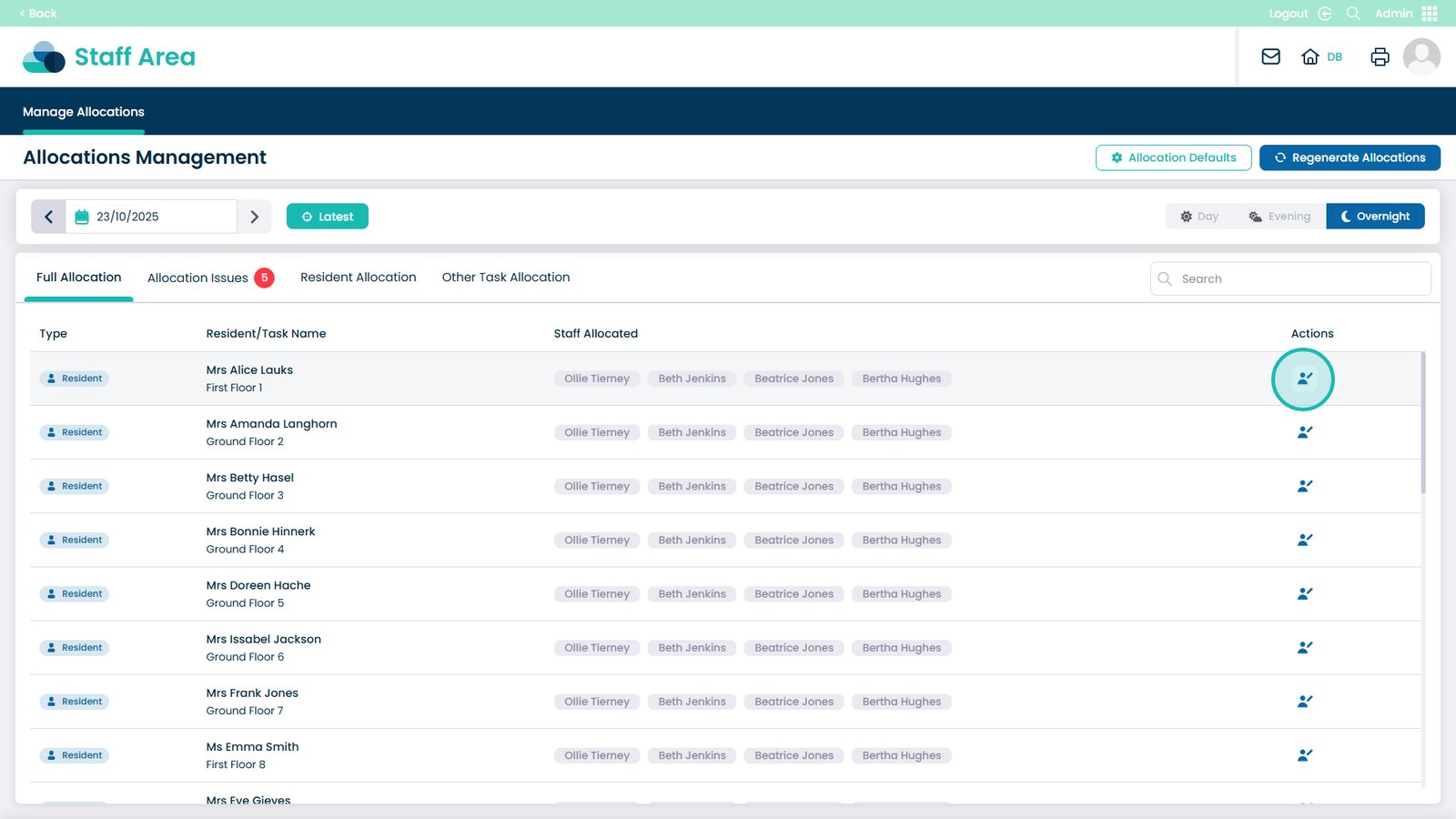
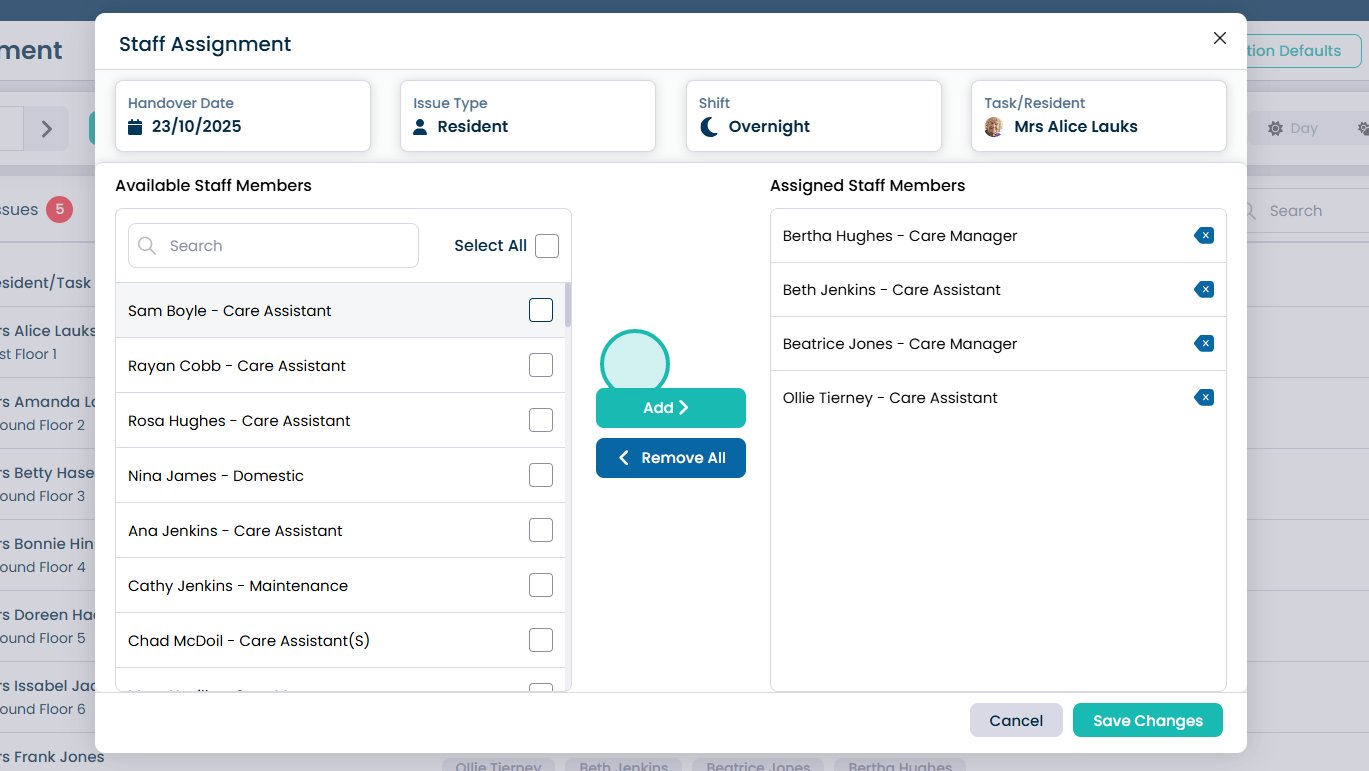
Click the edit icon next to the service user you want to modify the allocations for
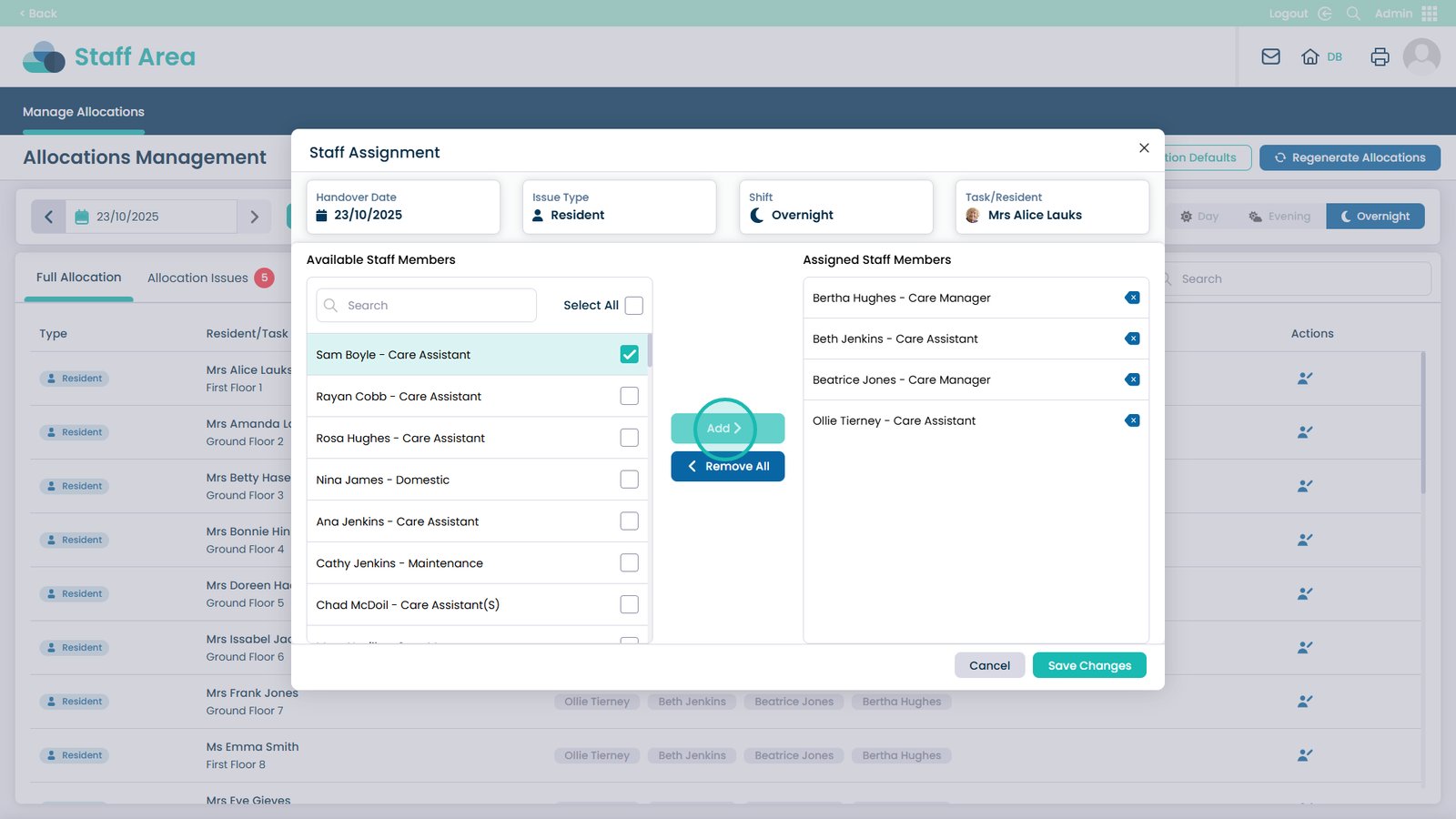
Select the staff member you want to assign to the service user. You can select multiple
Click Add to assign them
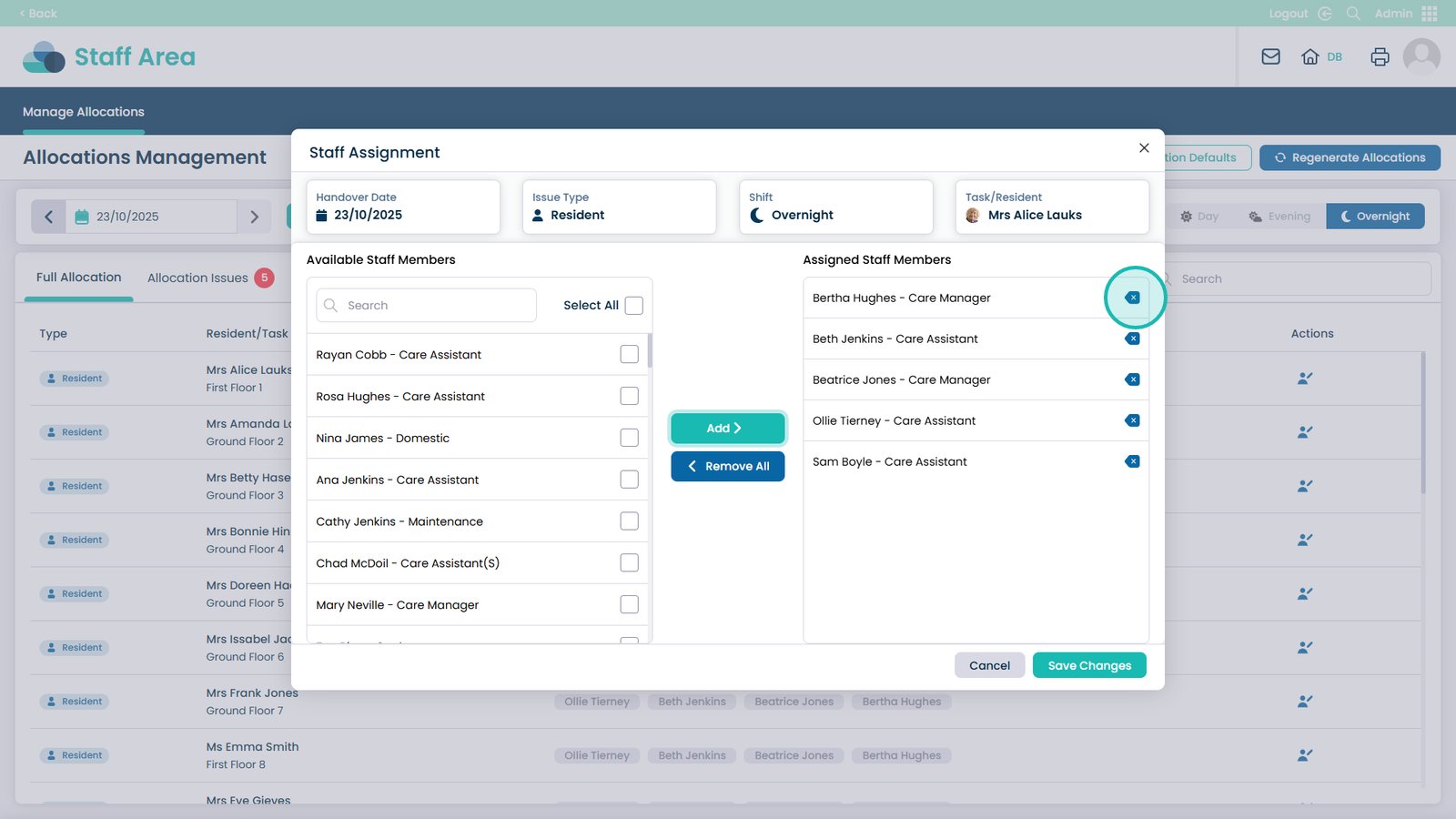
Click the X button next to a staff member to remove them from the allocations. You can also remove all