View Categories

How to record a Risk Assessment on Cloud

This guide explains how to complete a Risk Assessment within the Care Planning app, including selecting the assessment type, entering details, and saving the final results.

Completing risk assessments accurately is essential for identifying potential risks, supporting safe care delivery, and ensuring compliance with care standards. Following a structured process helps improve consistency, reduces the likelihood of missing important information, and ensures all risks are properly documented and managed.

By following this guide, you will learn how to:

  • Access and open the Risk Assessments section
  • Select and start a new risk assessment
  • Complete the assessment form with accurate information
  • Review the calculated risk score
  • Save and finalise the assessment

This ensures all risk assessments are completed consistently, recorded accurately, and support safe and effective care planning.

Interactive Guide

Text based guide

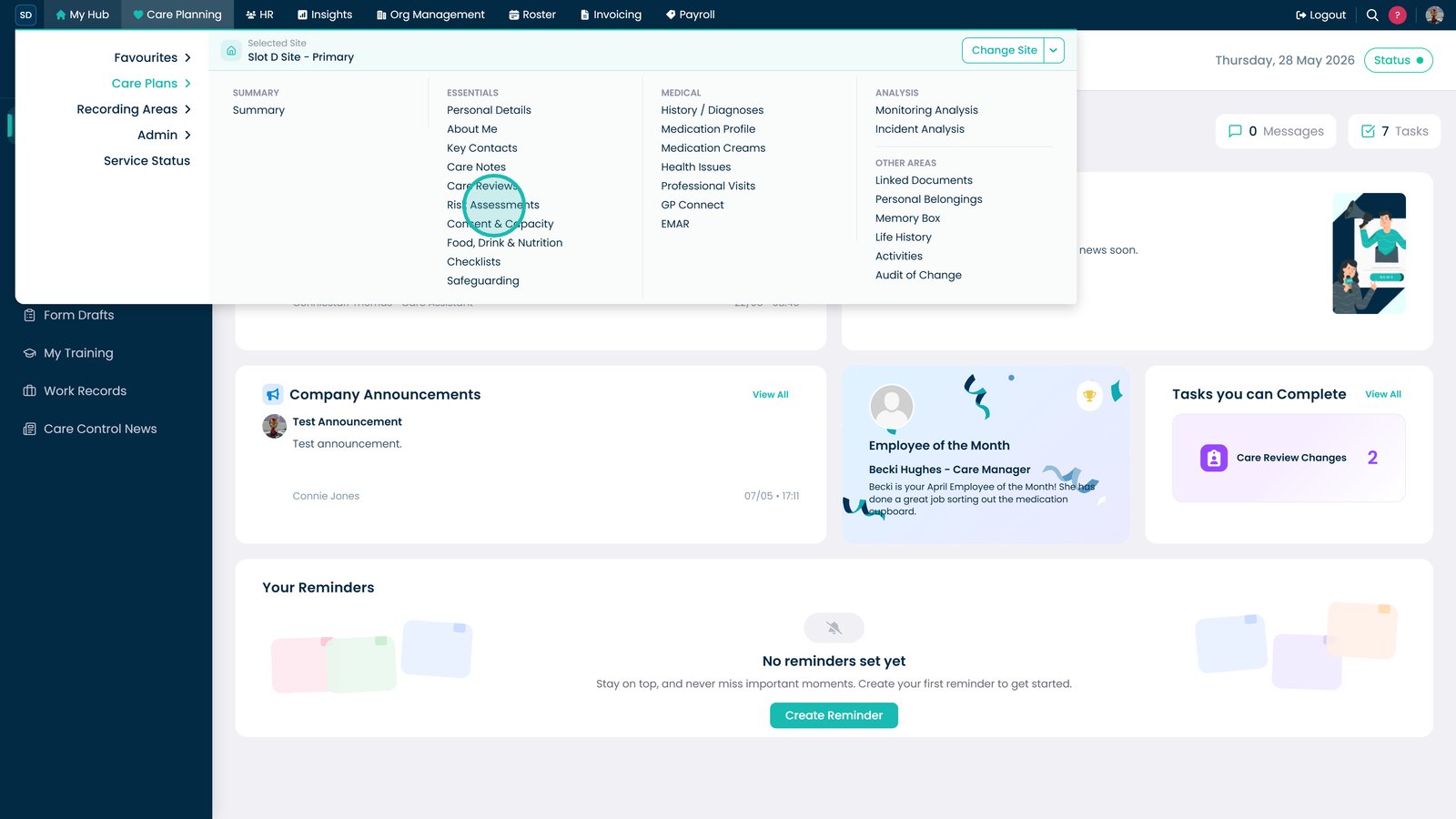
Open the Care Planning app to begin managing resident assessments

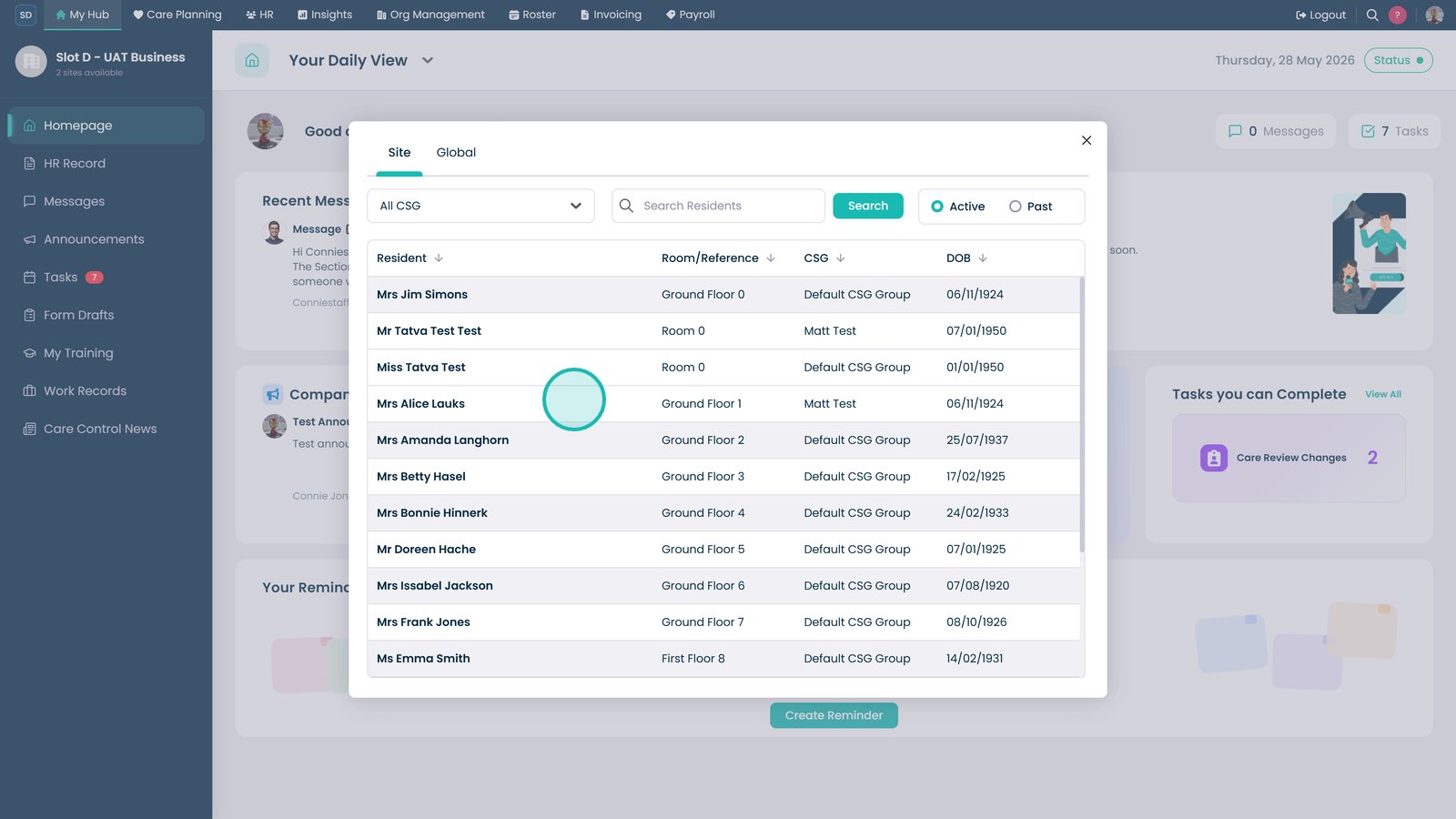
Select Visit to view and manage resident care plans

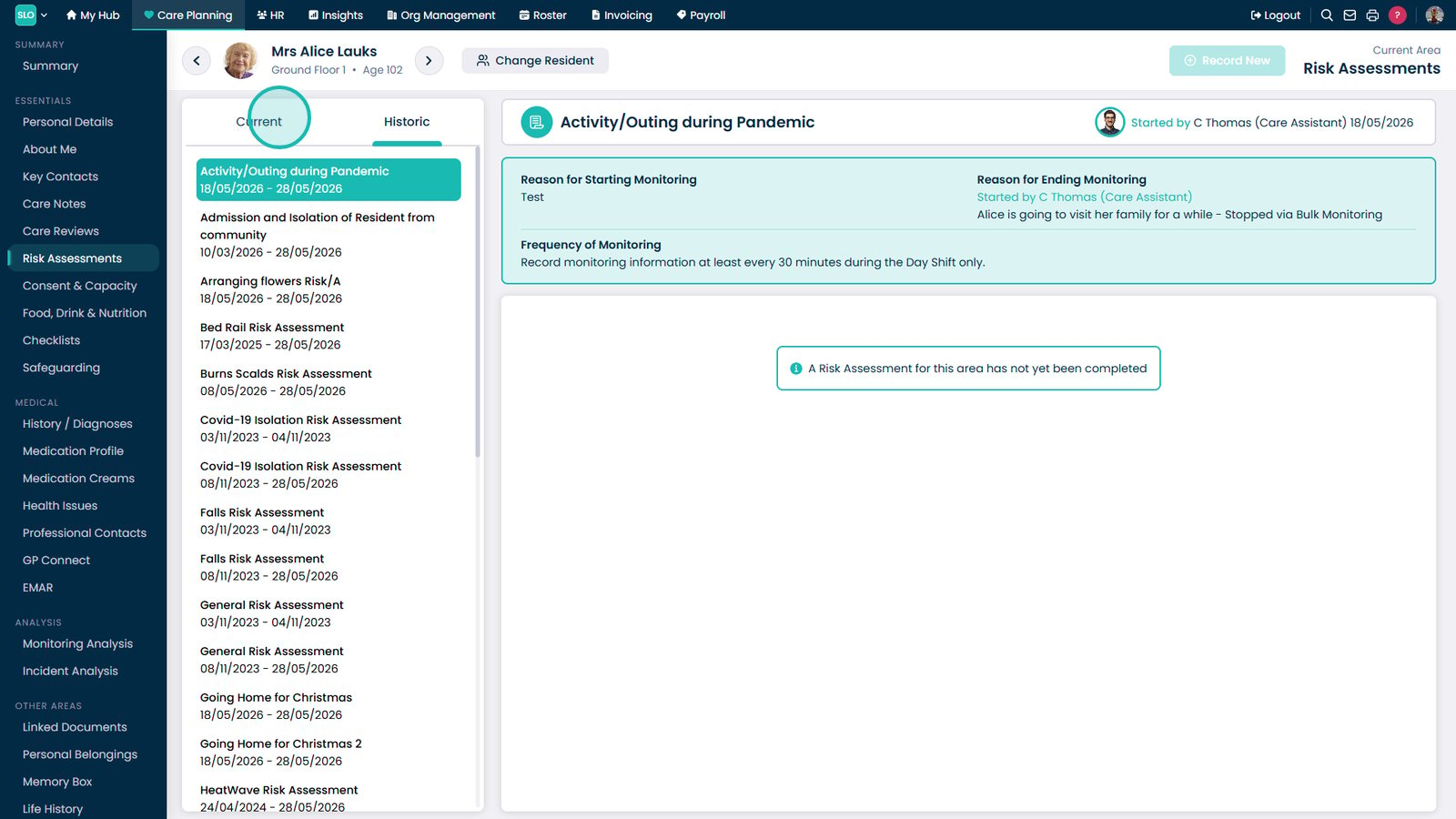
Open the Essentials menu to access additional care options

Select Risk Assessments to review or update resident risk information

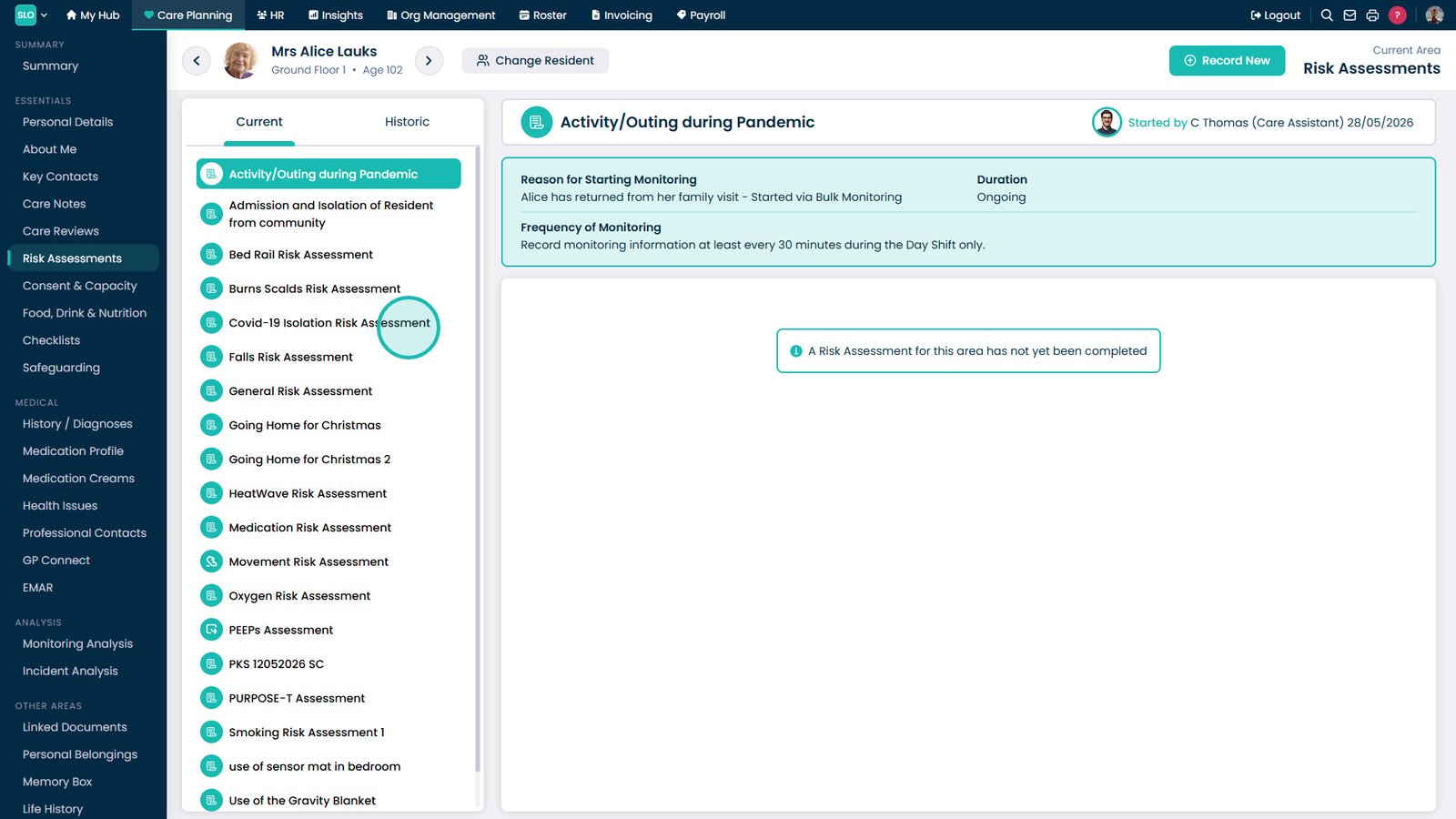
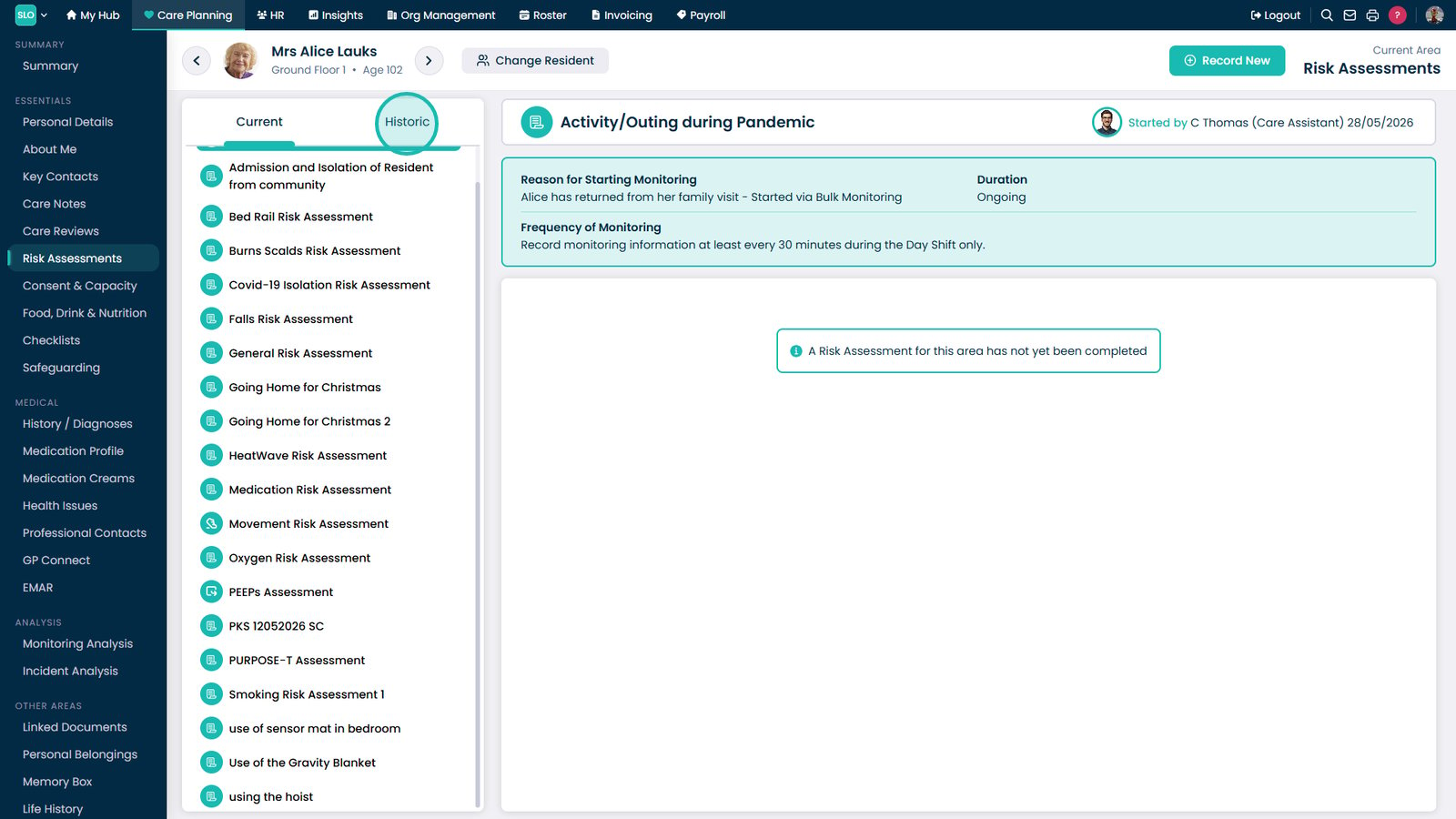
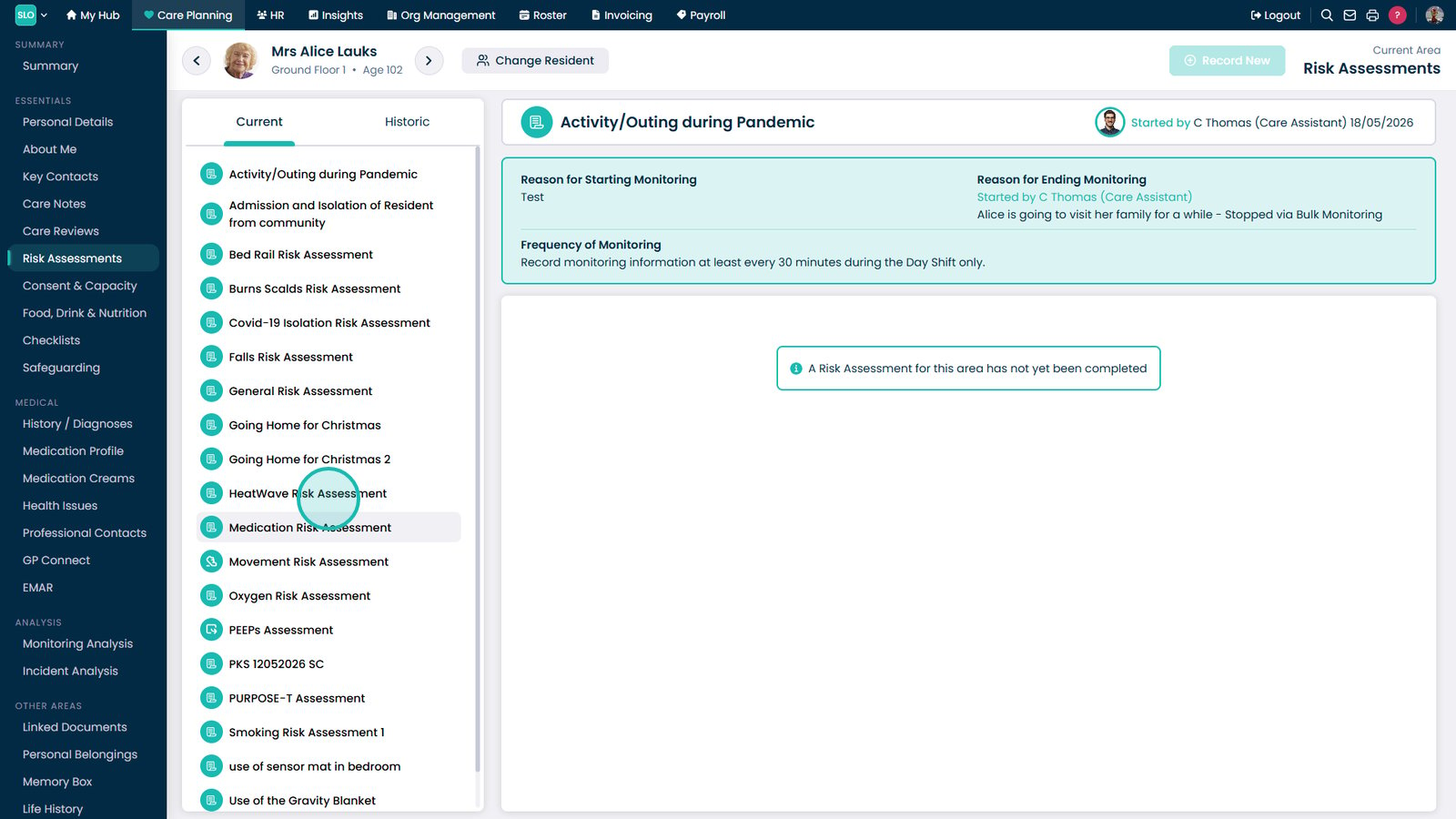
Select the risk assessment you want to complete from the list

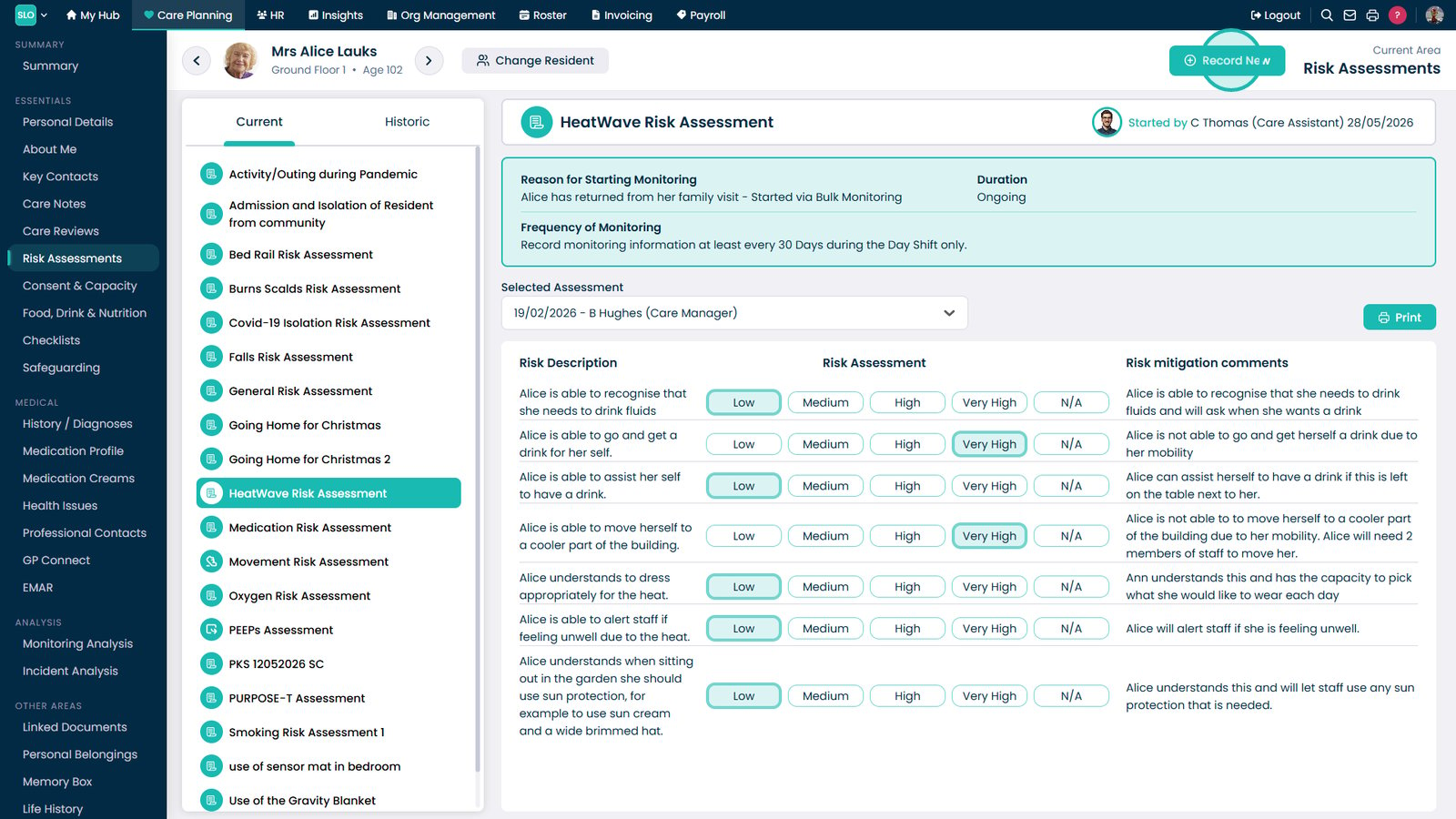
Select Record New Assessment to begin a new risk assessment

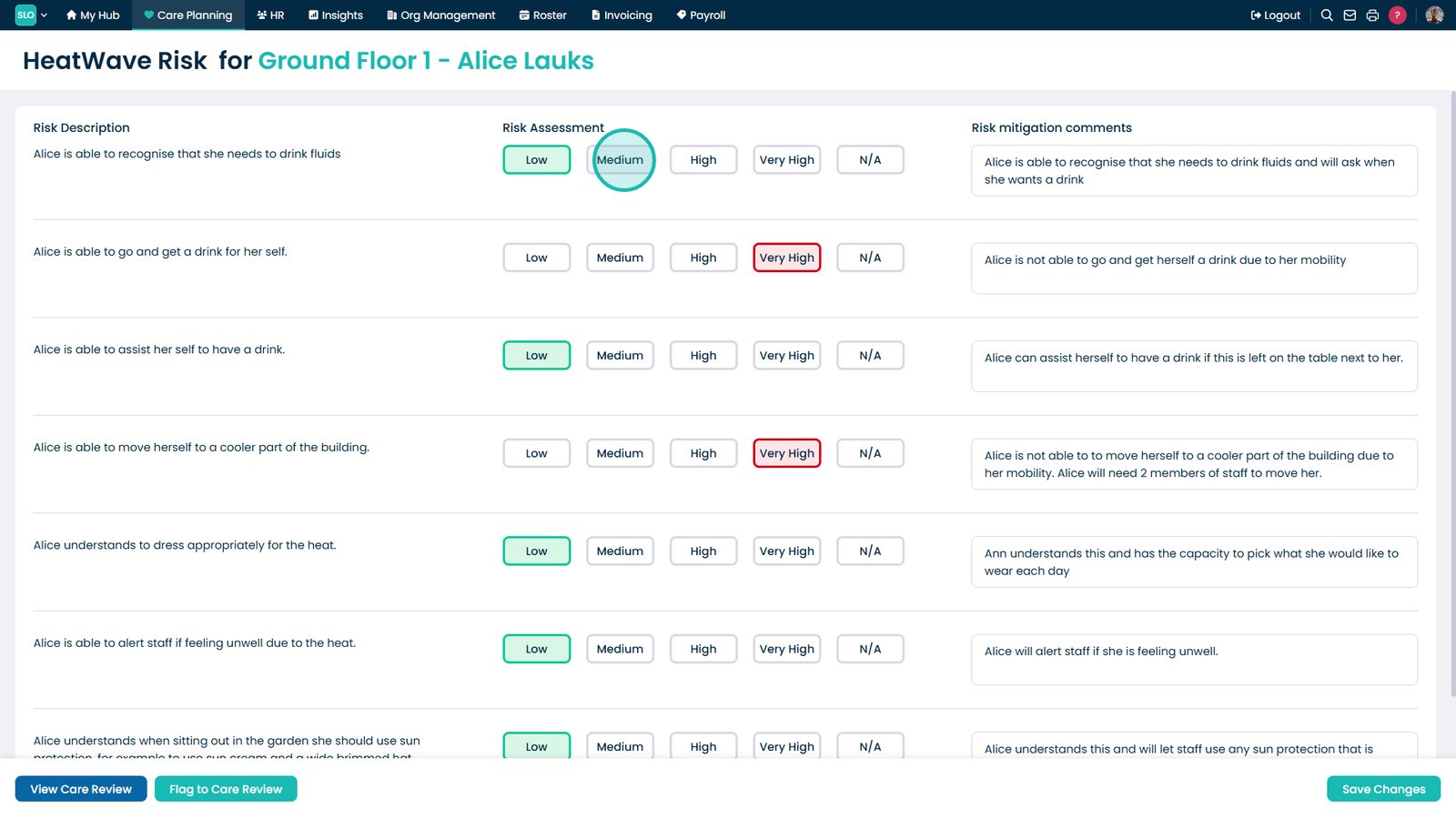
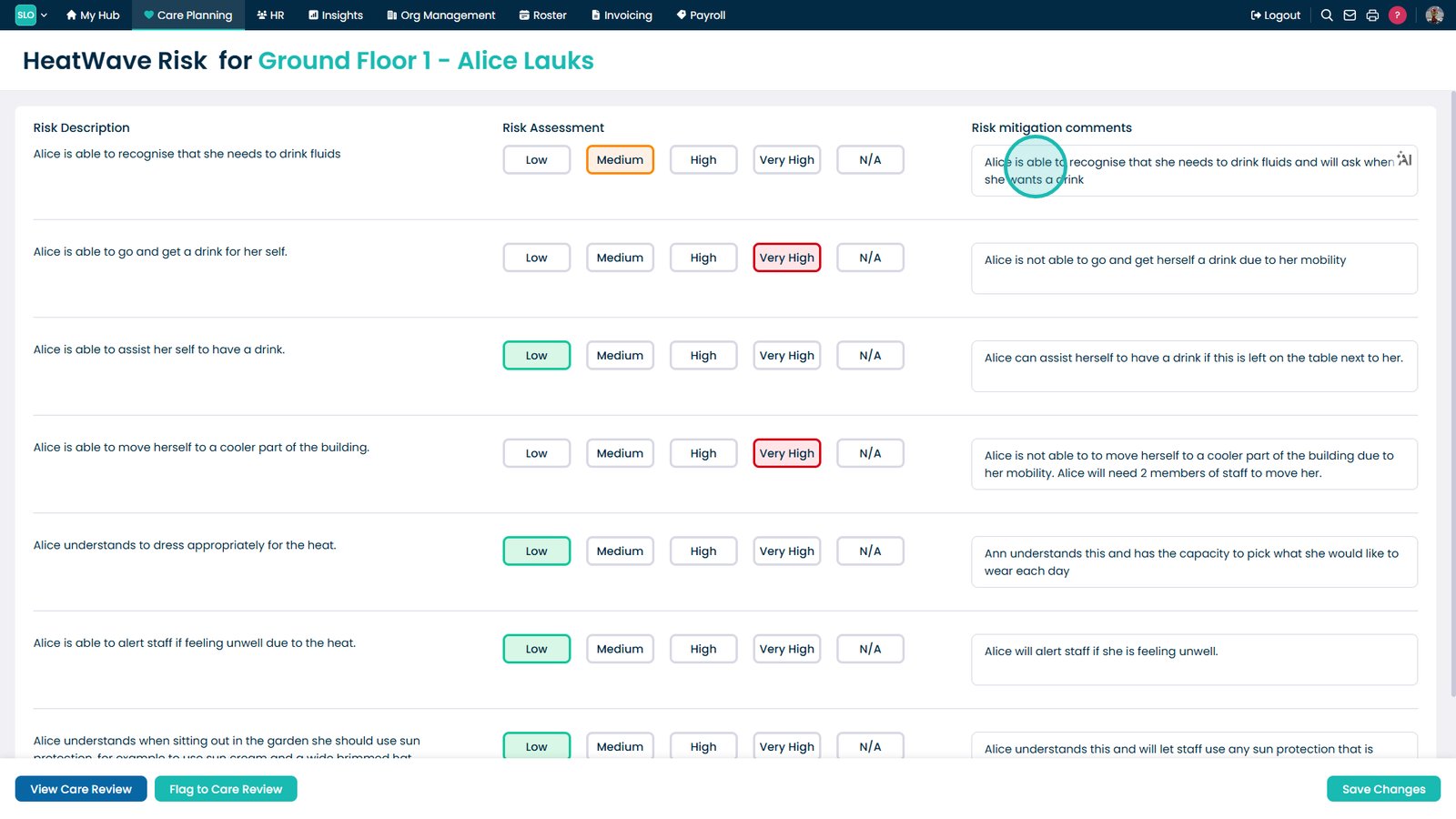
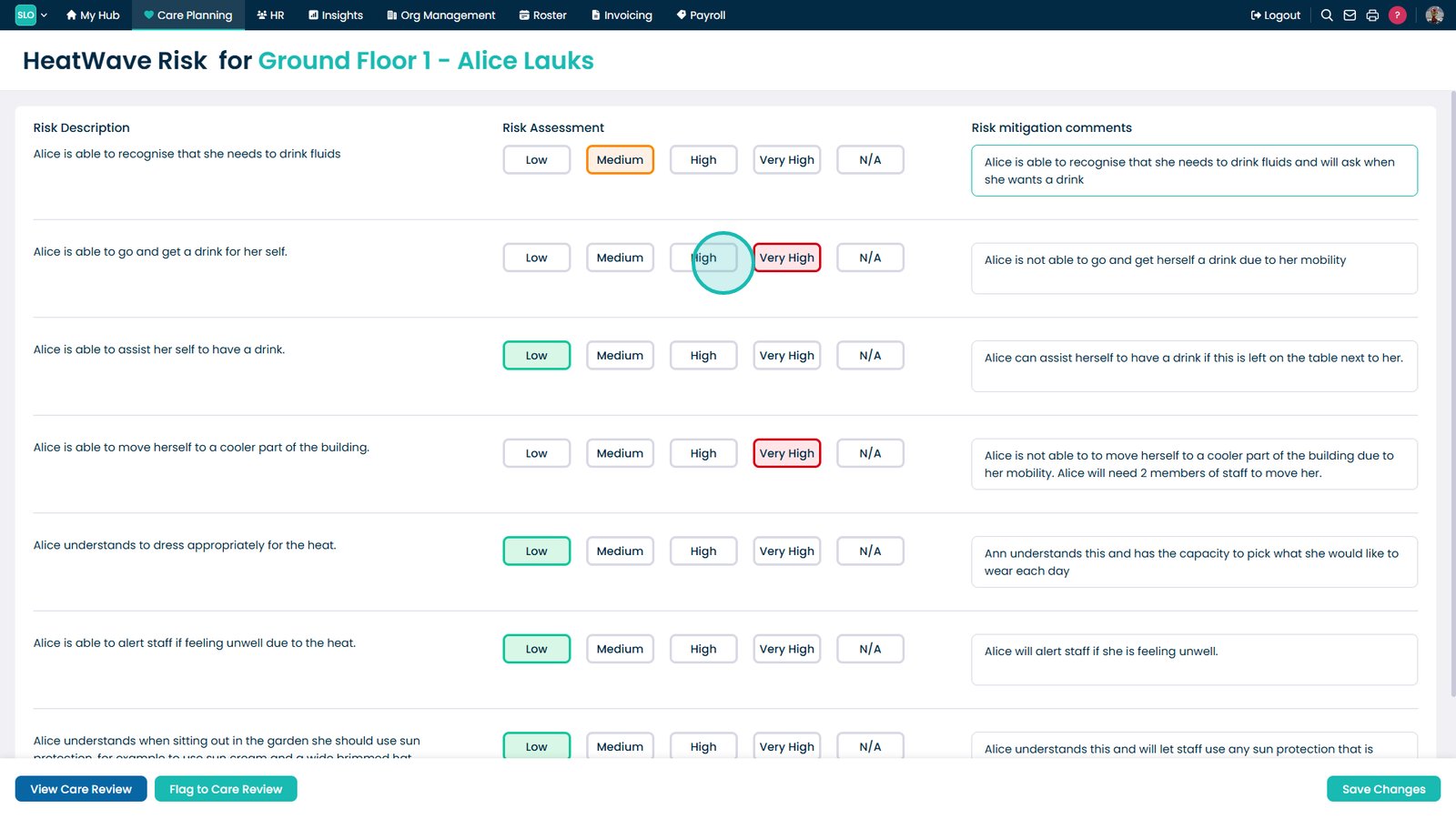
Complete the assessment form by entering accurate and relevant information

Review the calculated score generated from your assessment inputs

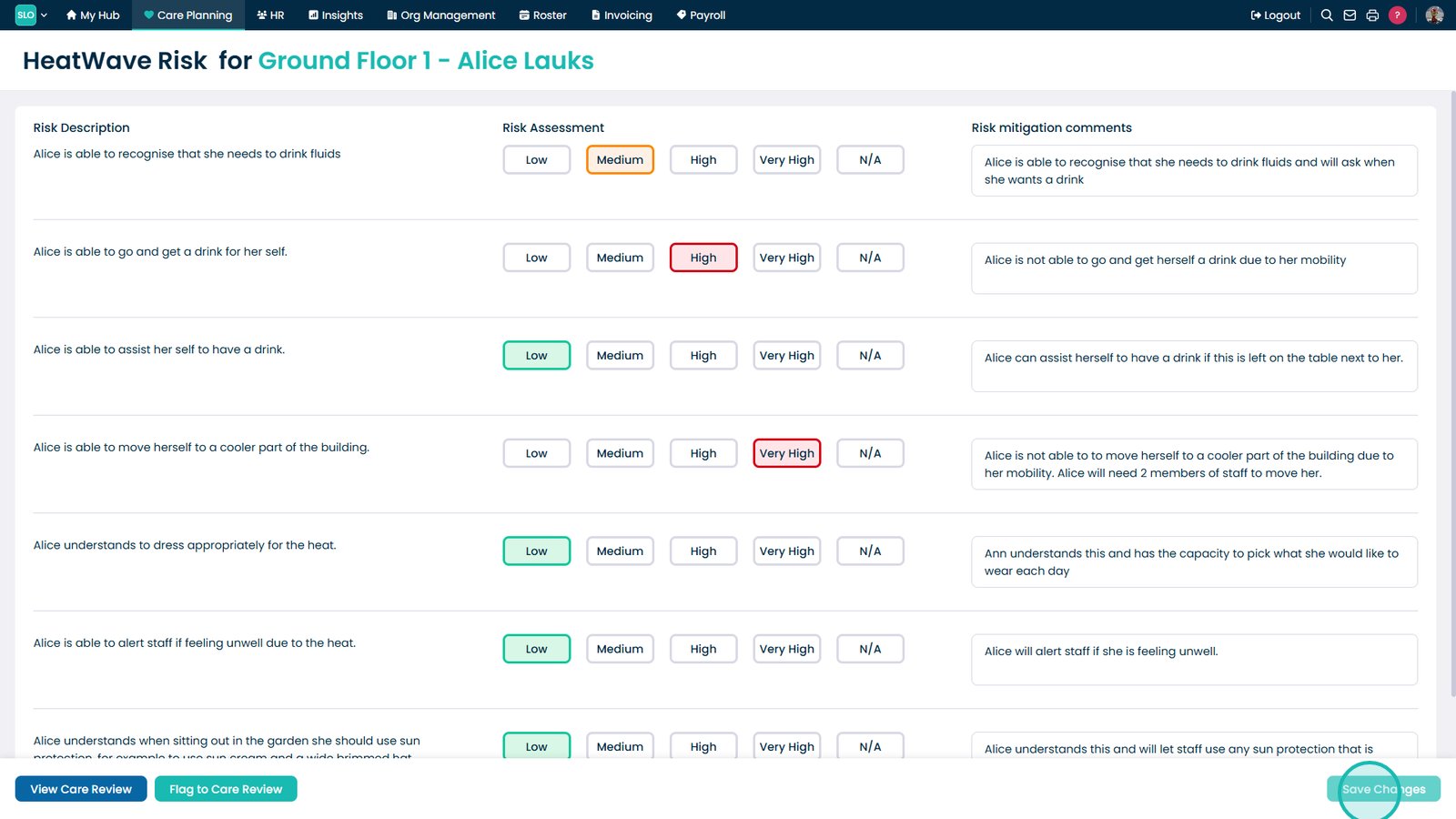
Select Save Changes to confirm and store the completed risk assessment

Was it helpful ?
Table of Contents
↑ Top