This guide explains how to record a new incident or accident
Takes 5 minutes
For: Care Staff
Updated: 30th June 2026
Introduction
The Incident Reporting module allows you to record and manage incidents involving a service user. You can capture key incident details, document what happened, record any injuries or witnesses, complete follow-up actions, and submit the incident for reporting.
In this guide you'll learn how to:
Record a new incident
Complete the incident details
Select the service user and any witnesses
Document the incident and required actions
Submit the completed incident report
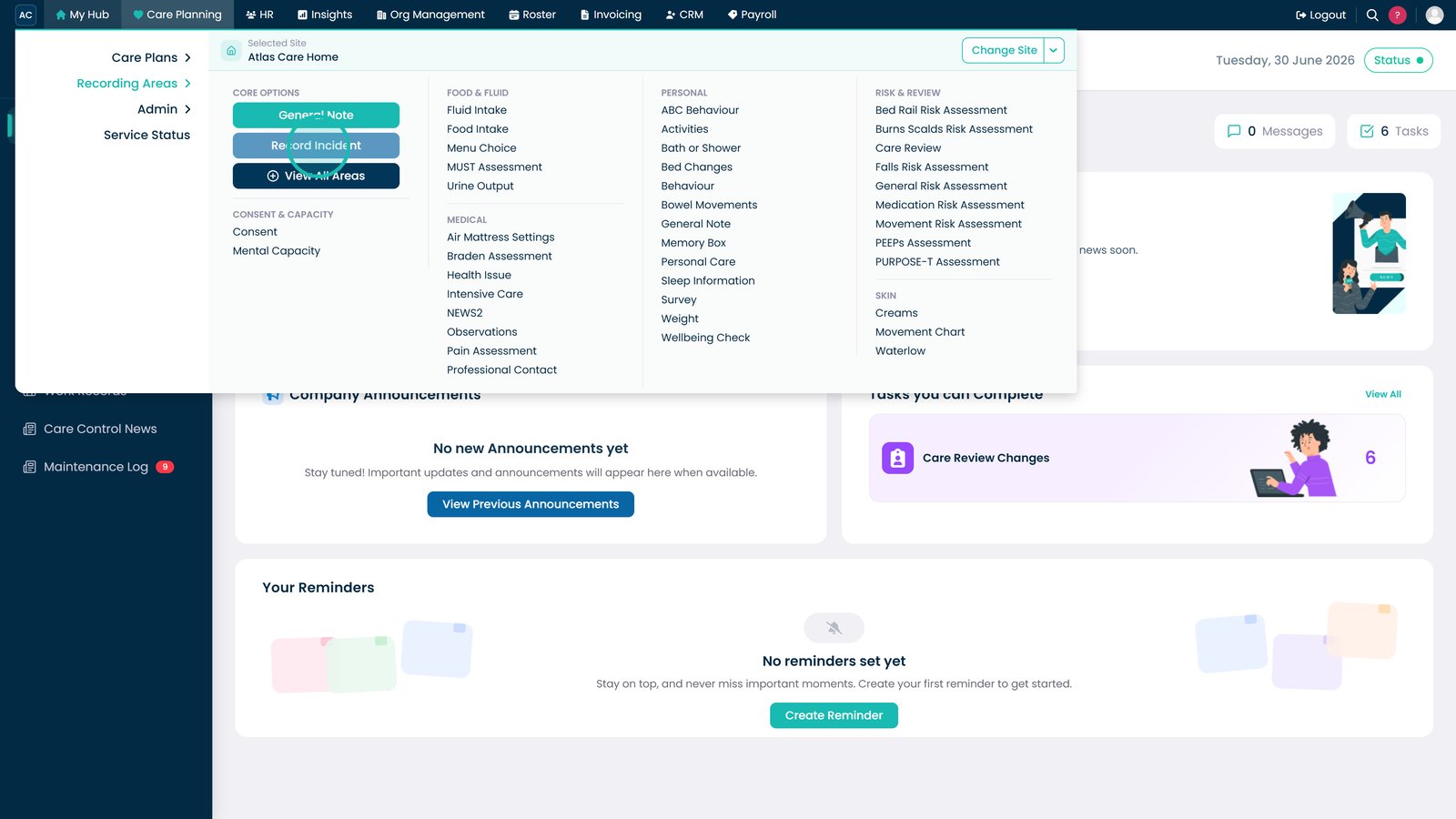
Select Record Incident from the Care Options menu to begin logging a new incident.
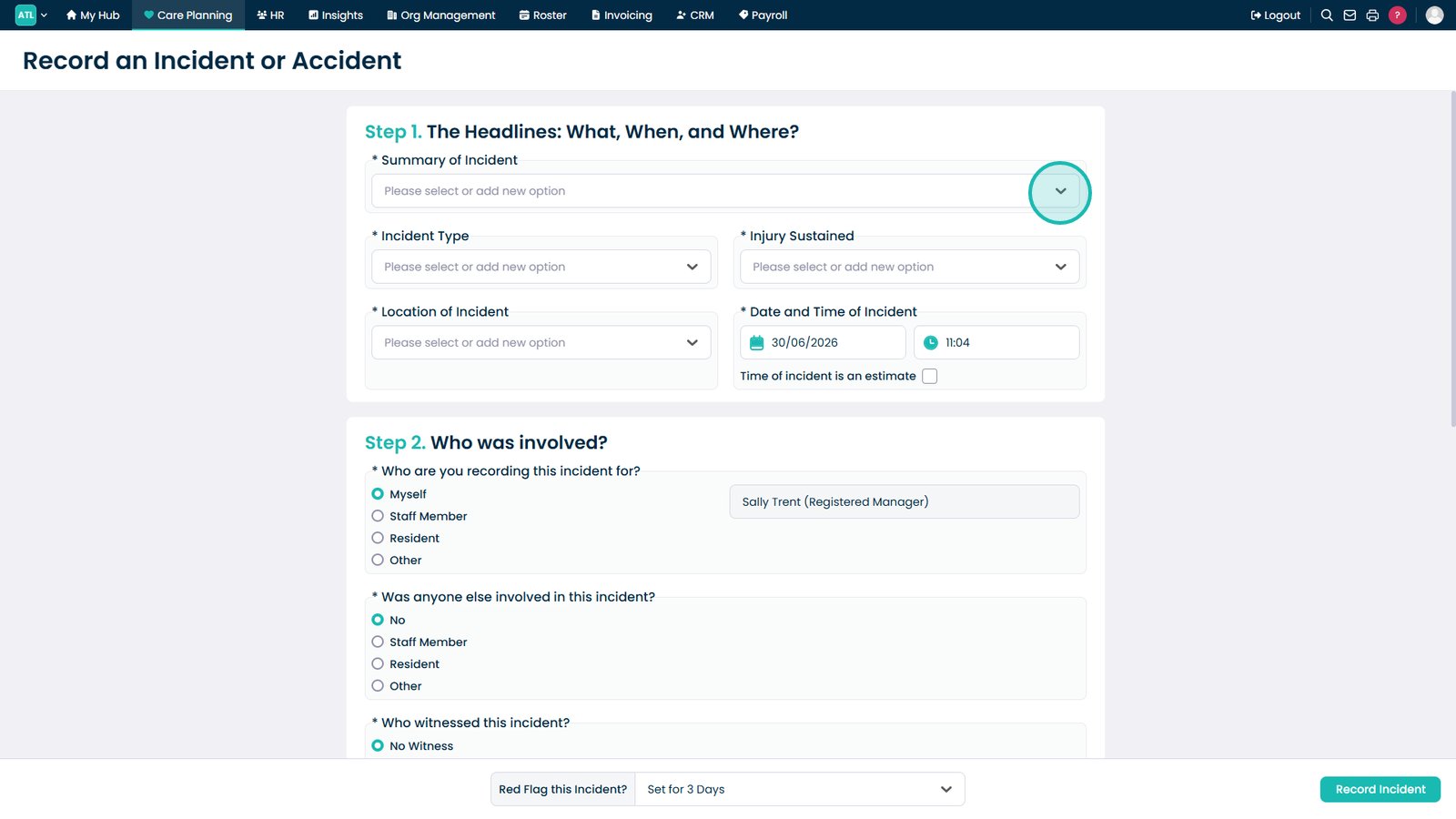
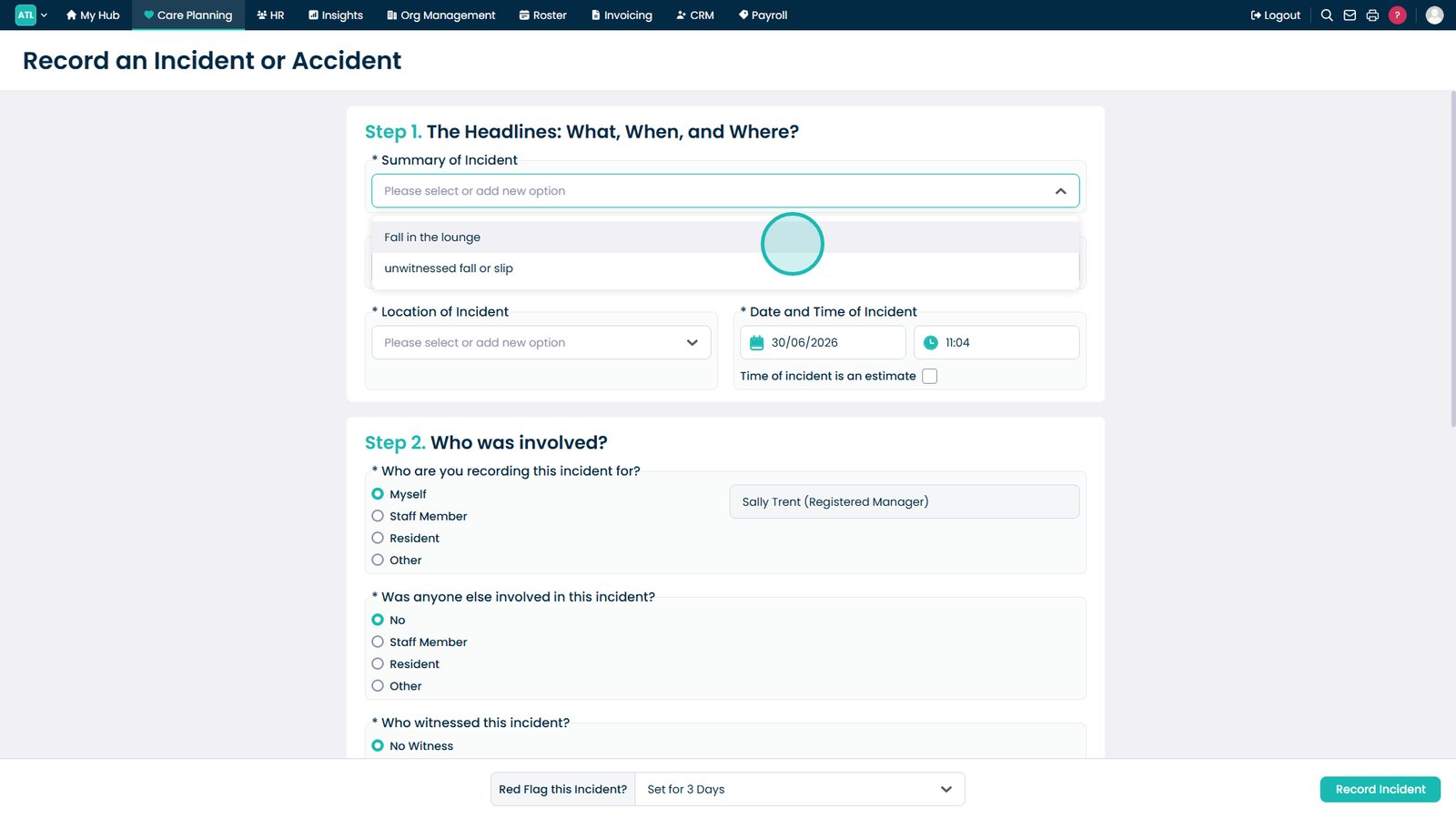
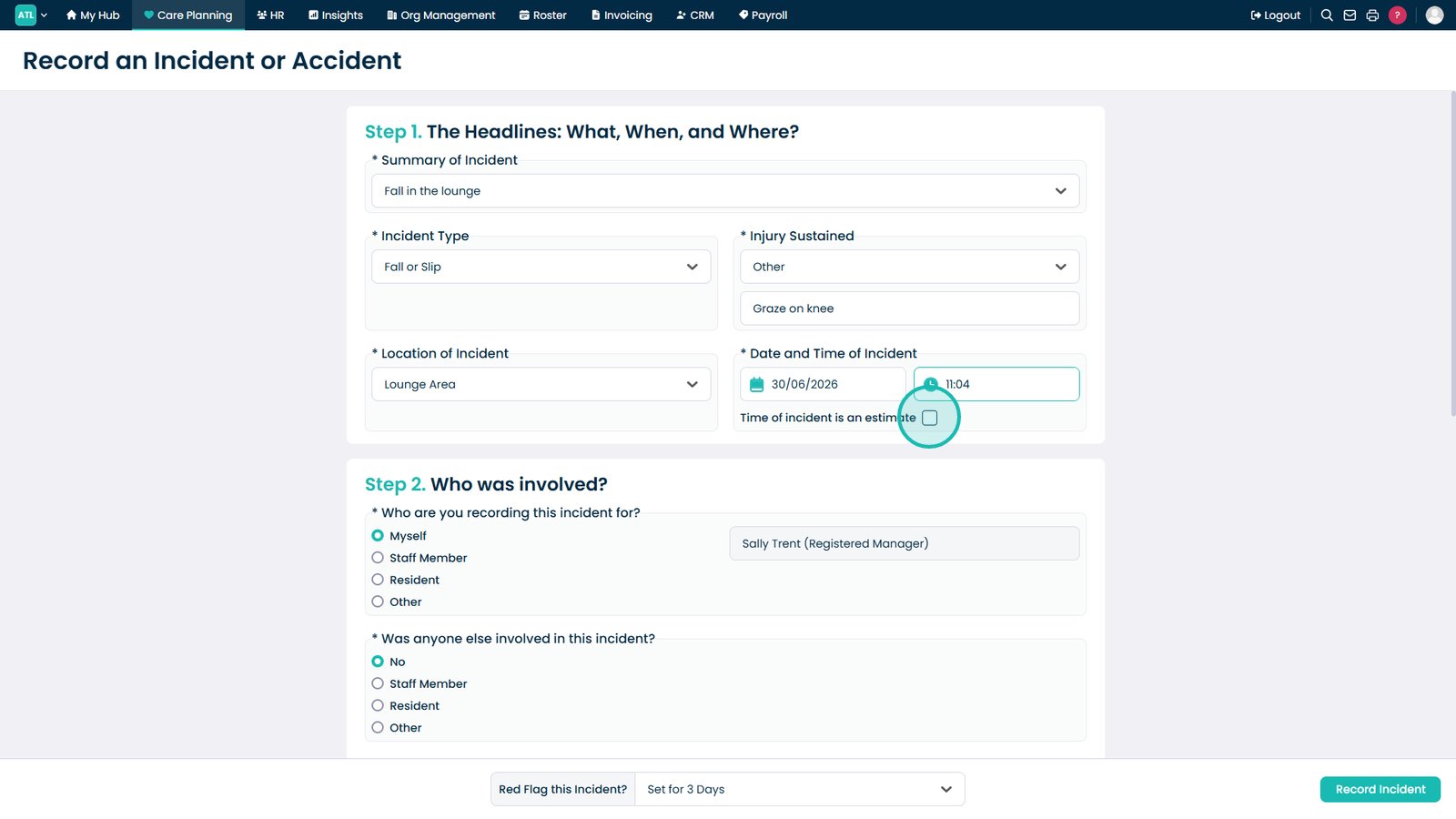
Open the Summary of Incident drop-down to select what happened.
Choose the relevant option from the list.
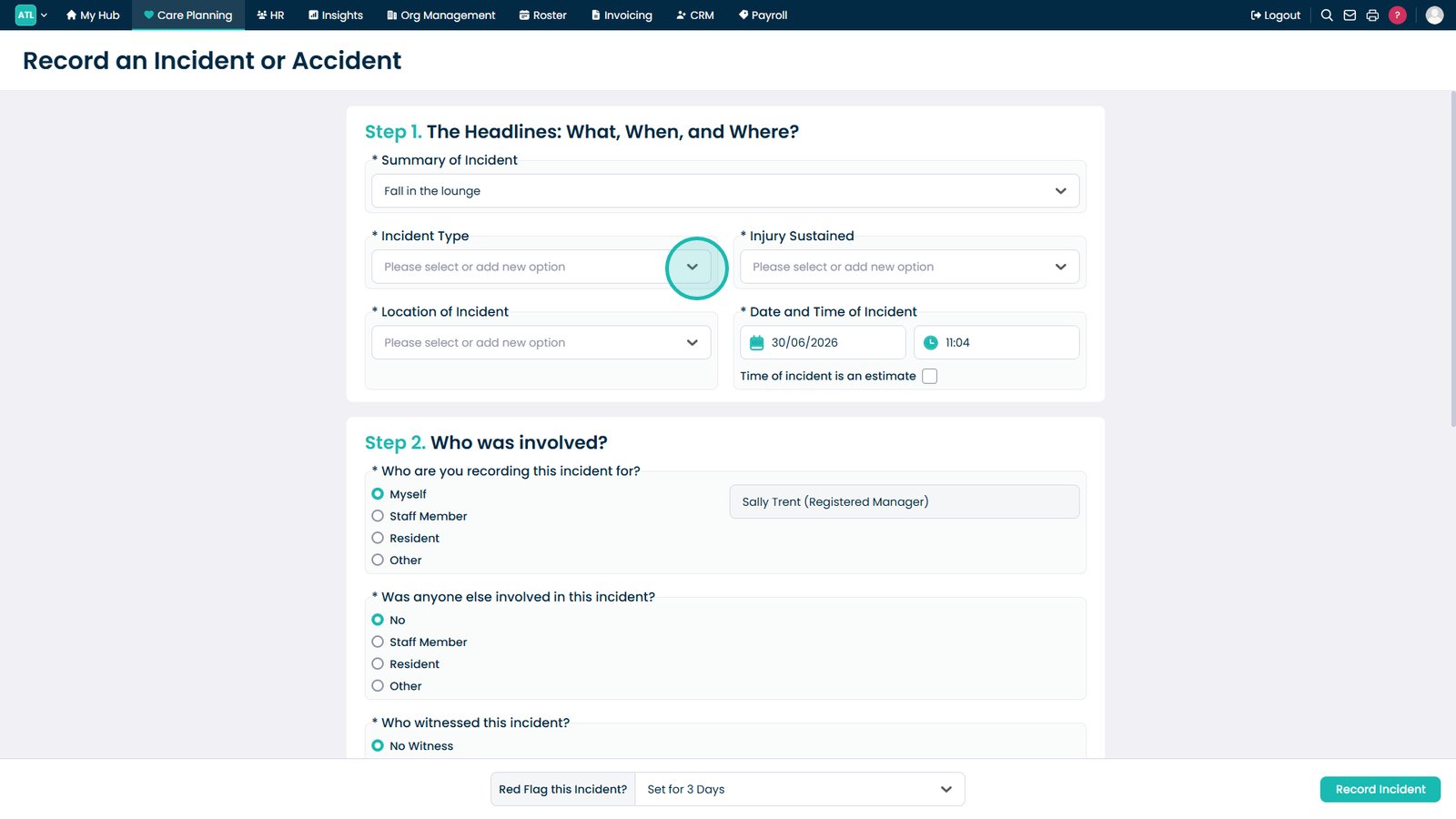
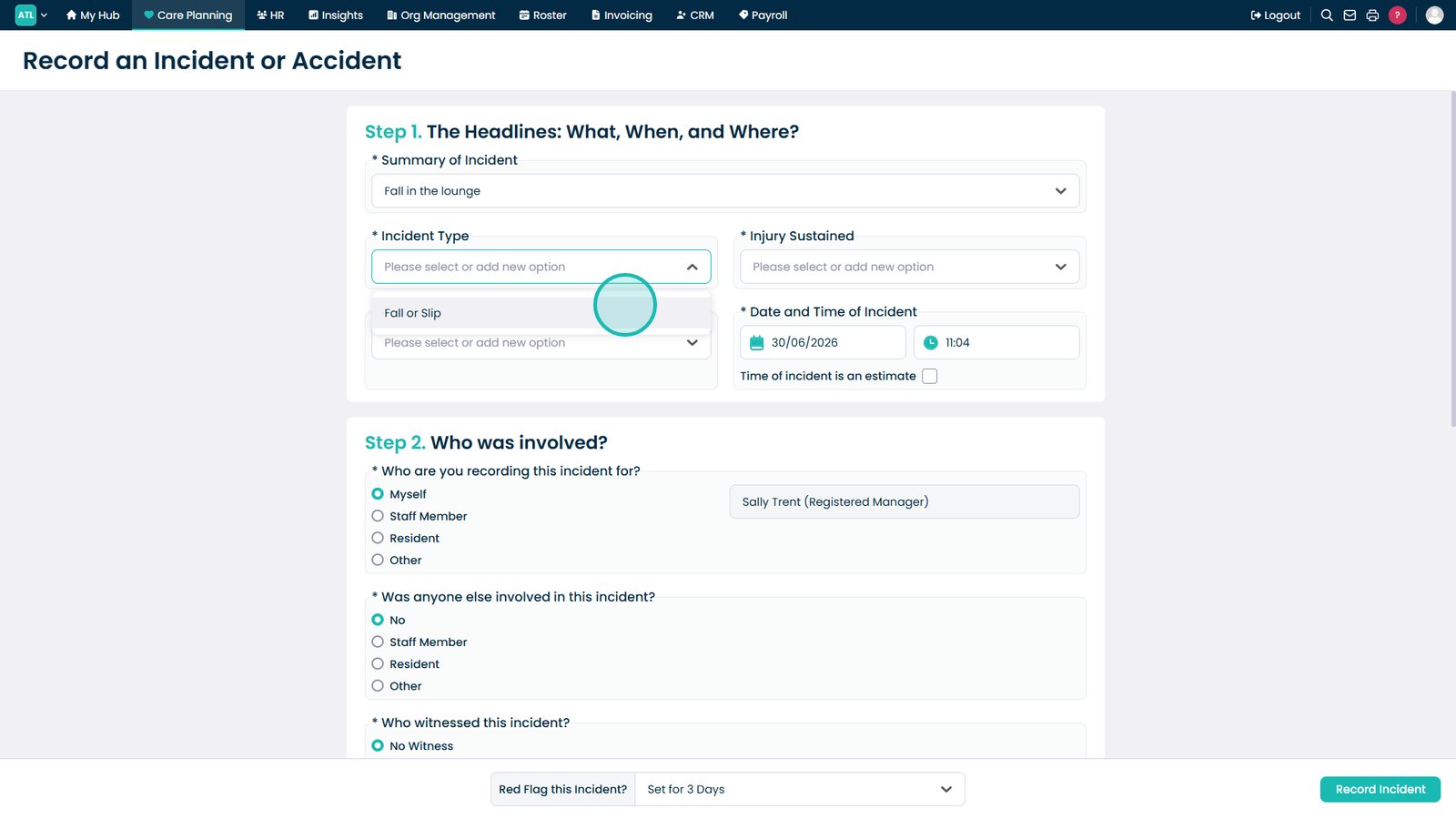
Open the Incident Type drop-down to specify the type of incident being reported.
Make a selection from the drop-down list.
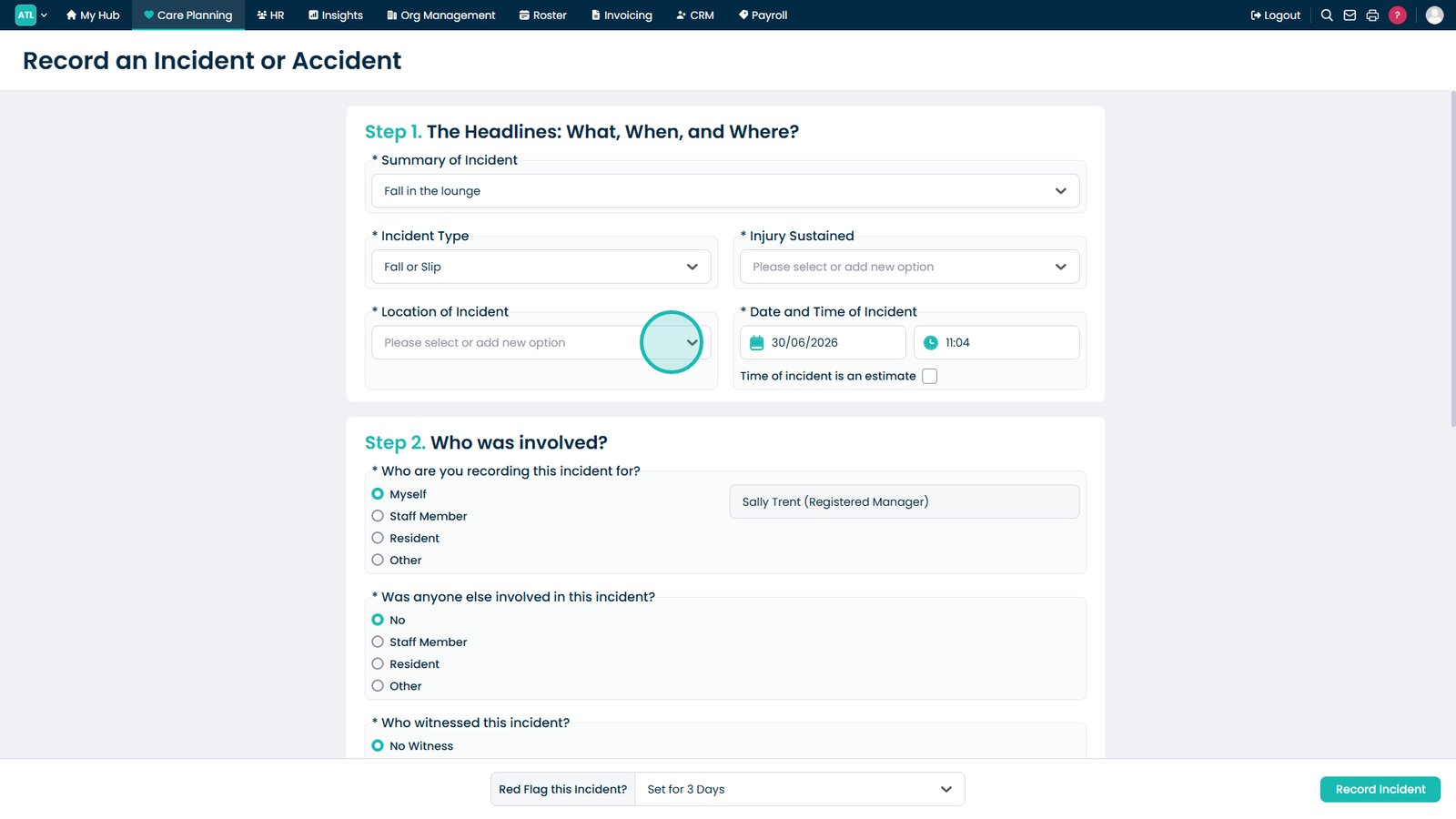
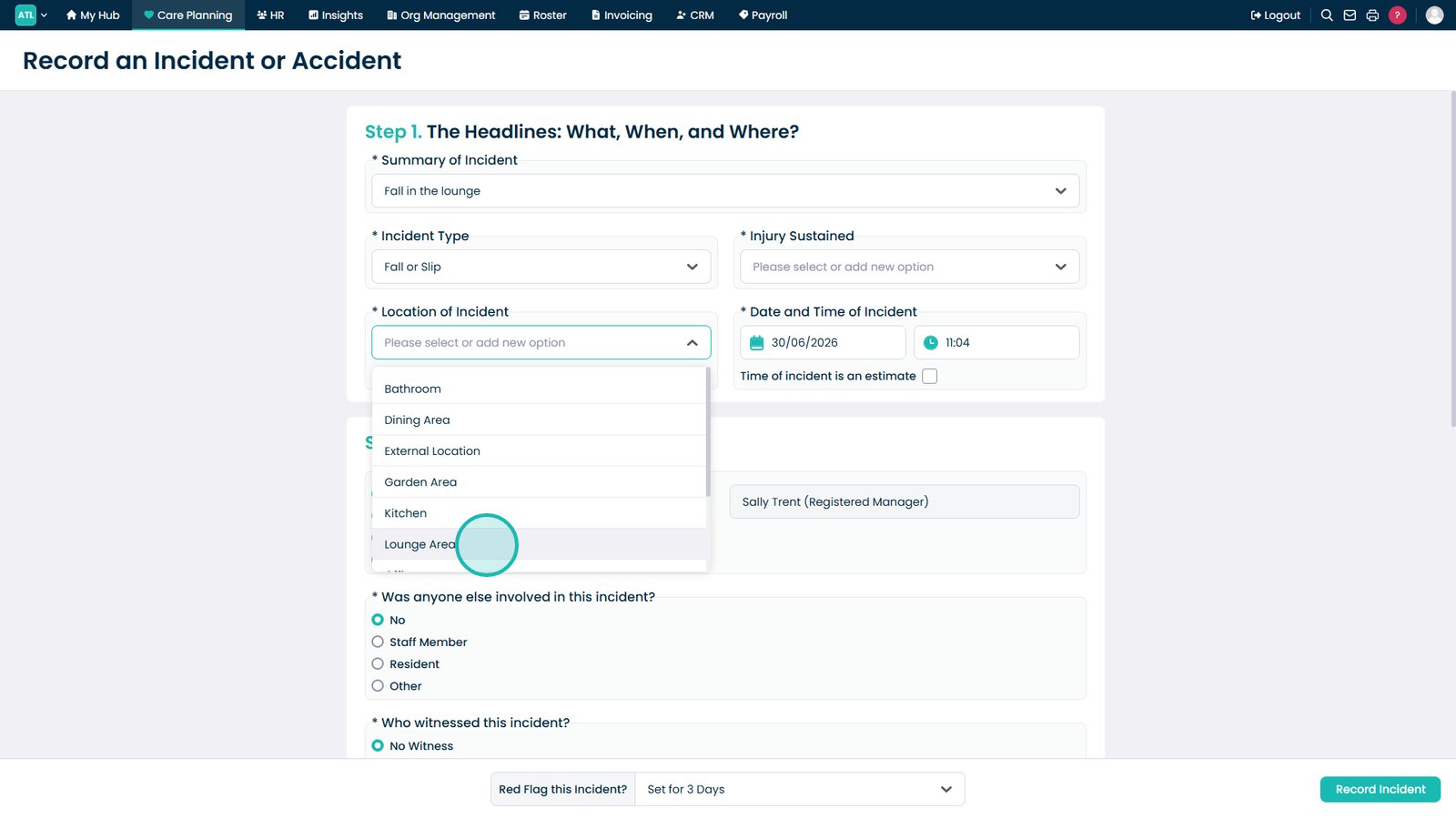
Select the Location of Incident to record where the incident took place.
Select the specific location from the list.
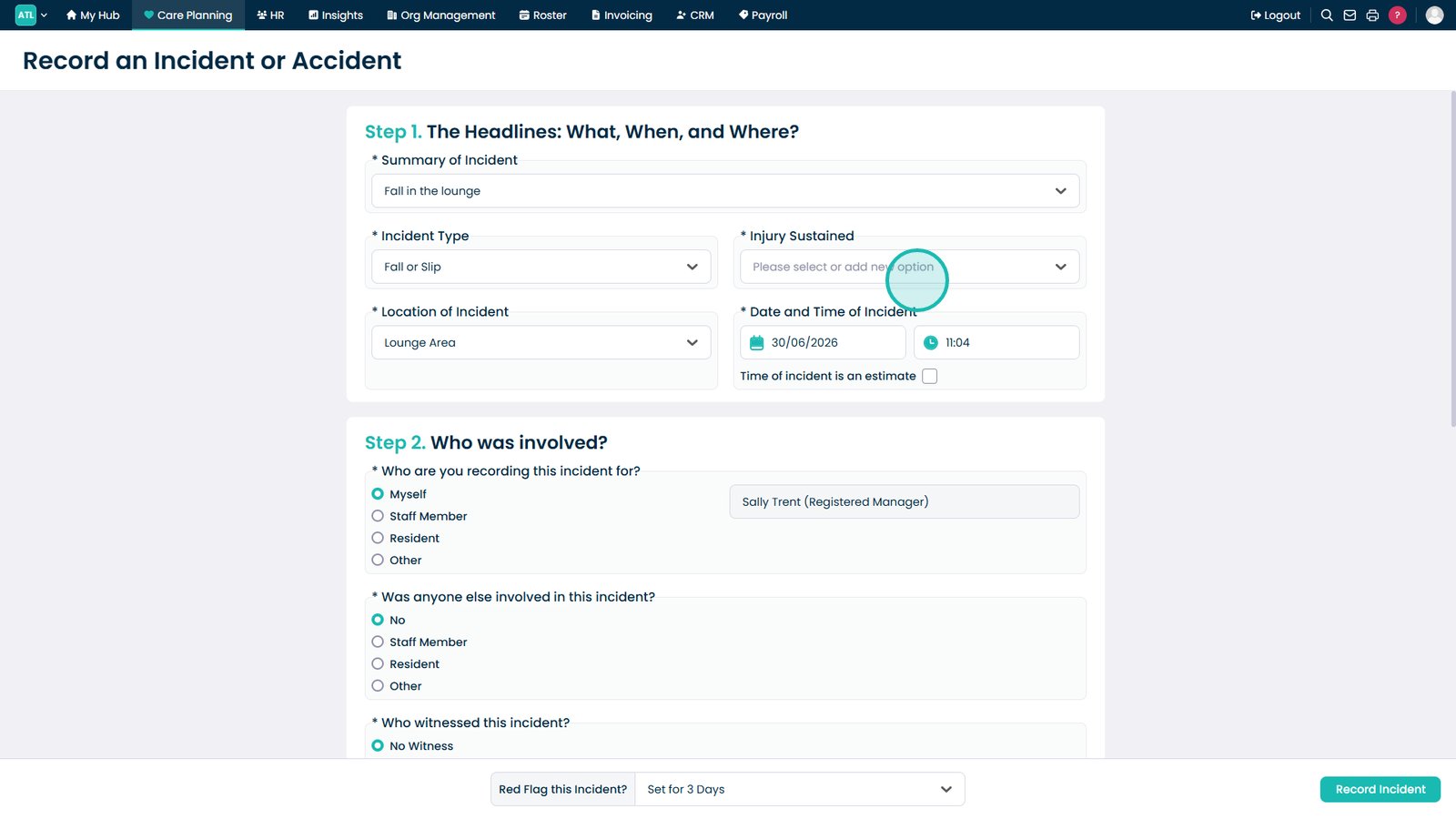
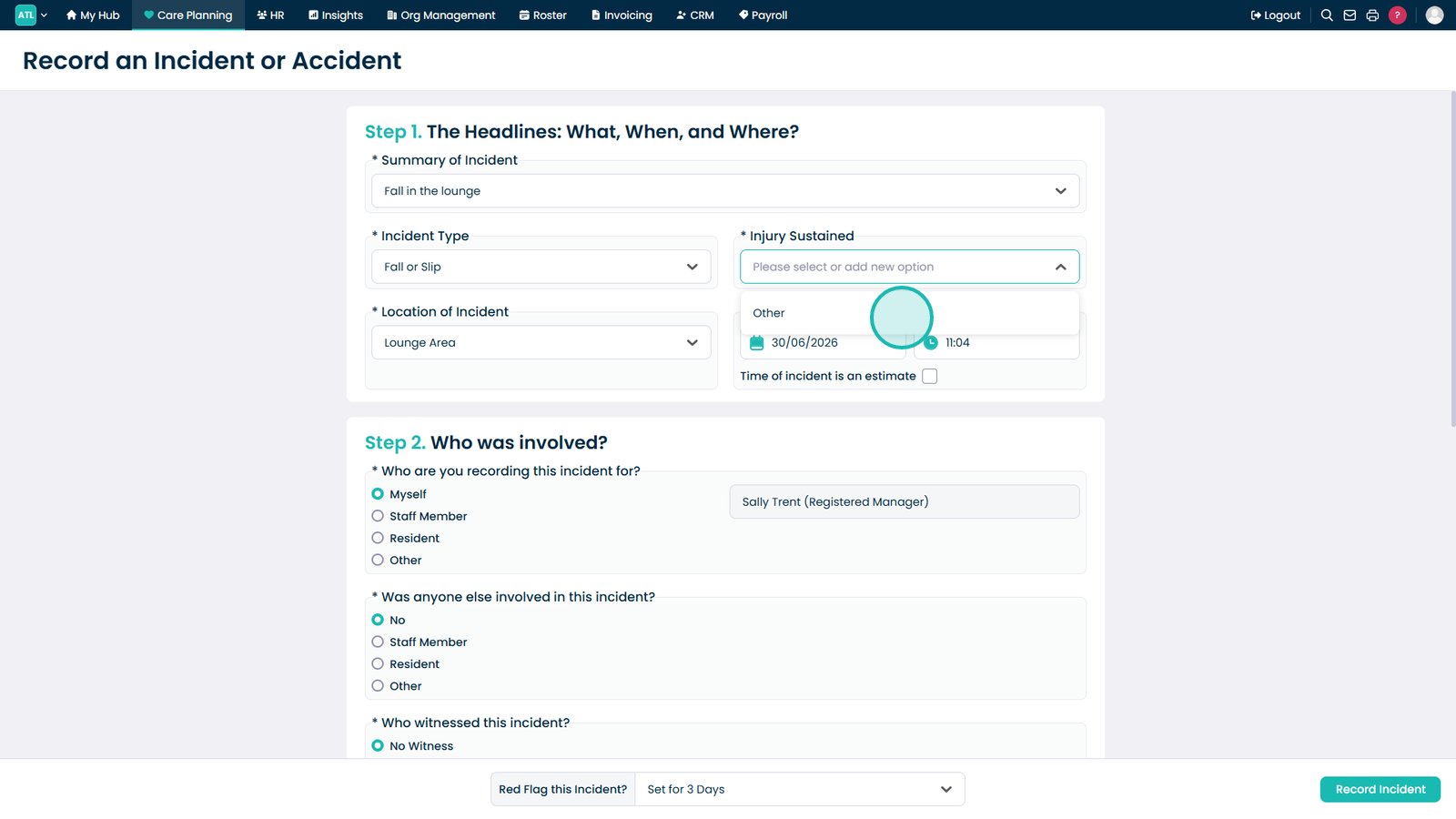
Use the Injury Sustained drop-down to record any injury resulting from the incident.
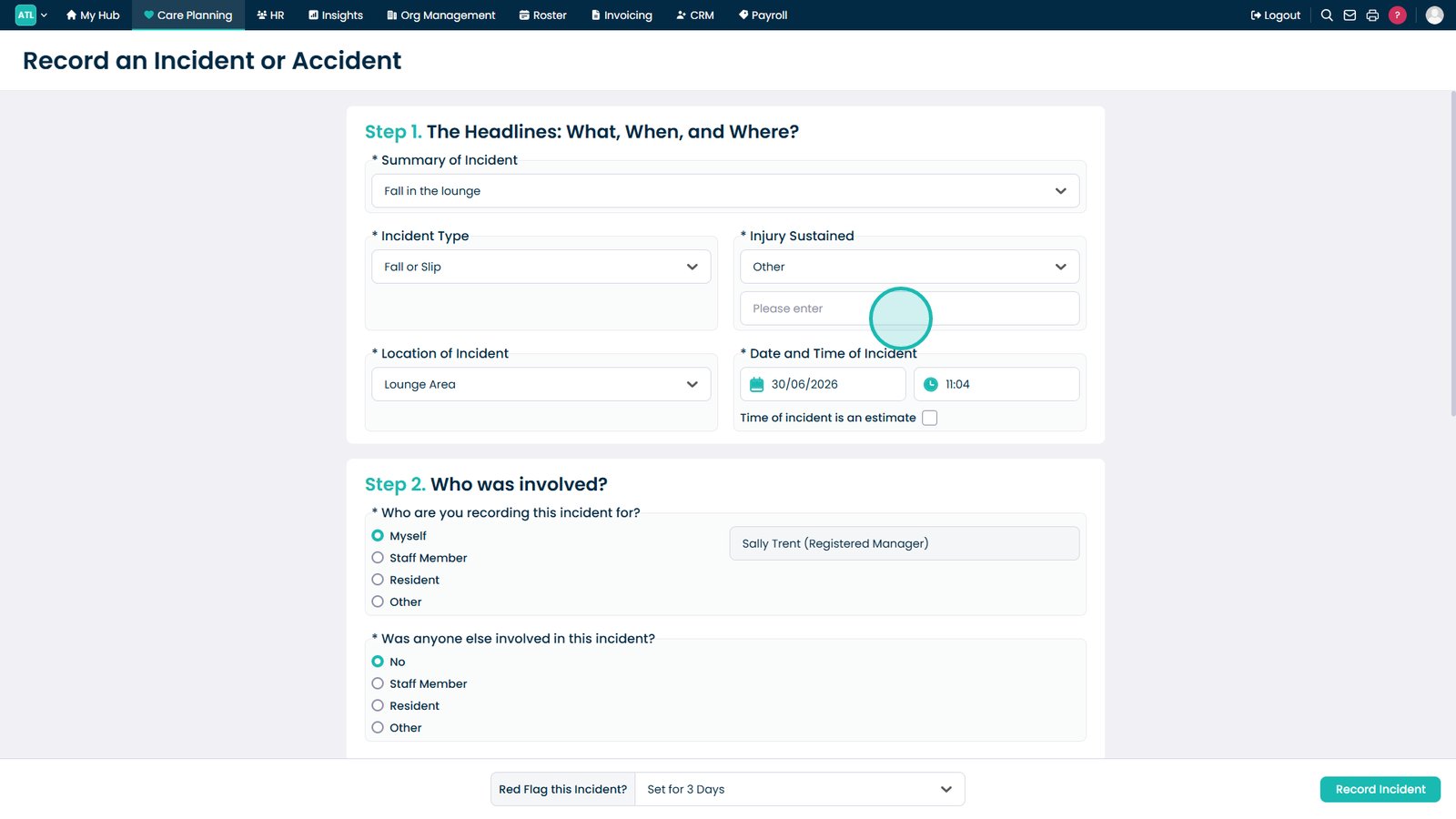
Select Other if the injury type does not match the listed options.
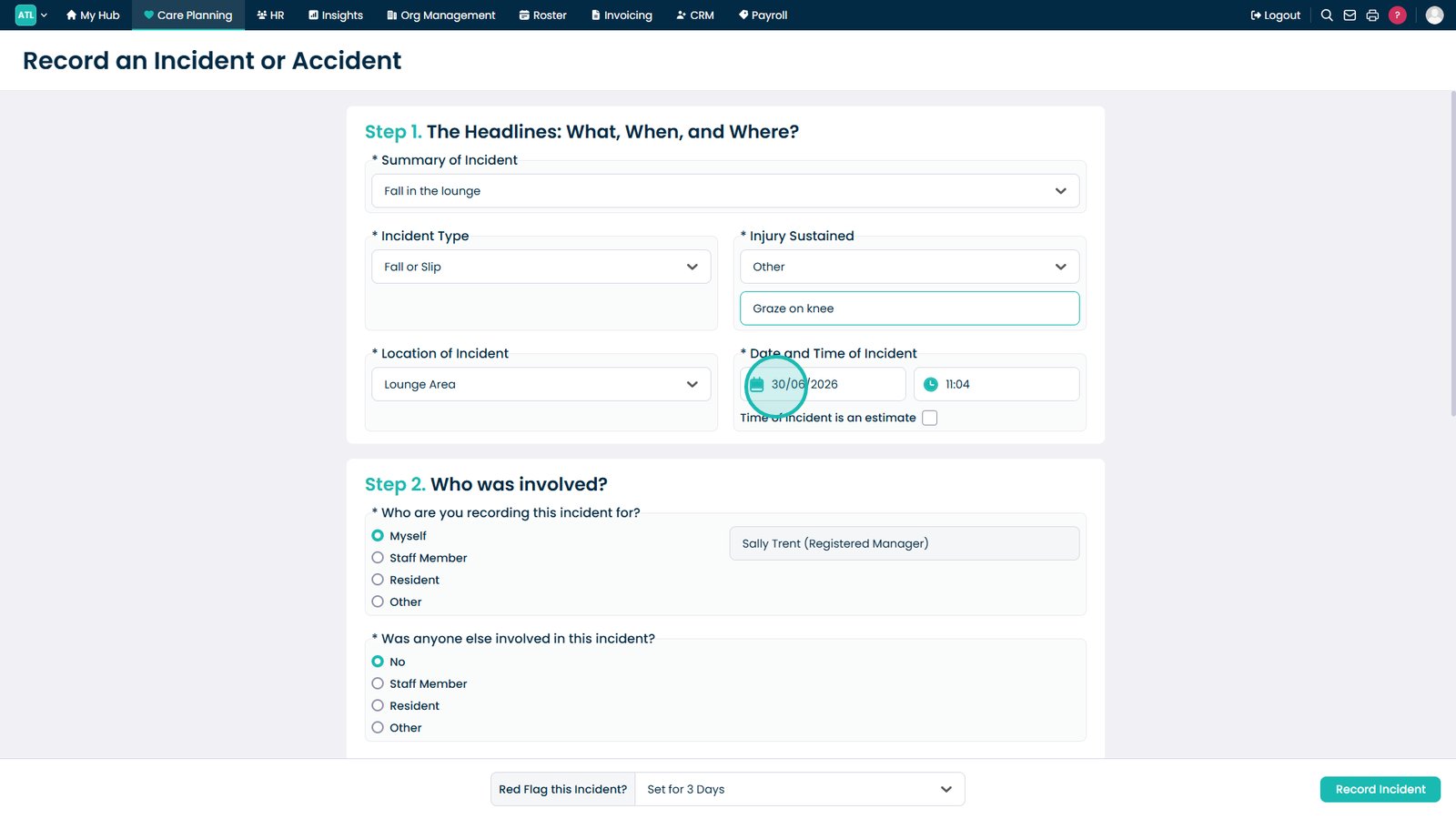
Enter a brief description of the injury in the Please Enter field.
Select the date field to set the incident date.
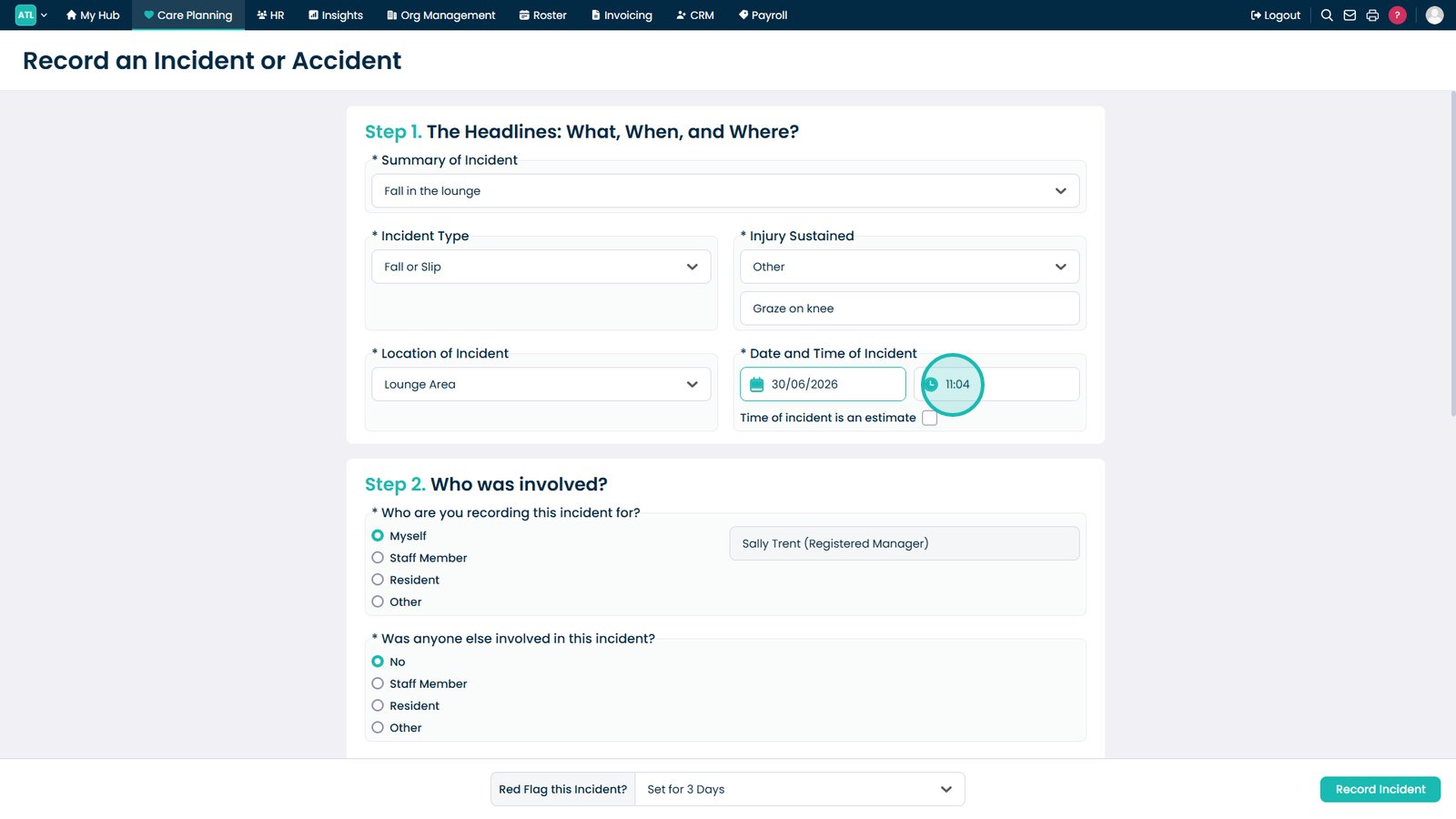
Specify the time of the incident.
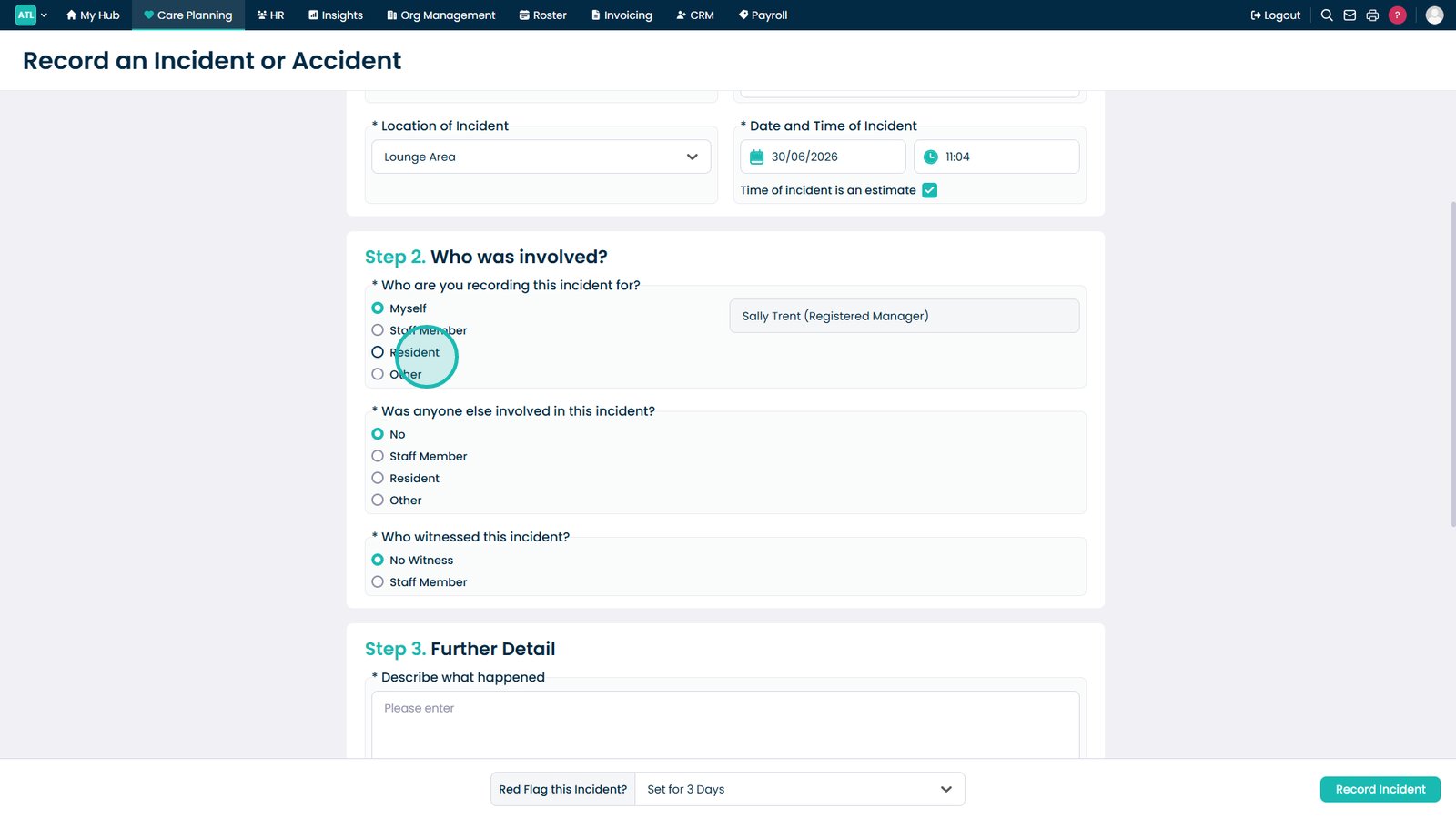
Select Time of Incident is an Estimate if the exact time is unknown.
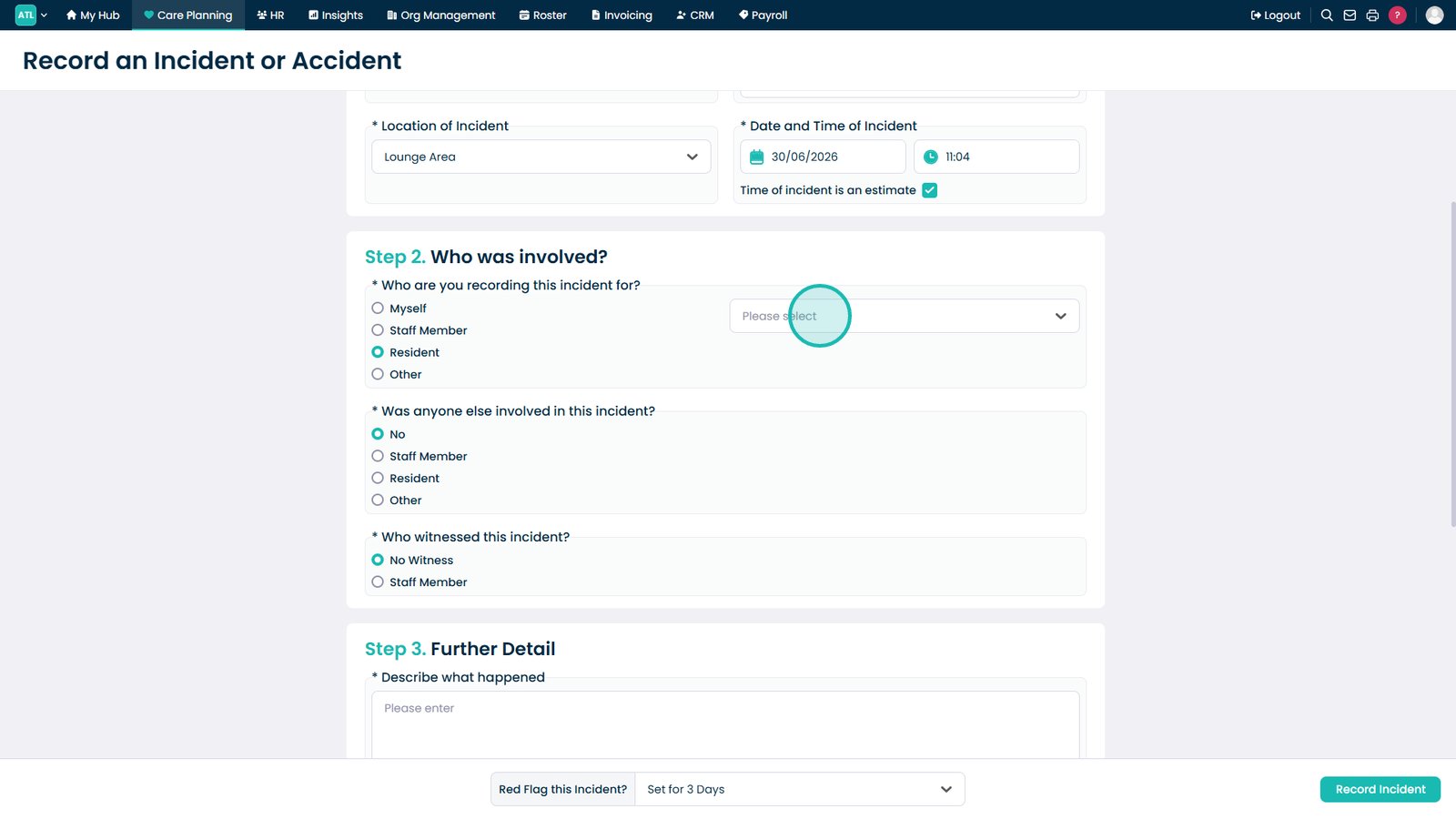
Indicate who the incident is being recorded for.
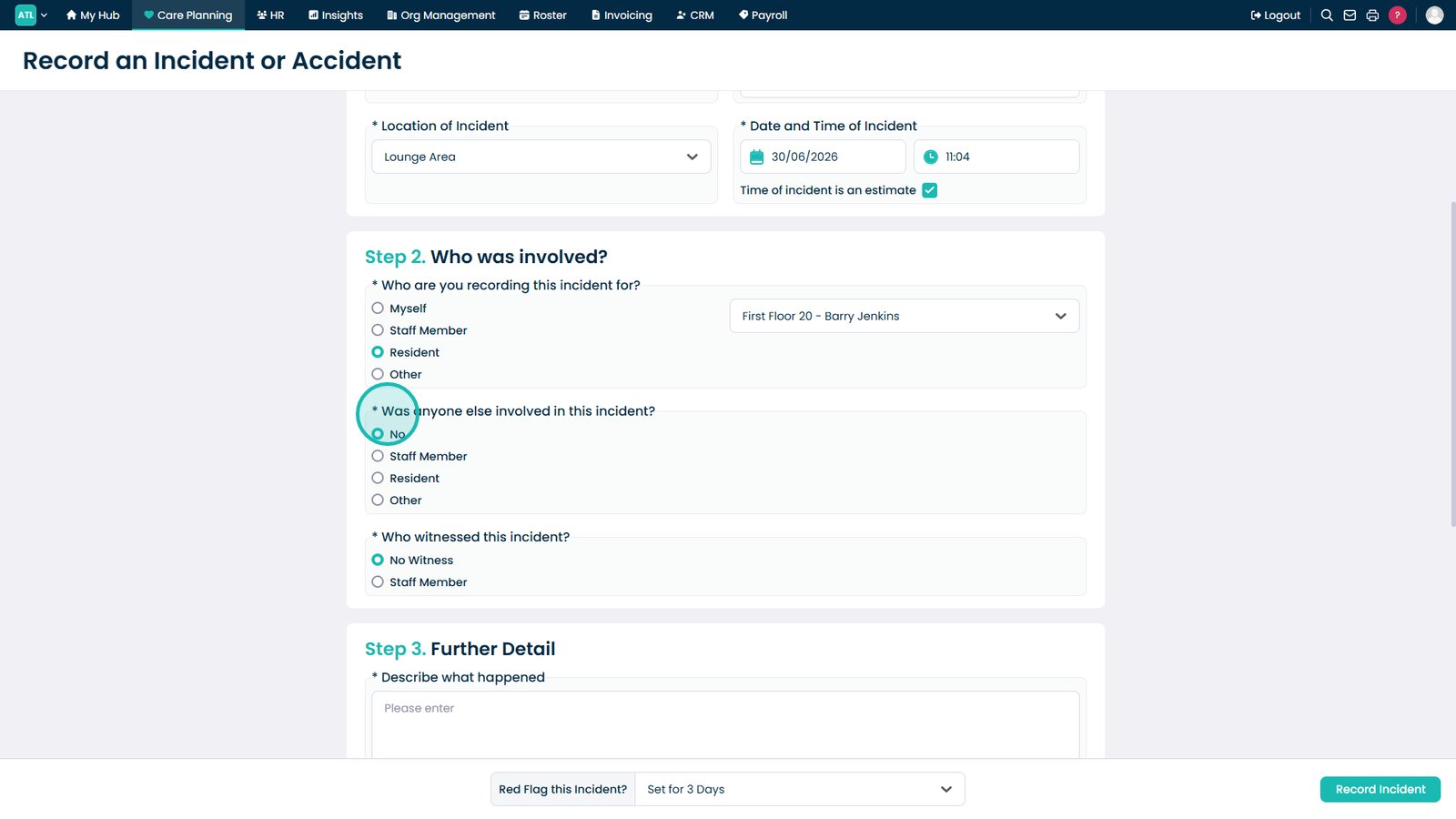
Select the service user's name from the drop-down list.
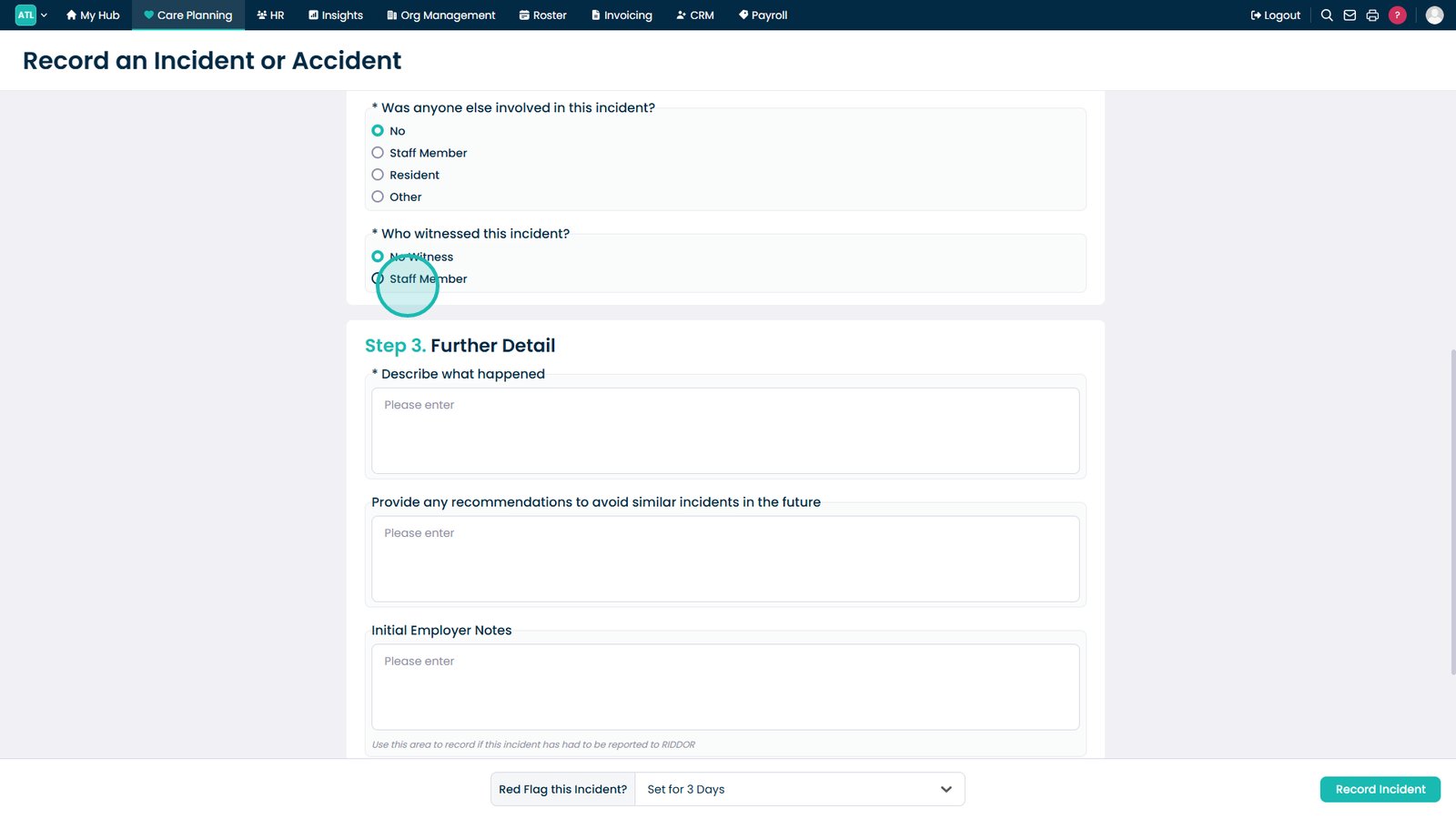
Answer whether anyone else was involved in the incident.
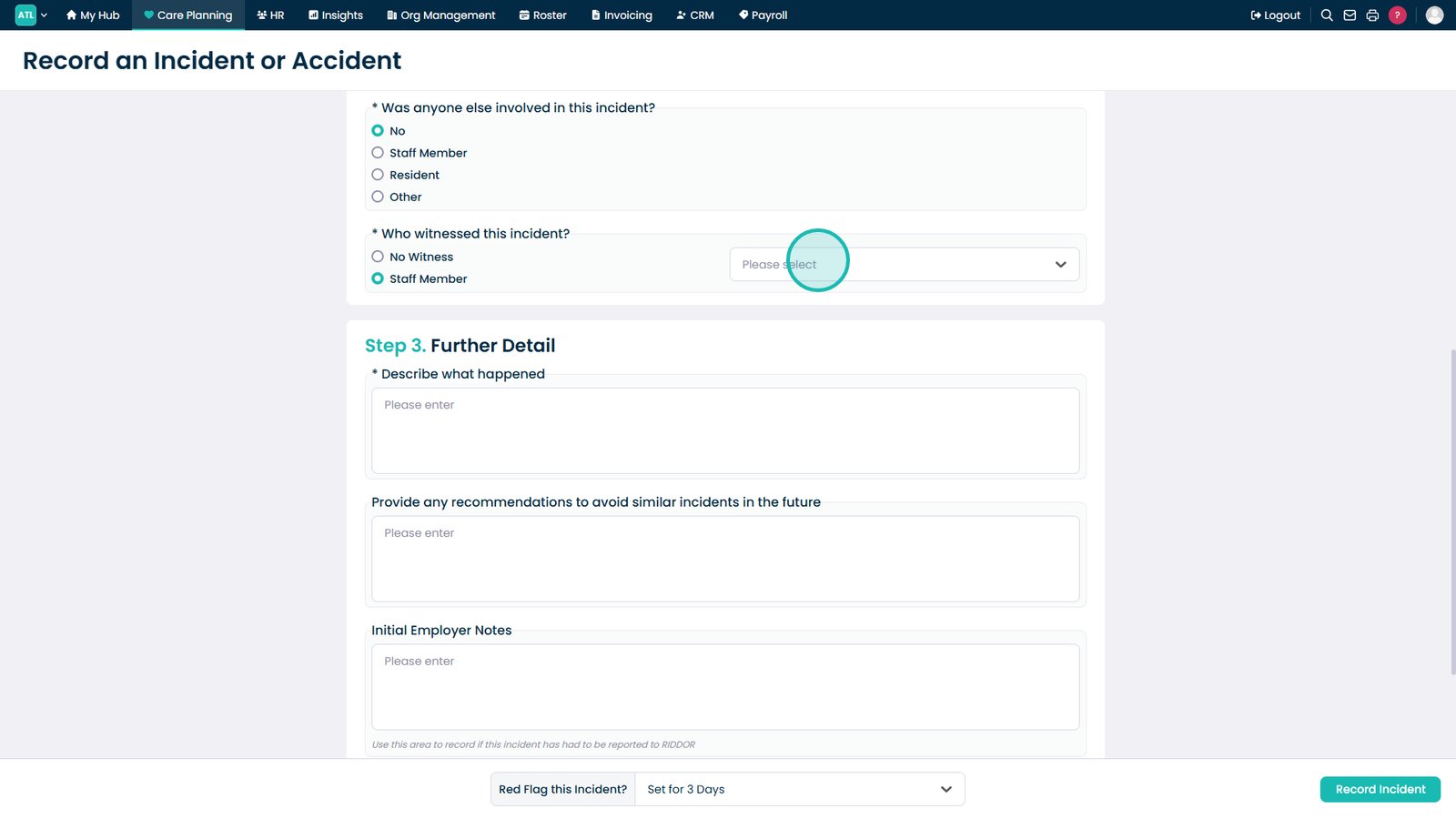
Select Staff Member if an employee witnessed the incident.
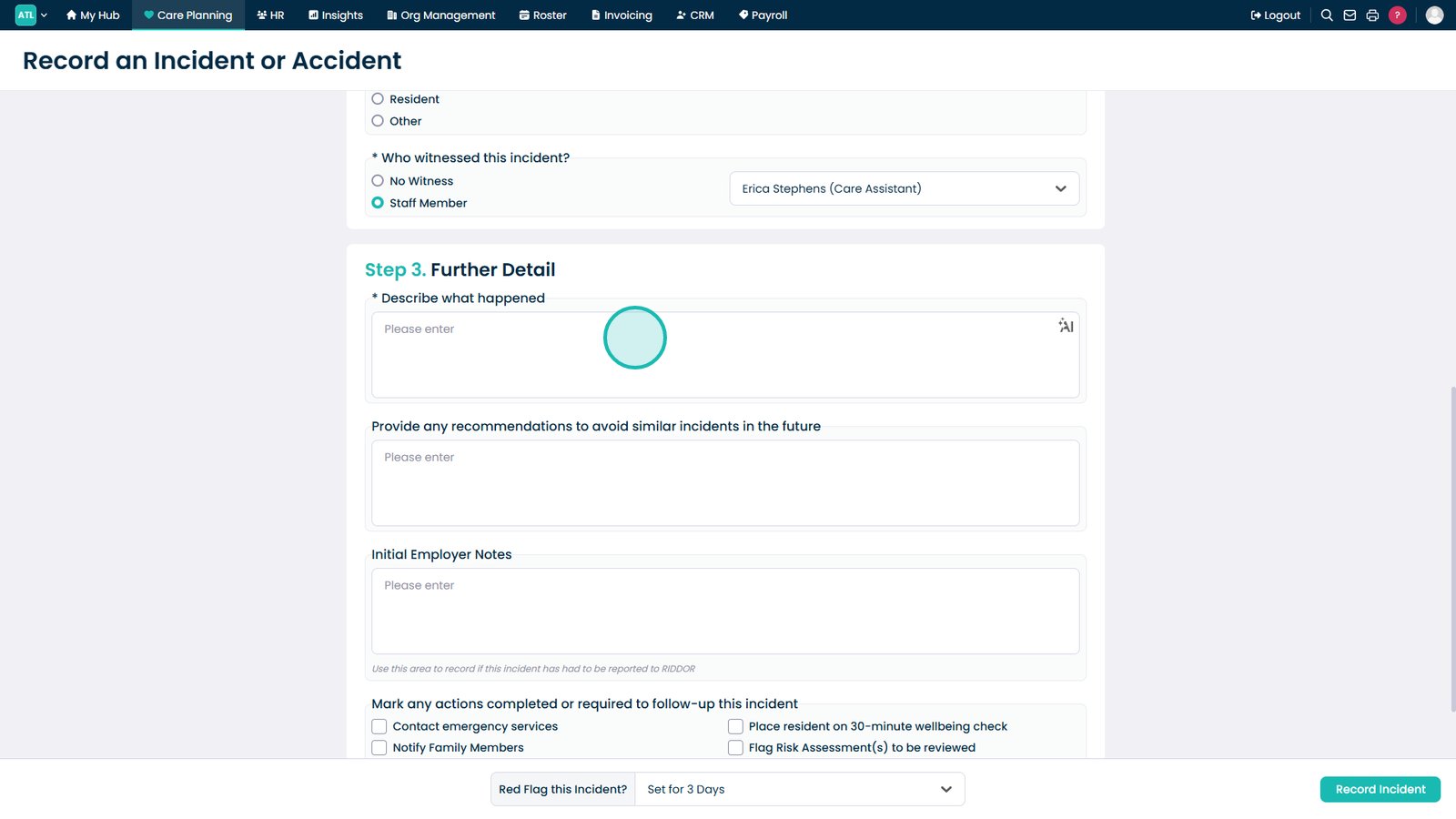
Select the staff witness from the drop-down list.
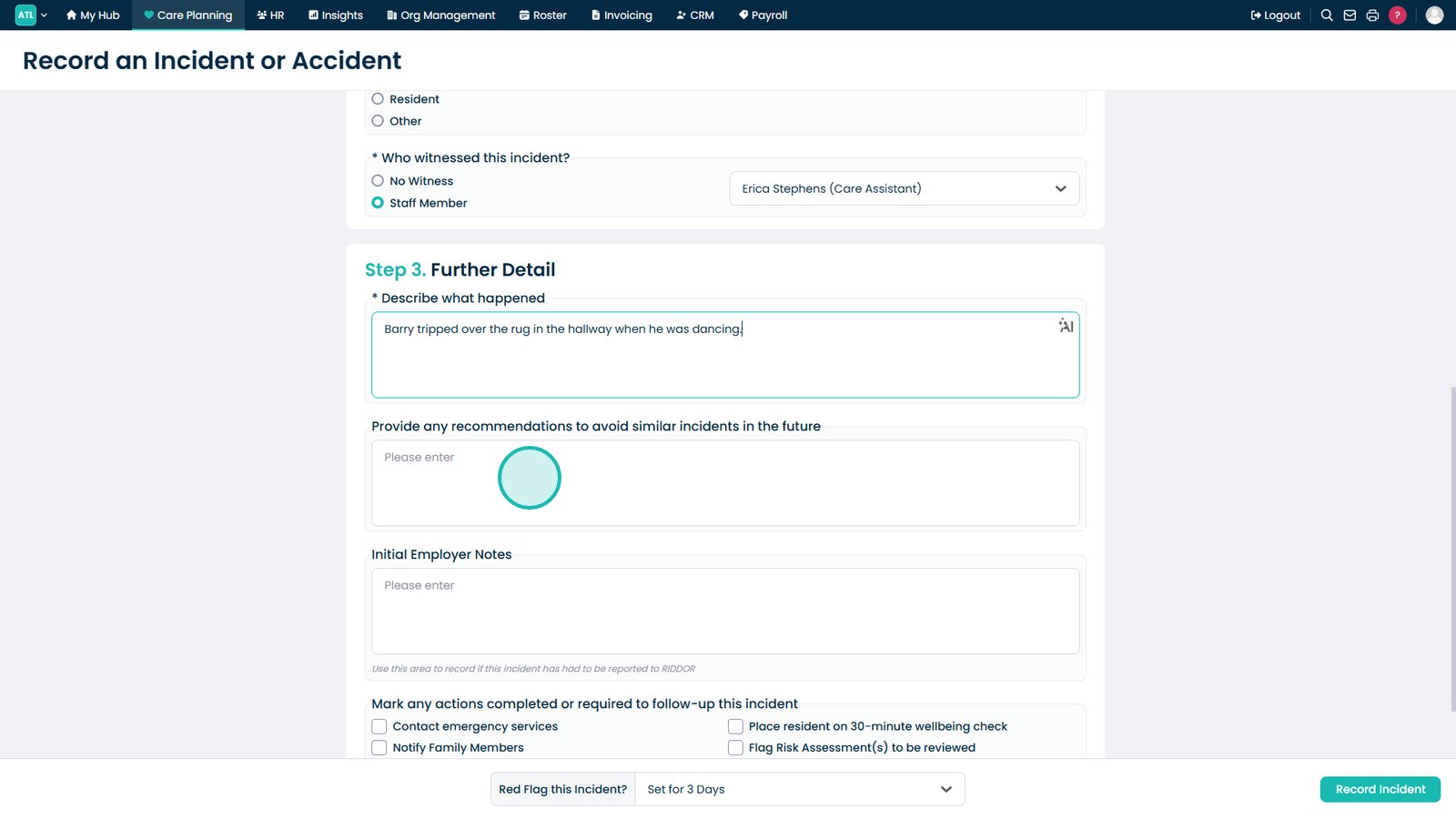
Describe what happened in the dedicated text field.
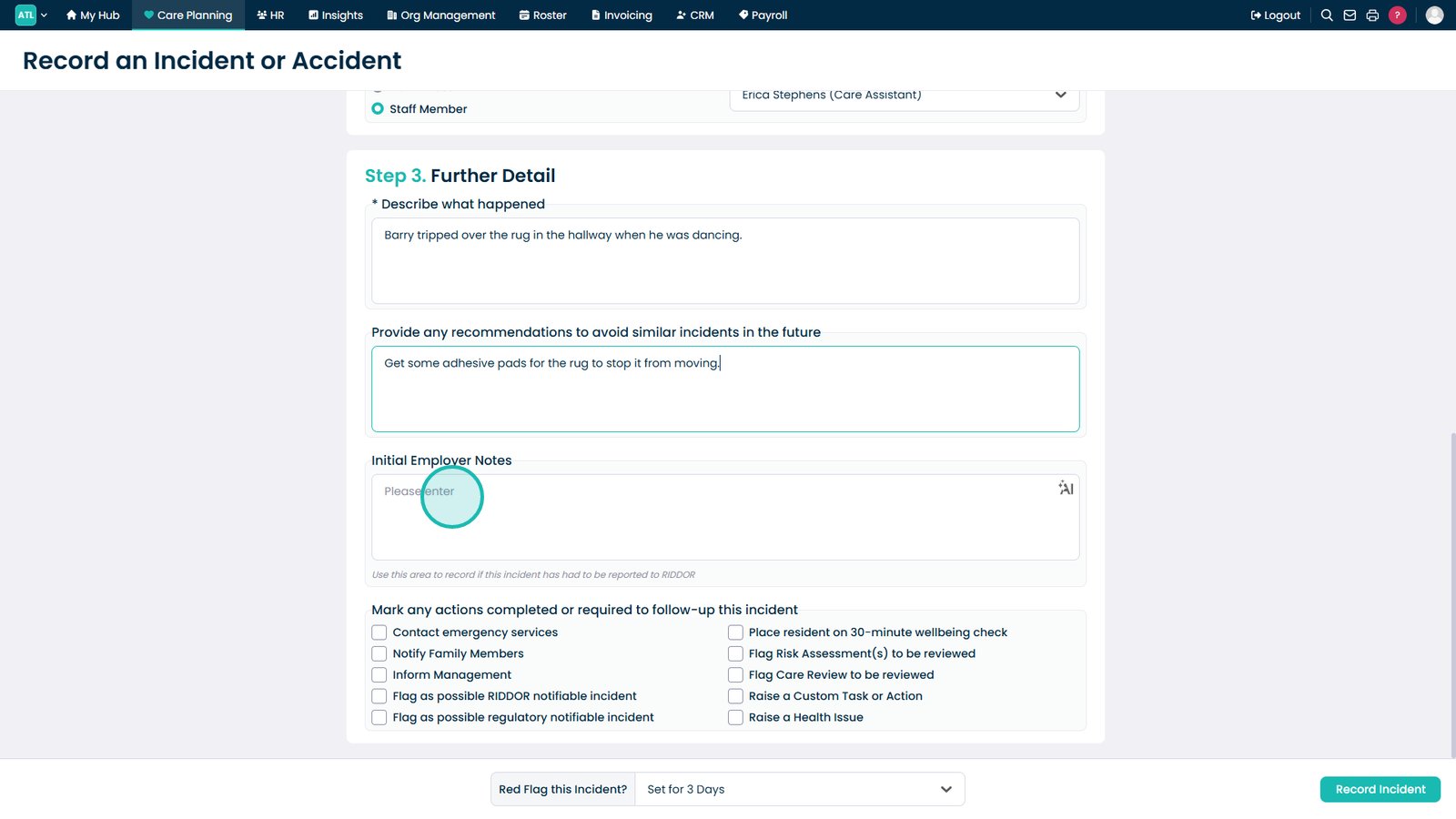
Enter recommendations to help prevent similar incidents in the future.
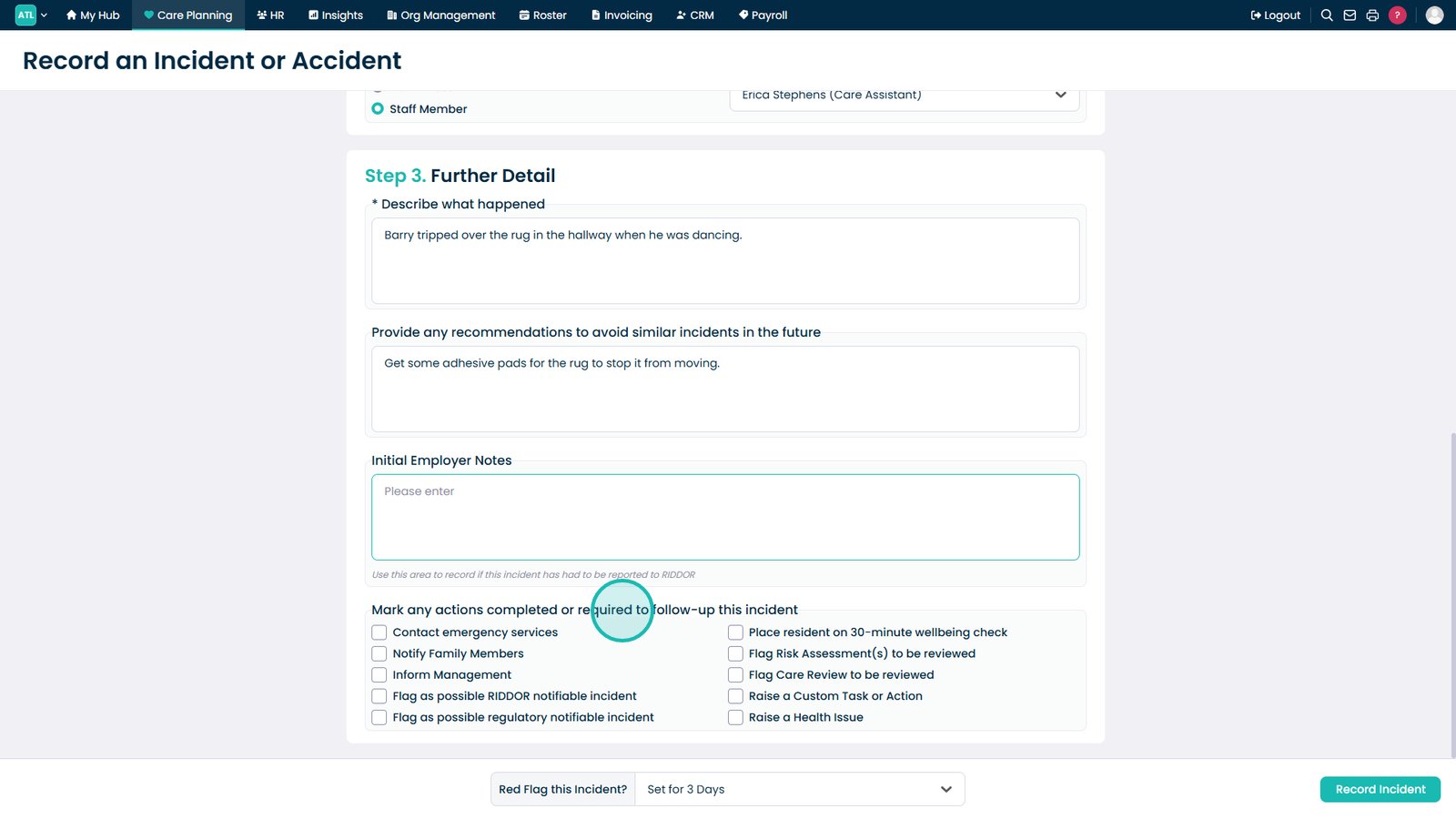
Add initial employer notes for additional context or follow-up requirements.
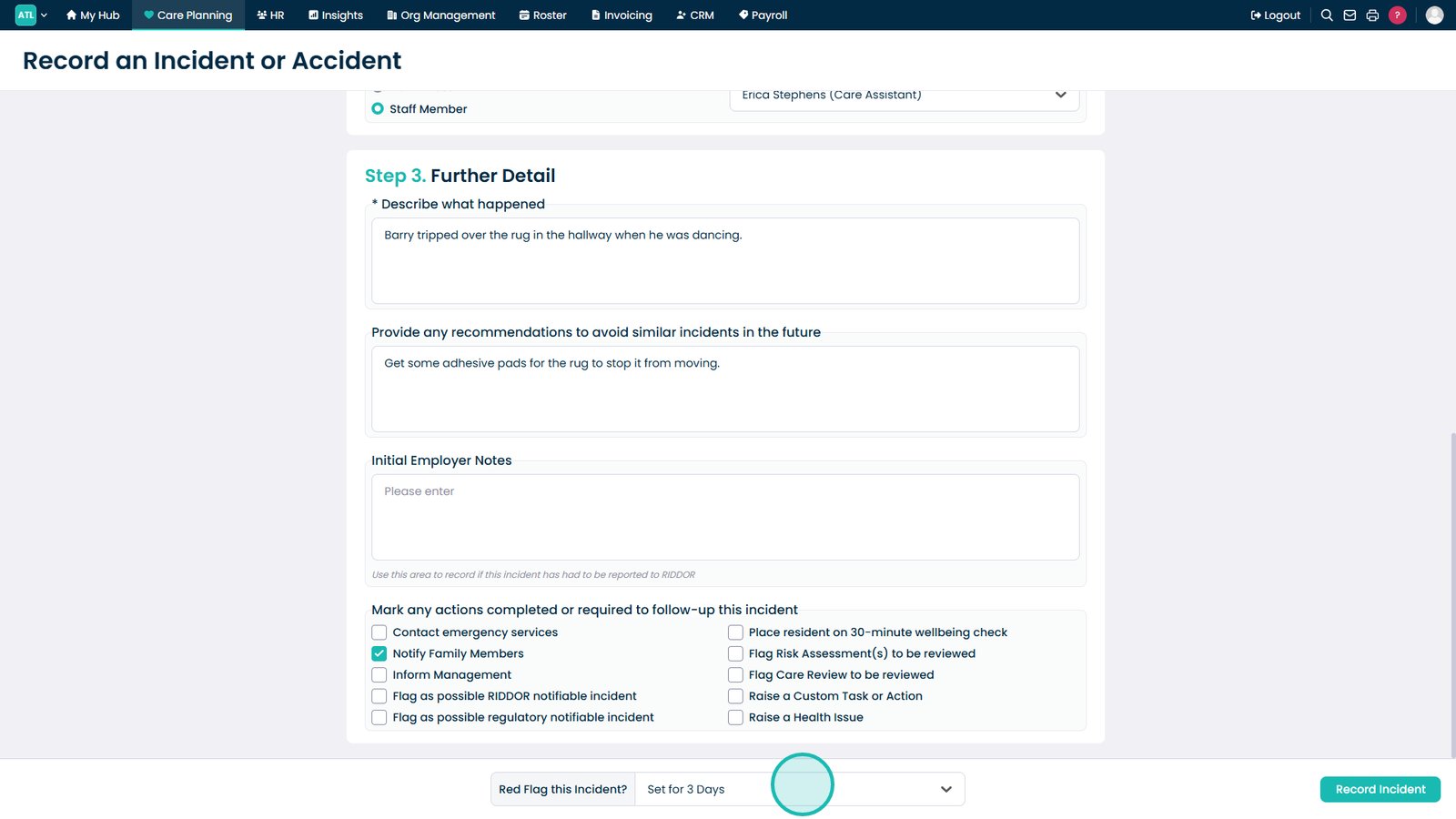
Mark any completed or pending actions to support follow-up after the incident.
Set the red flag duration to keep the incident highlighted for the required period.
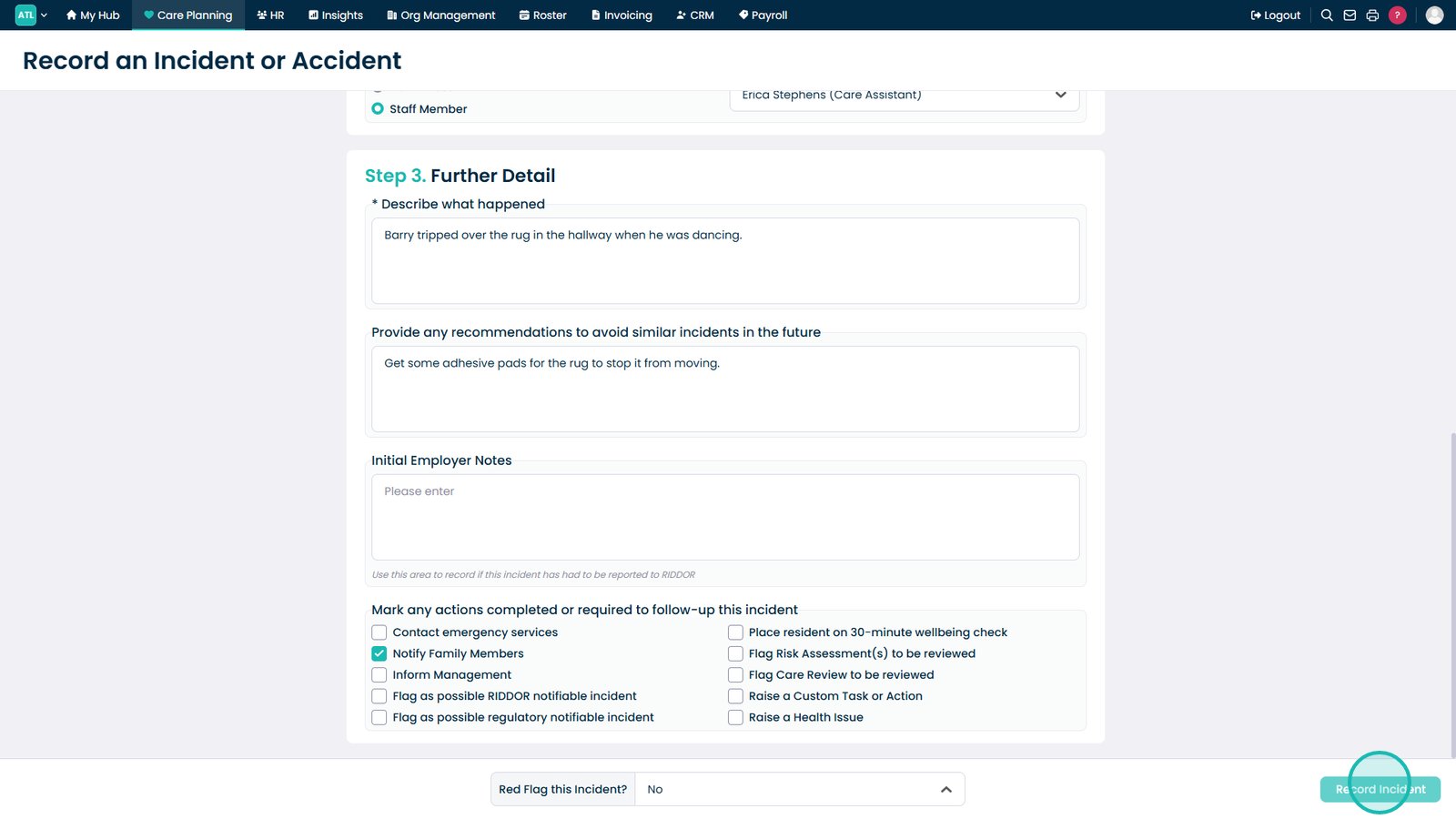
Select Record Incident to save and submit the completed incident report.
Top tip
Record the incident as soon as possible after it occurs to ensure the information is accurate and complete.