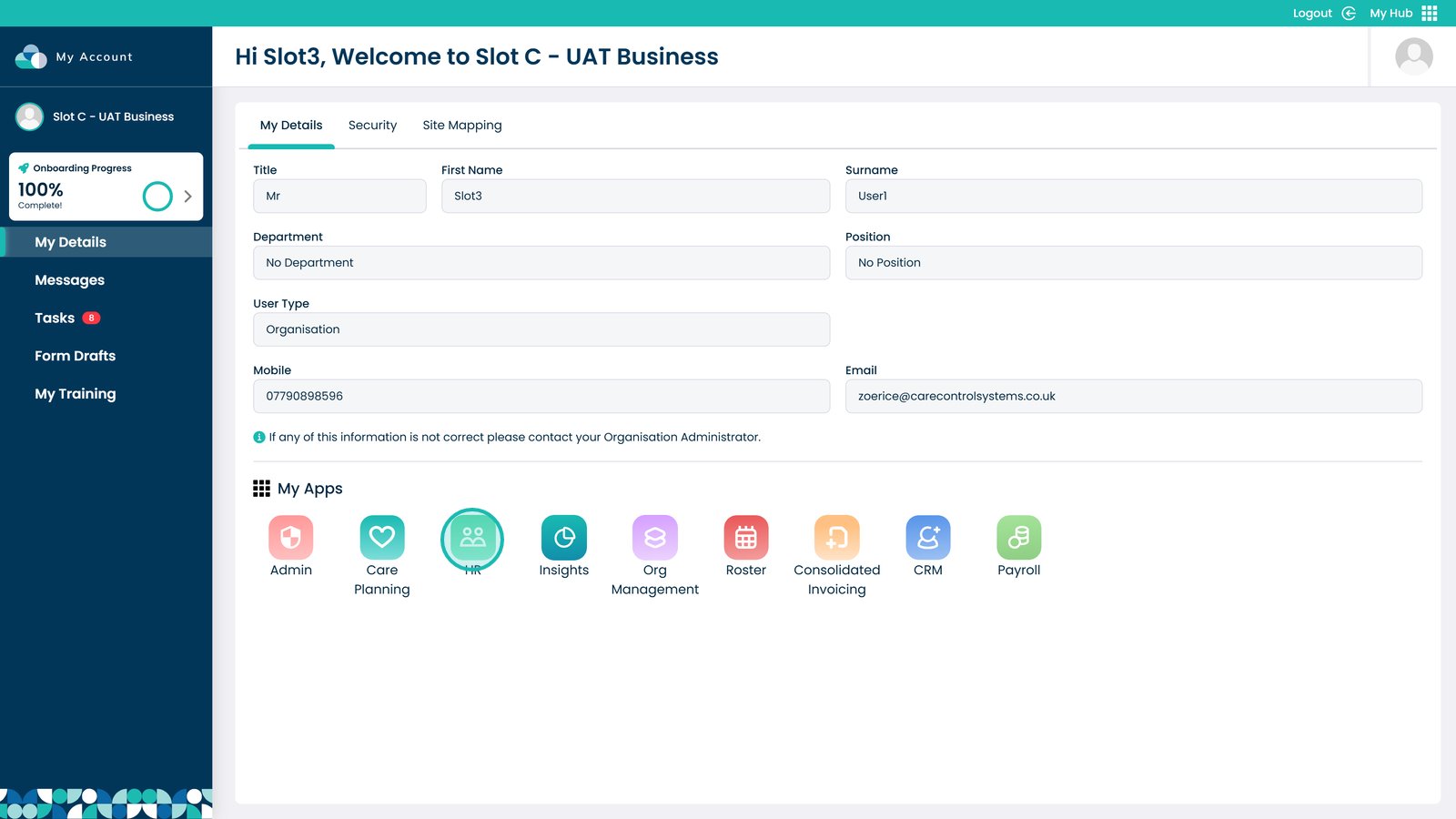
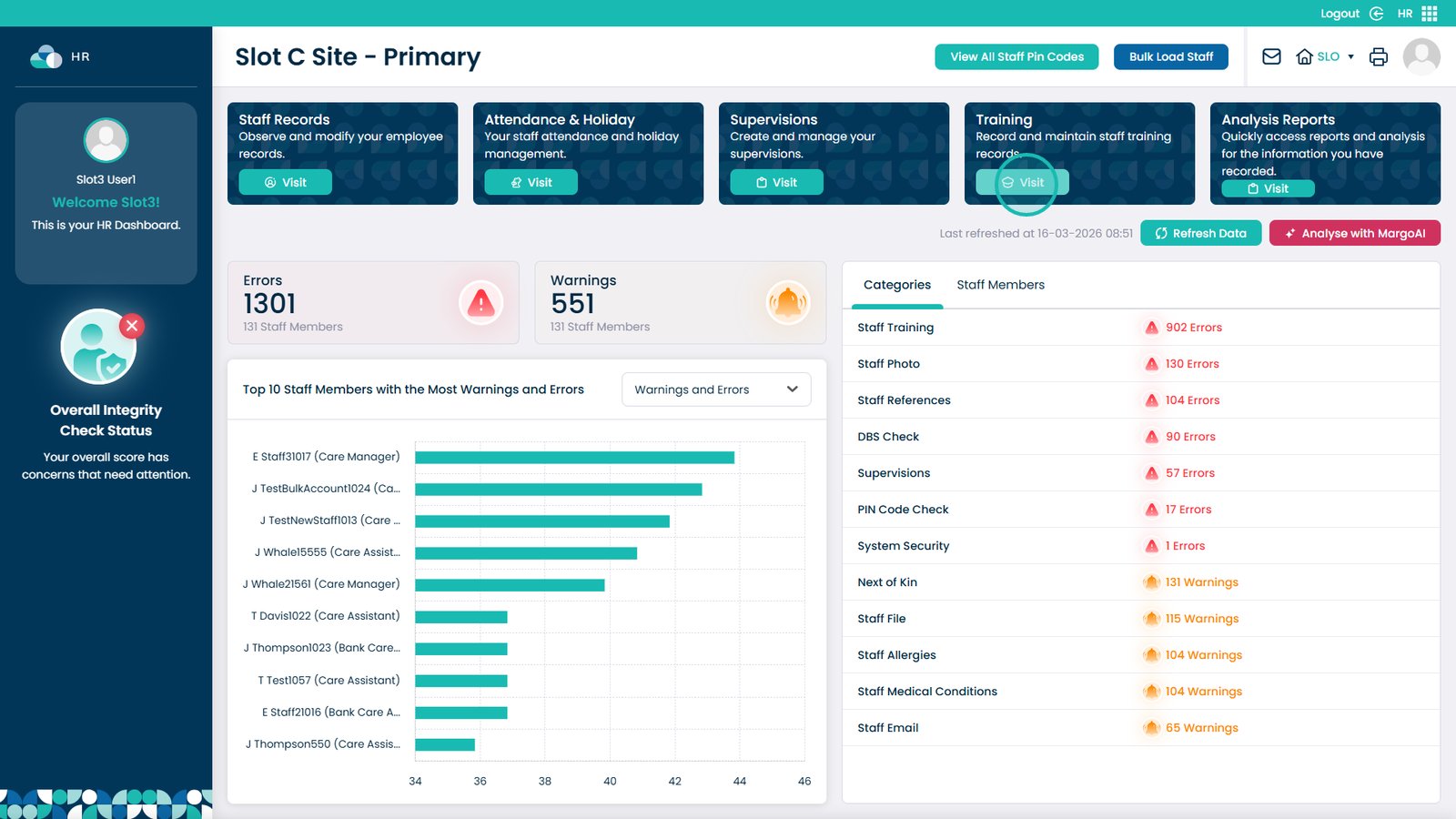
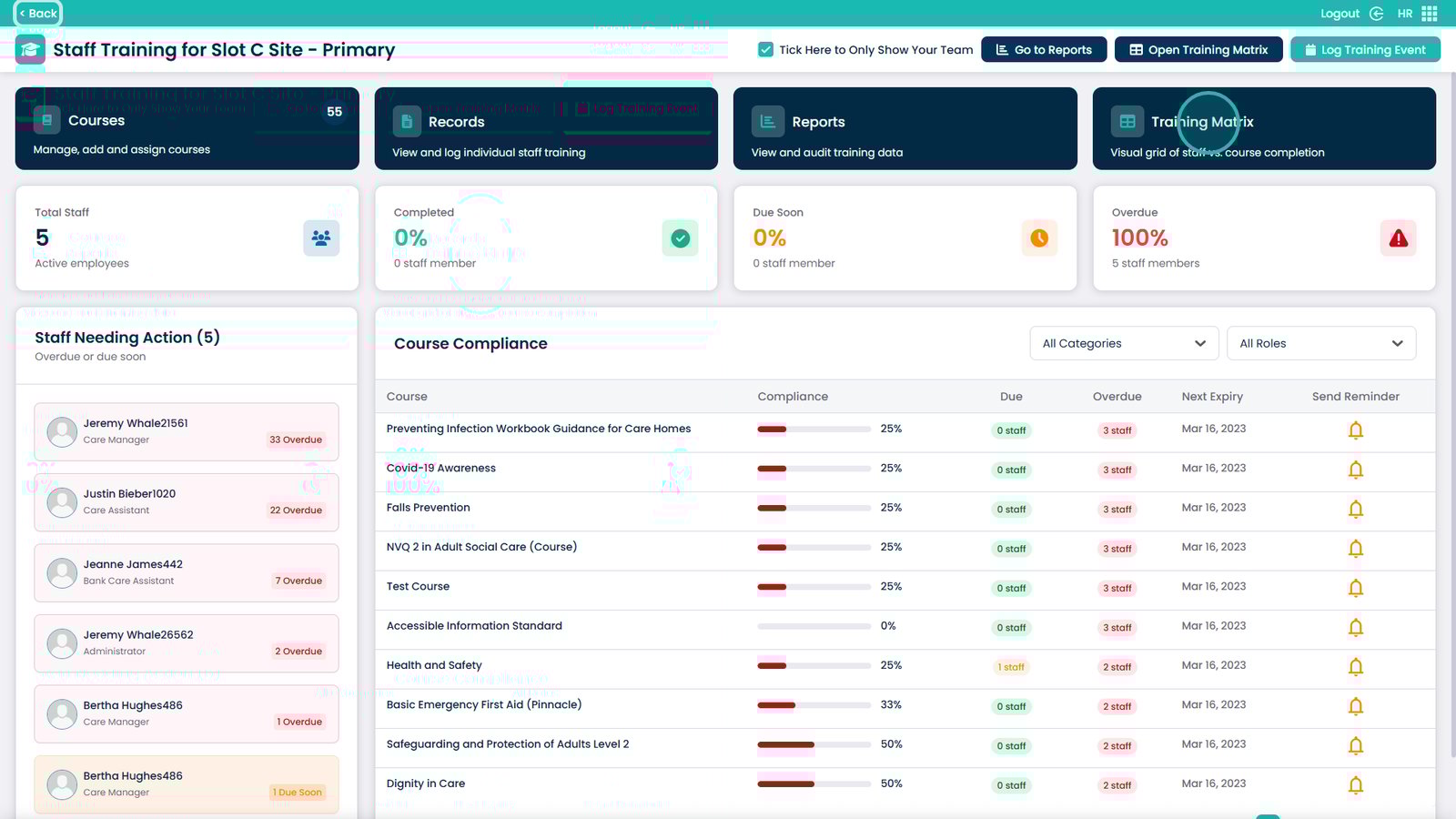
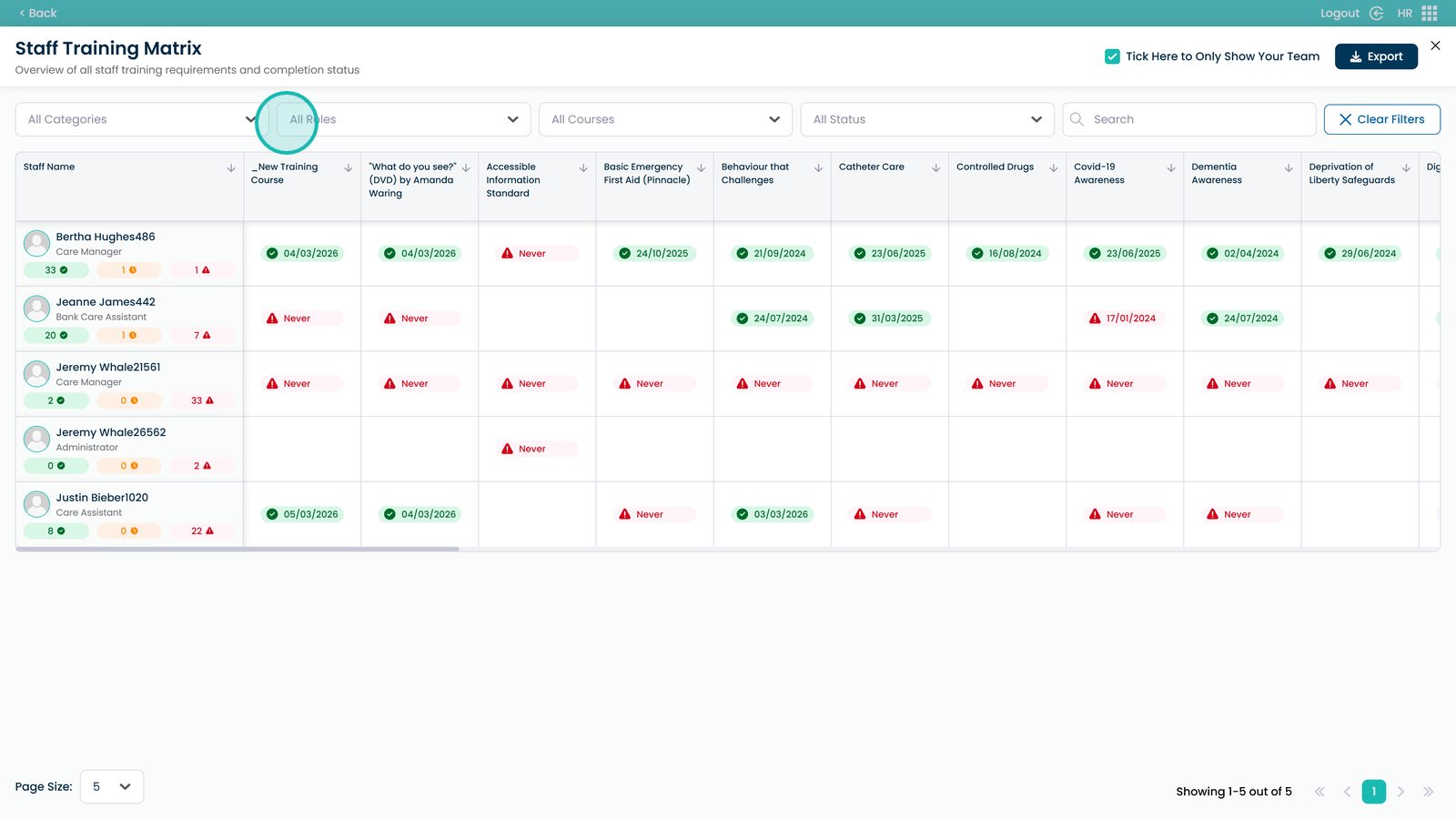
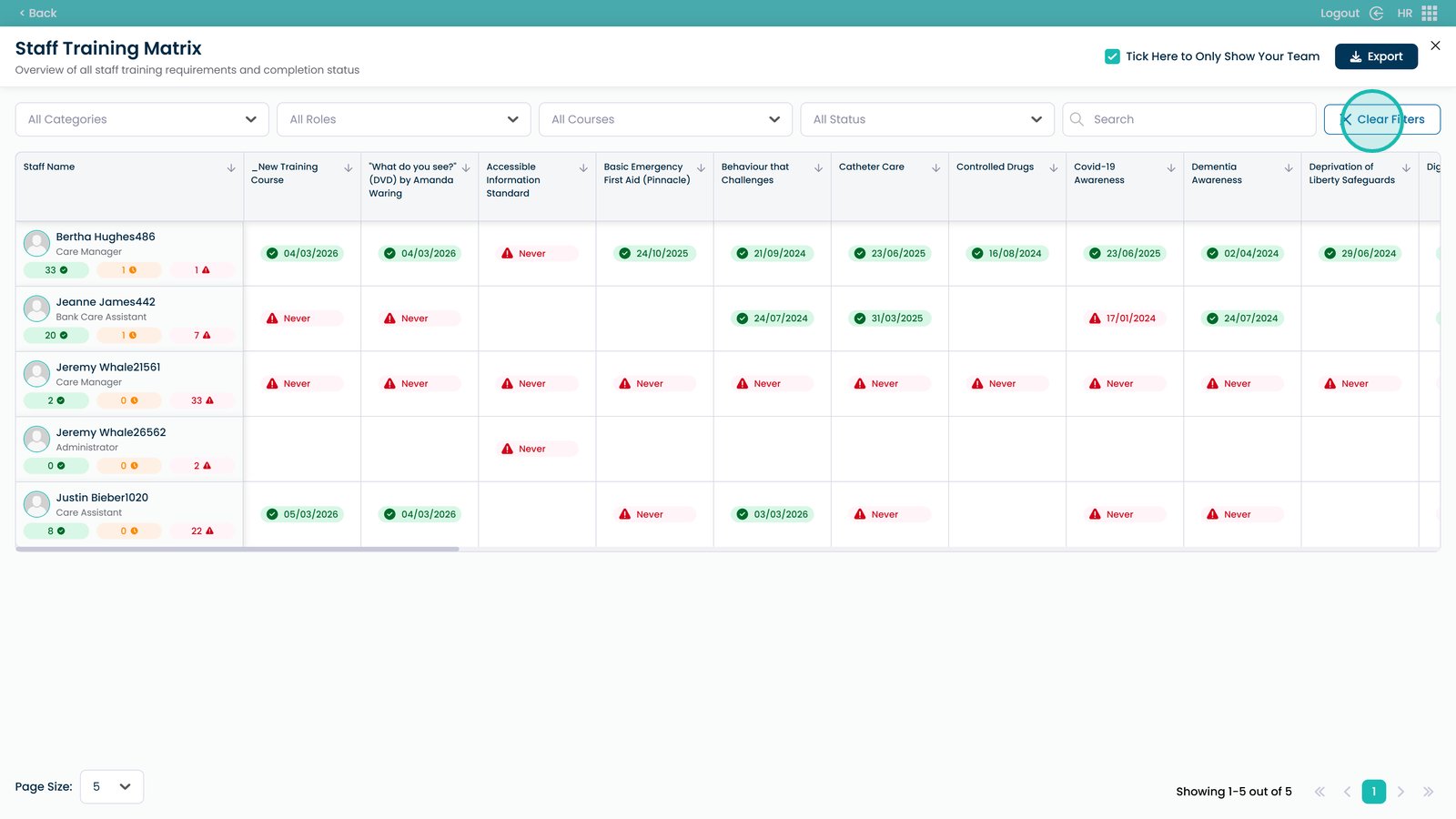
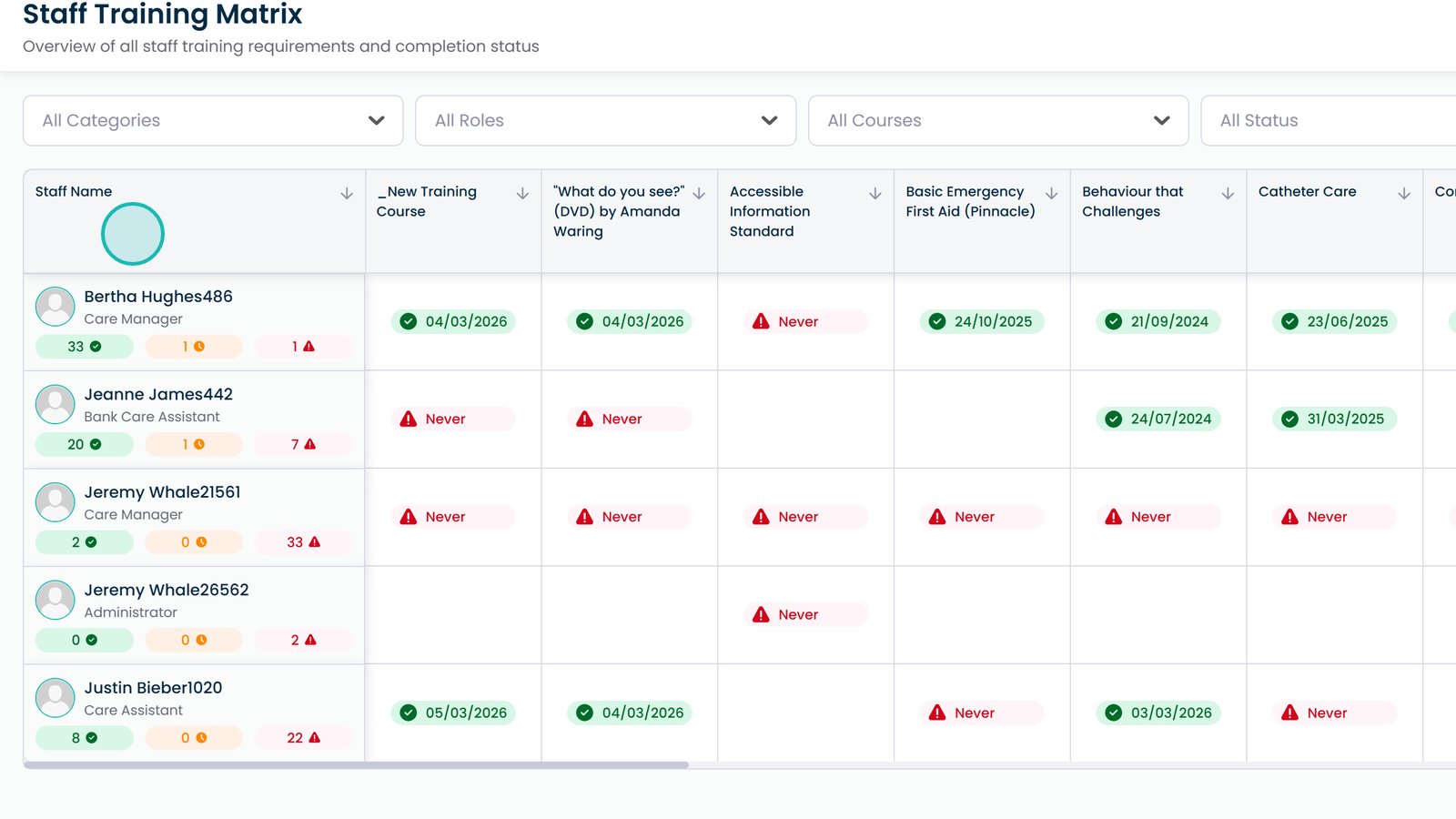
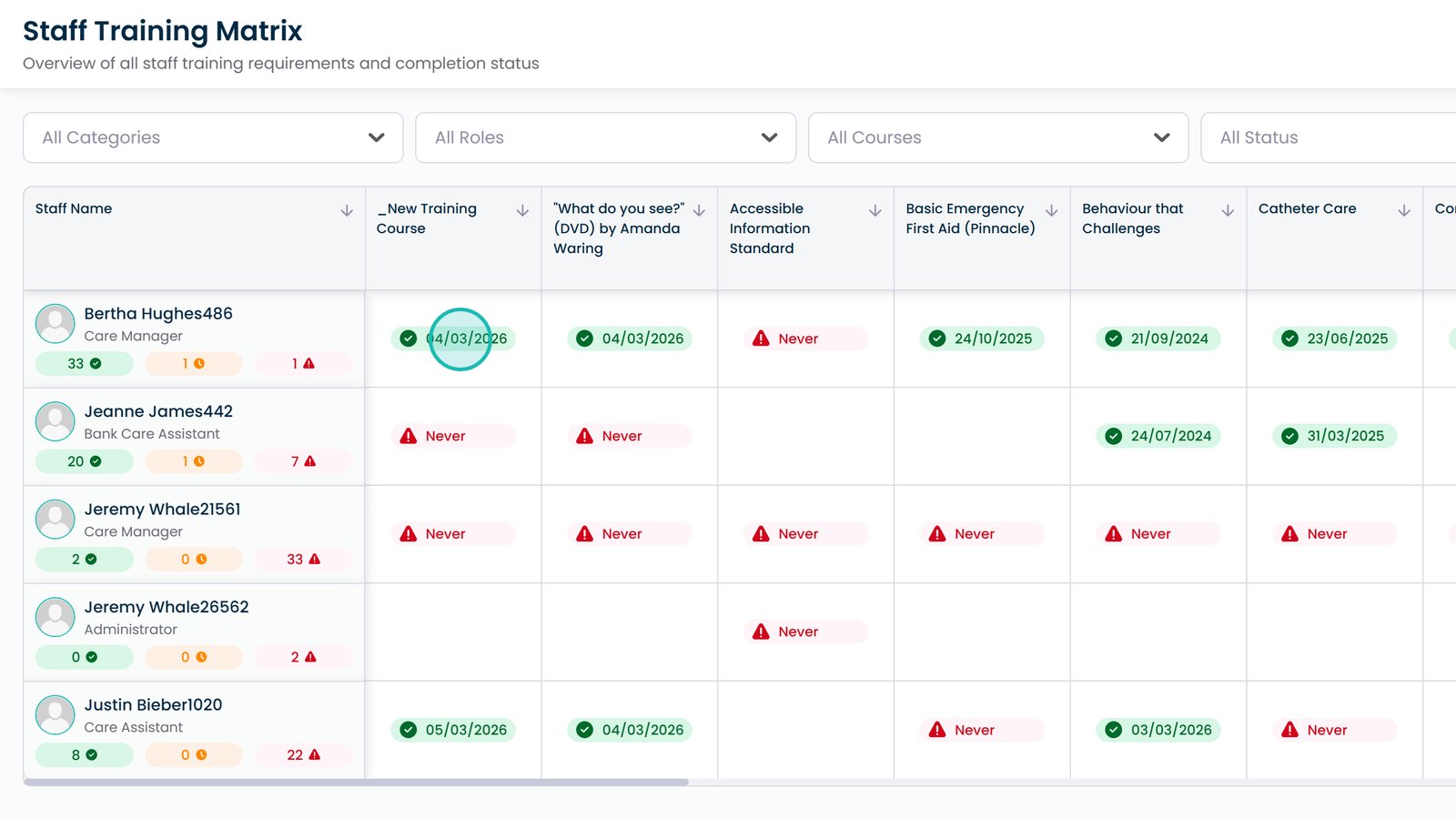
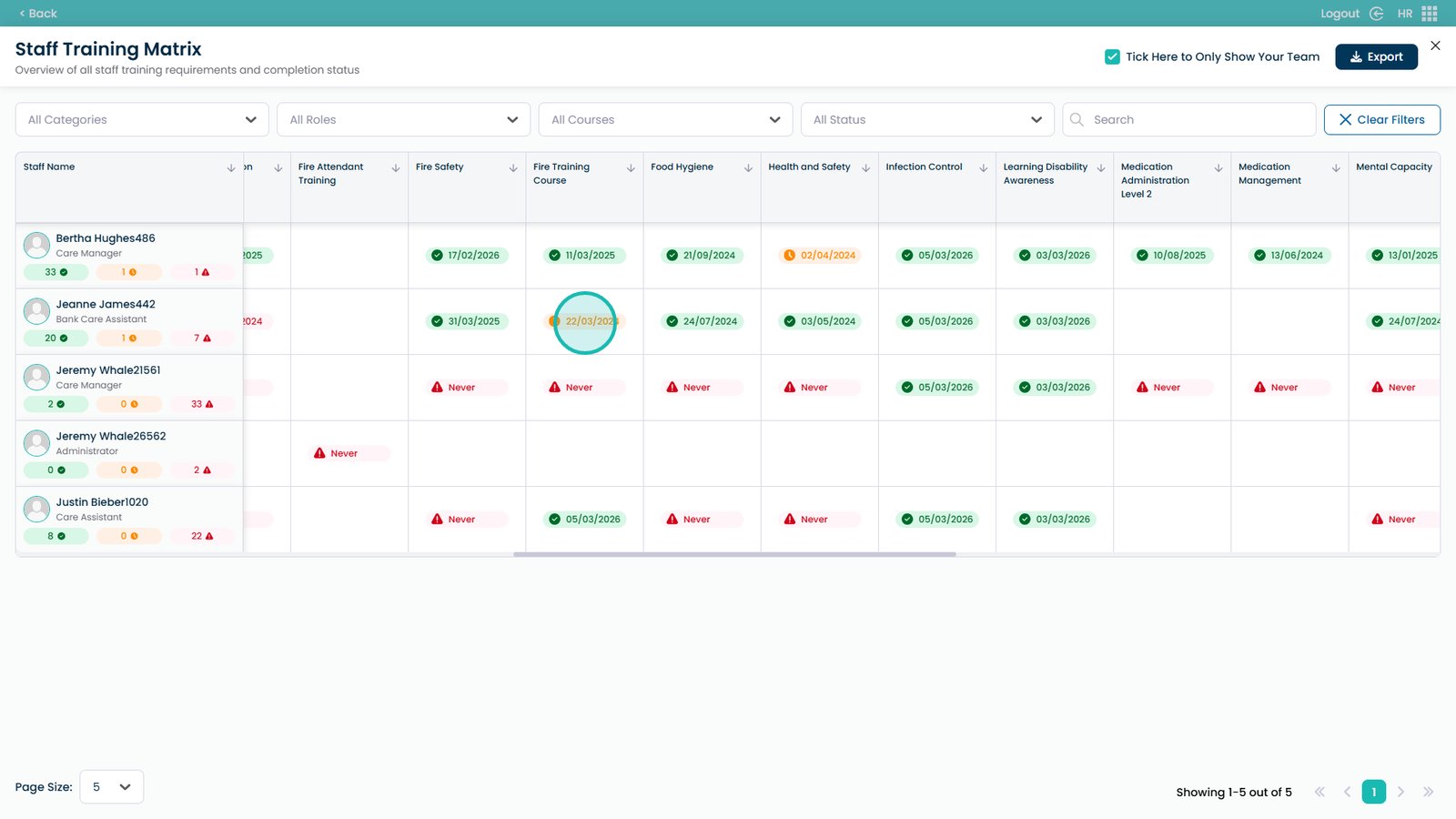
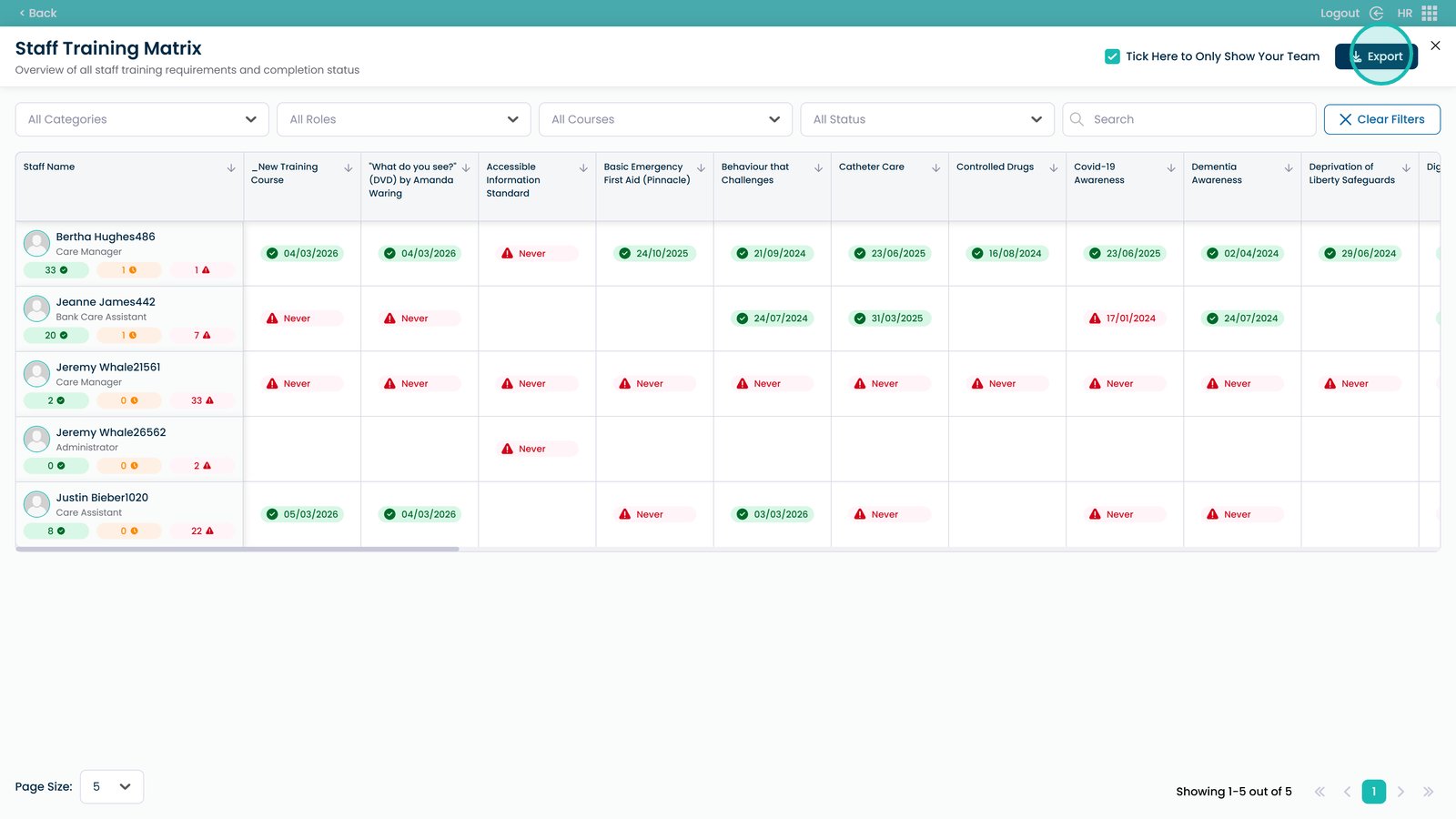
The Training Matrix in Care Control’s HR app gives you a complete grid view of all staff members and their training course completion status in one place. It is accessible from the Training Area and allows you to quickly identify where gaps in training exist across your team.
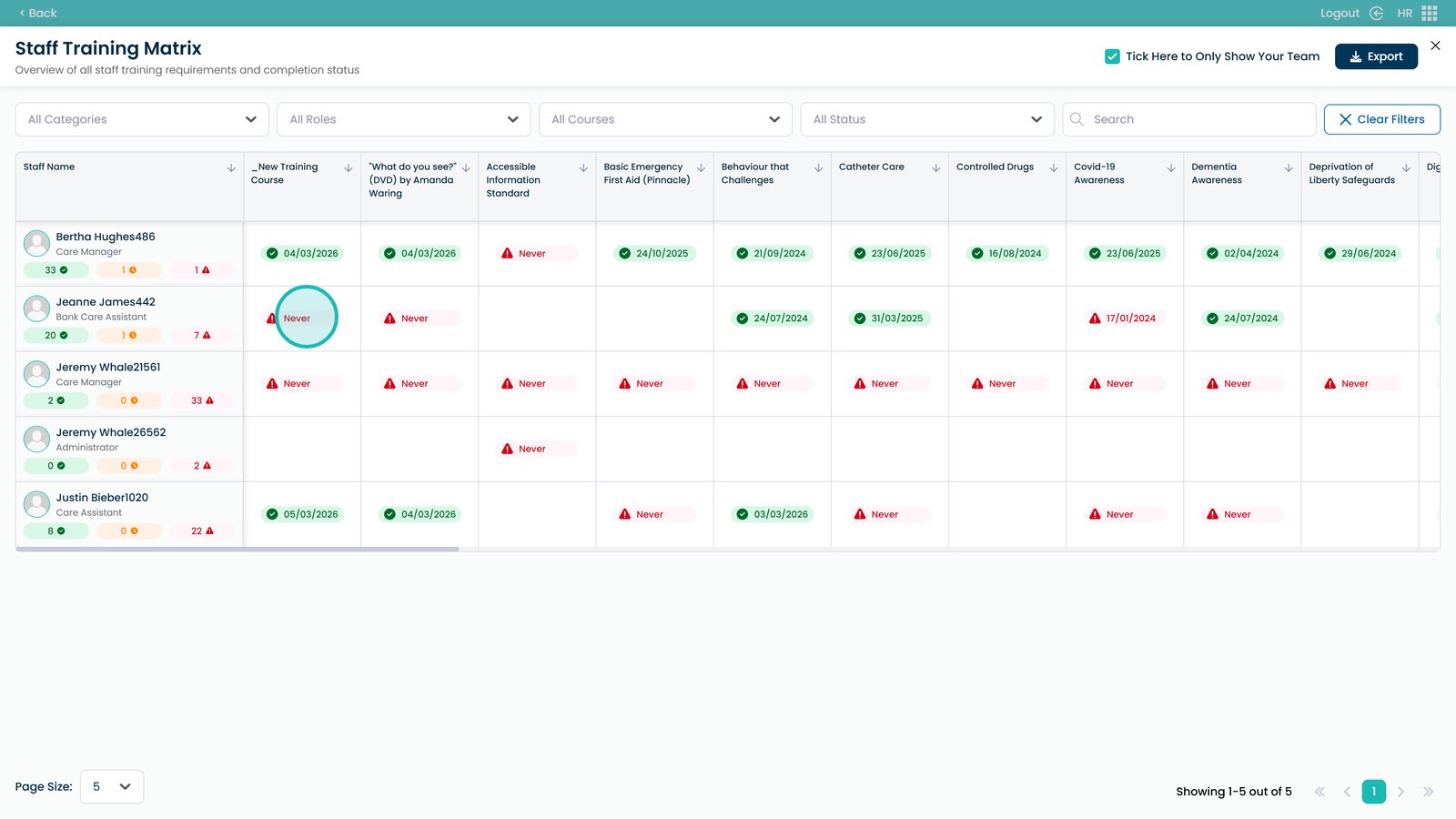
Each row represents a staff member, and each column represents a training course. A tick with a date indicates when a course was last completed, a clock icon with a date means the course is due soon, and a caution symbol marked ‘never’ means the staff member has not yet completed that course at all. Clicking on any staff member’s name will take you directly to their individual training record.
You can filter the matrix by category, role, or other criteria using the dropdown menus at the top of the page, and clear them at any time using the clear filters button. Once you have the view you need, you can export the full matrix as a CSV file for use in reporting or audits.