HR Training Dashboard Overview
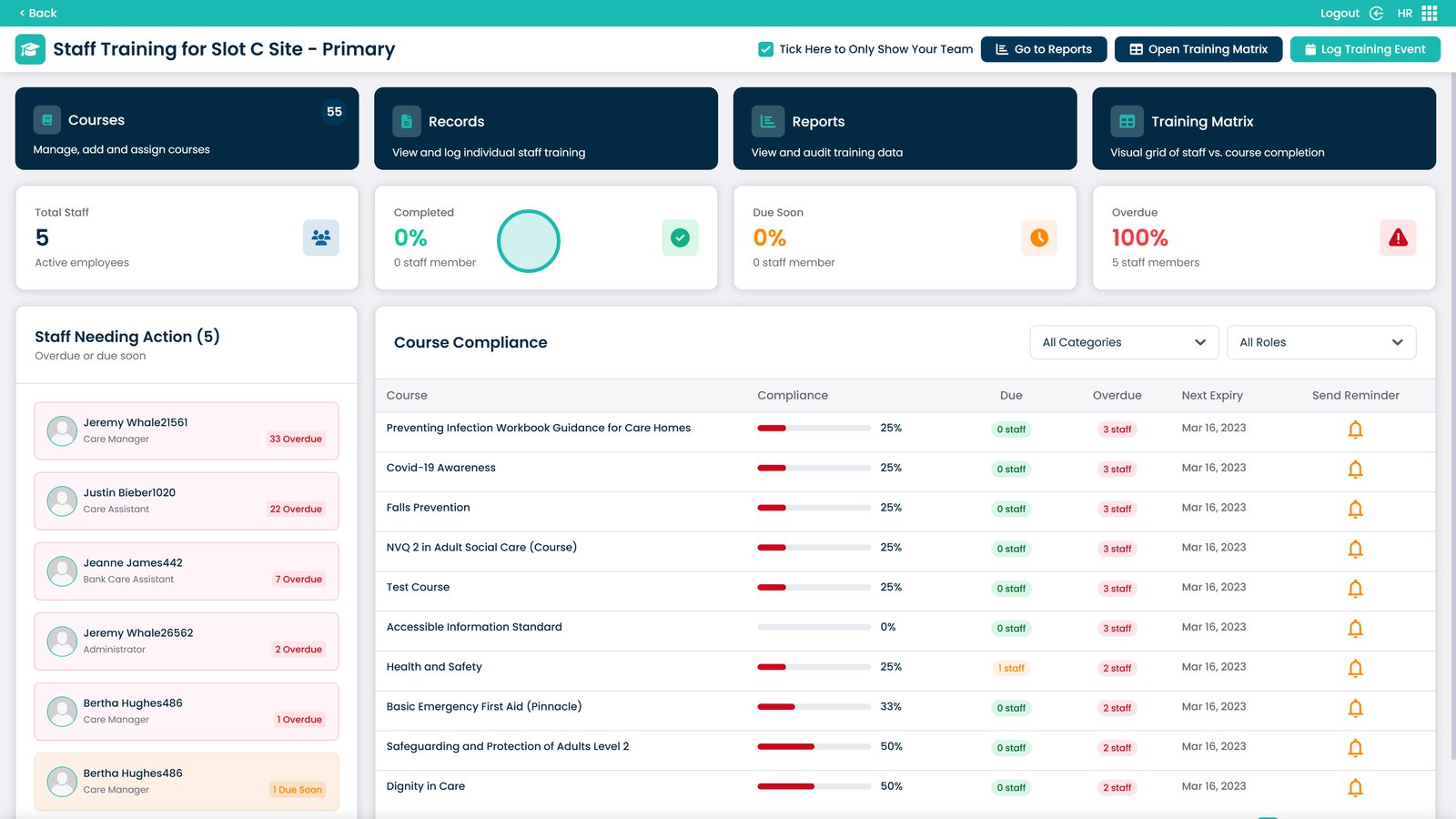
The HR Training Dashboard in Care Control gives you a centralised overview of all staff training across your organisation. From the Training Area in the HR app, you can manage courses, access individual staff records, and review training reports all in one place.
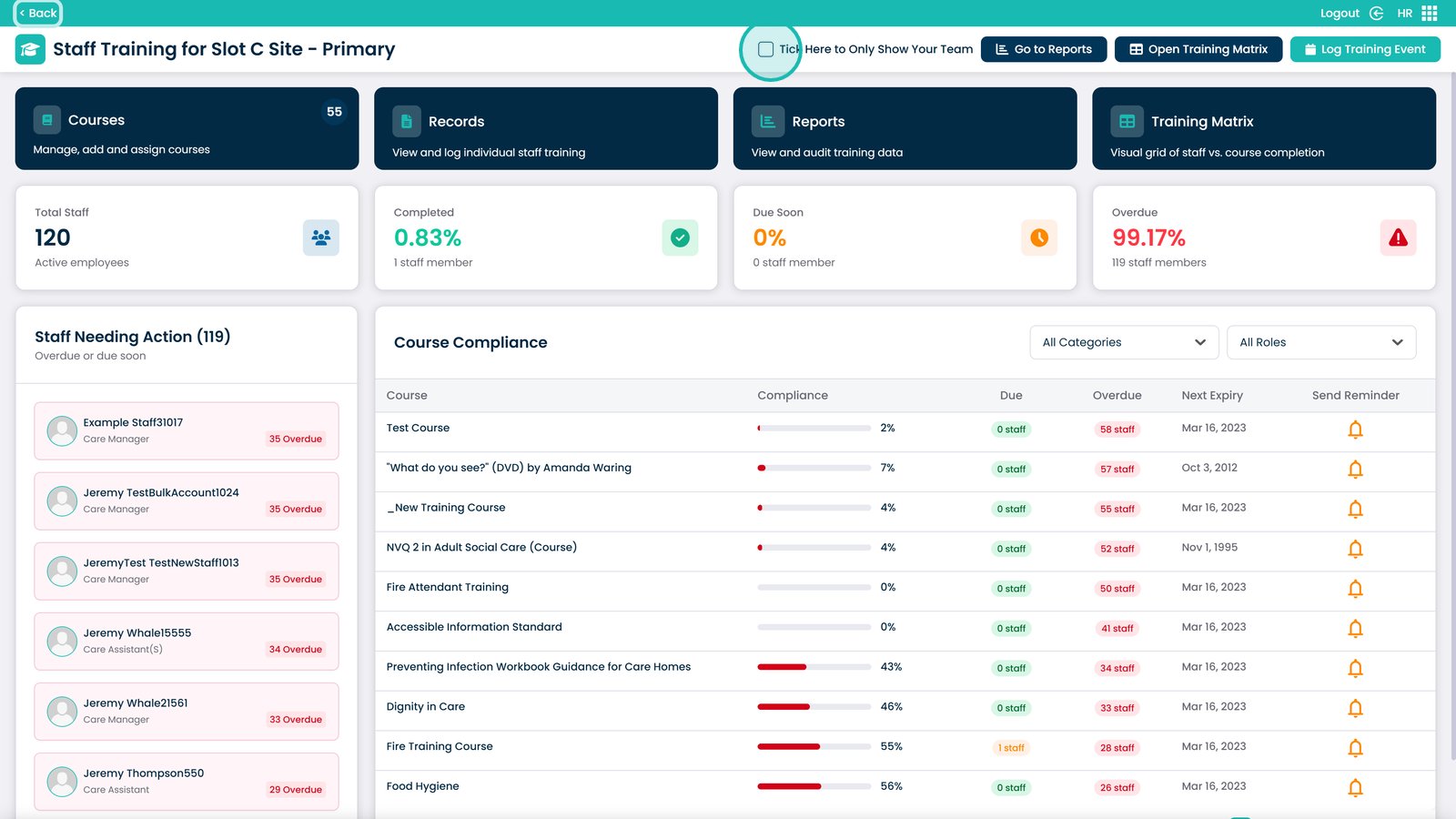
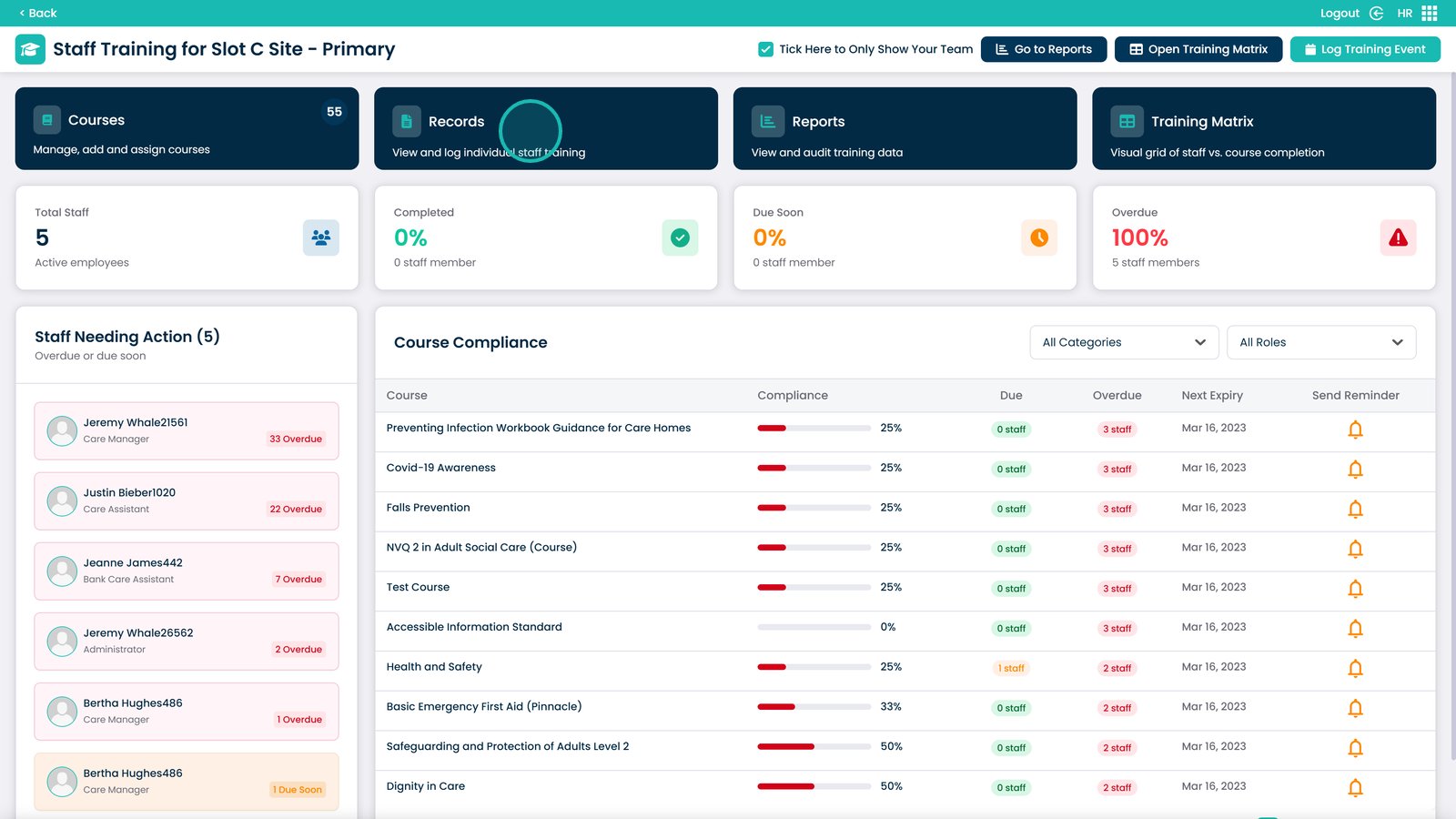
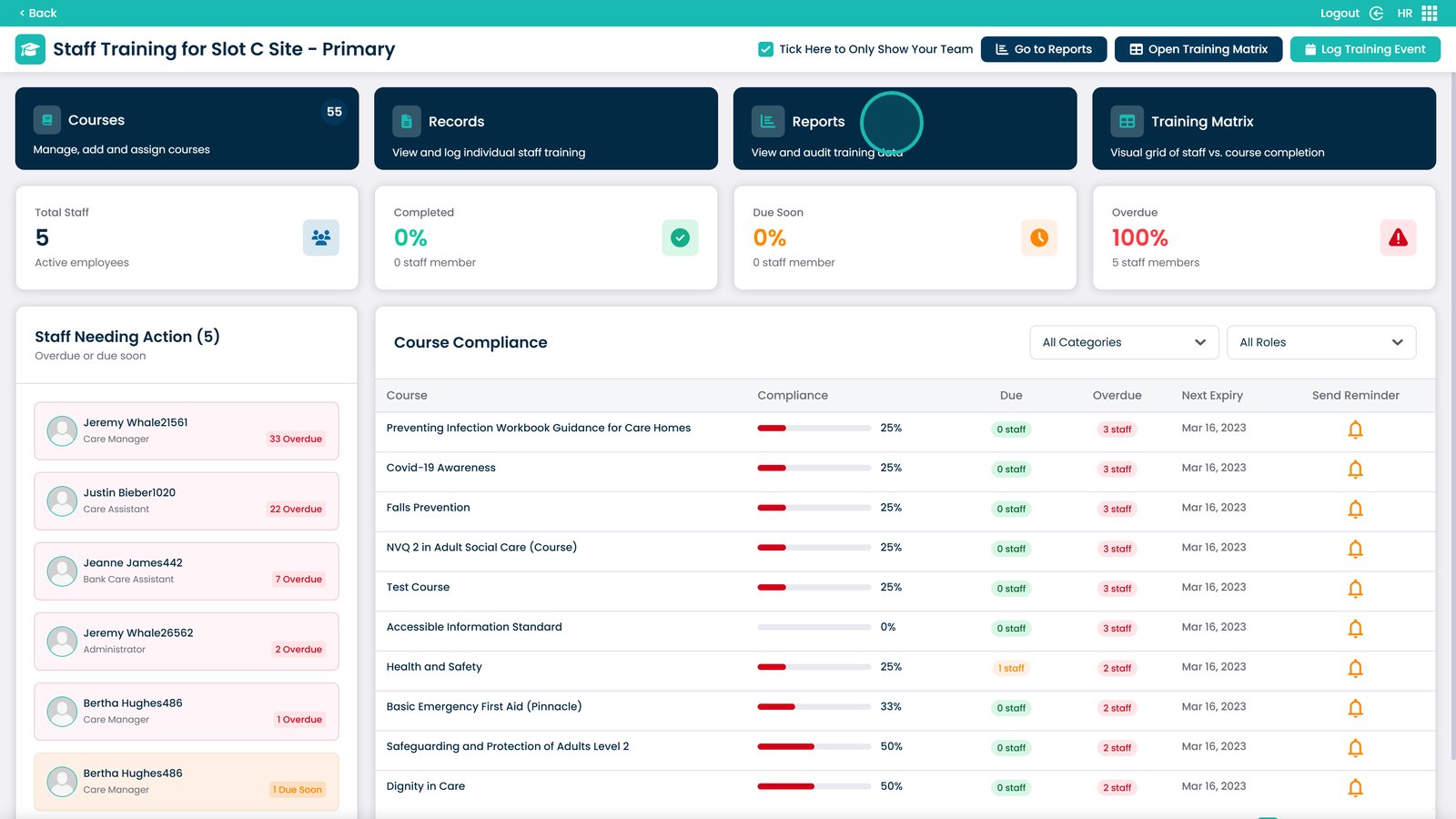
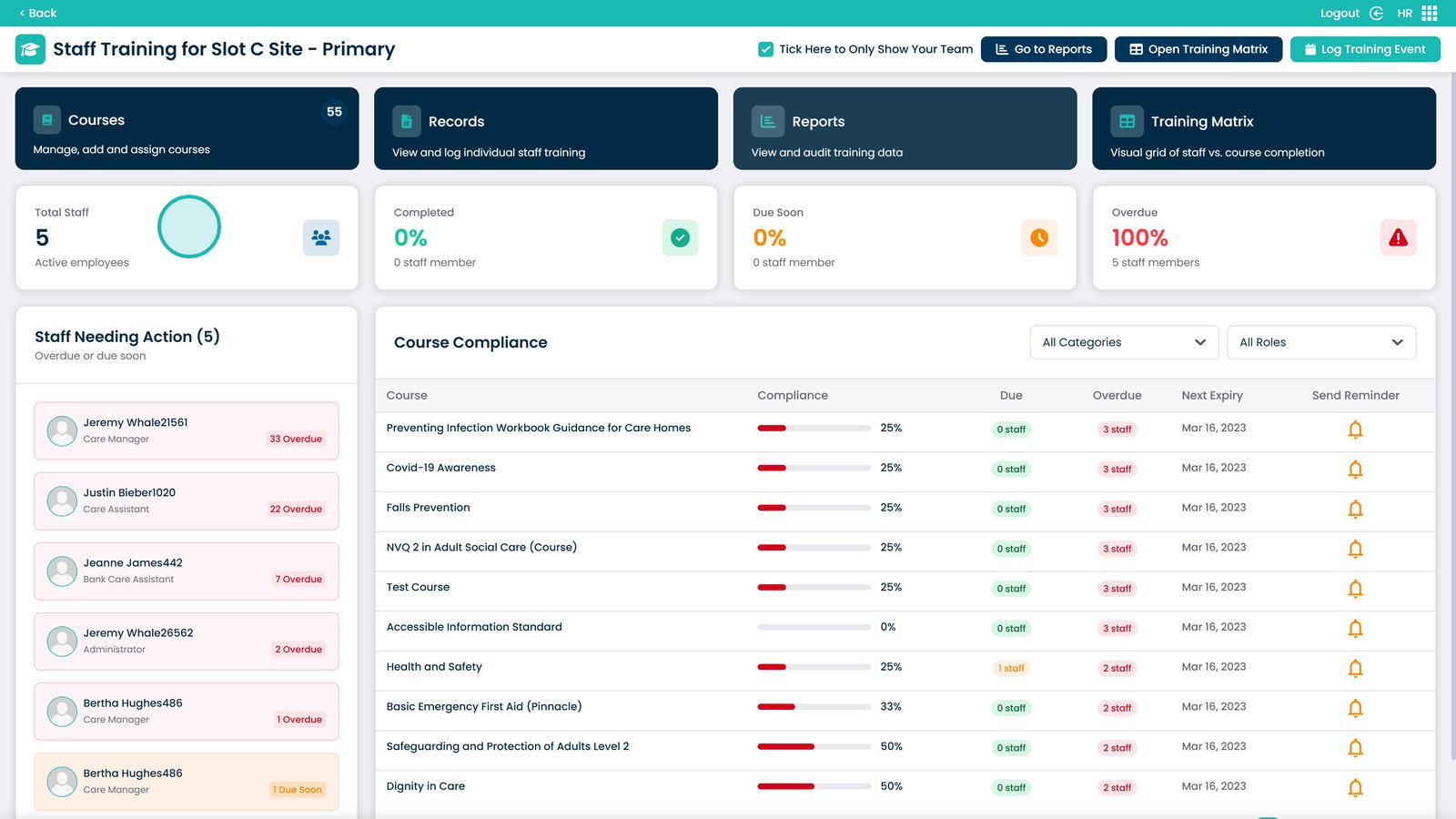
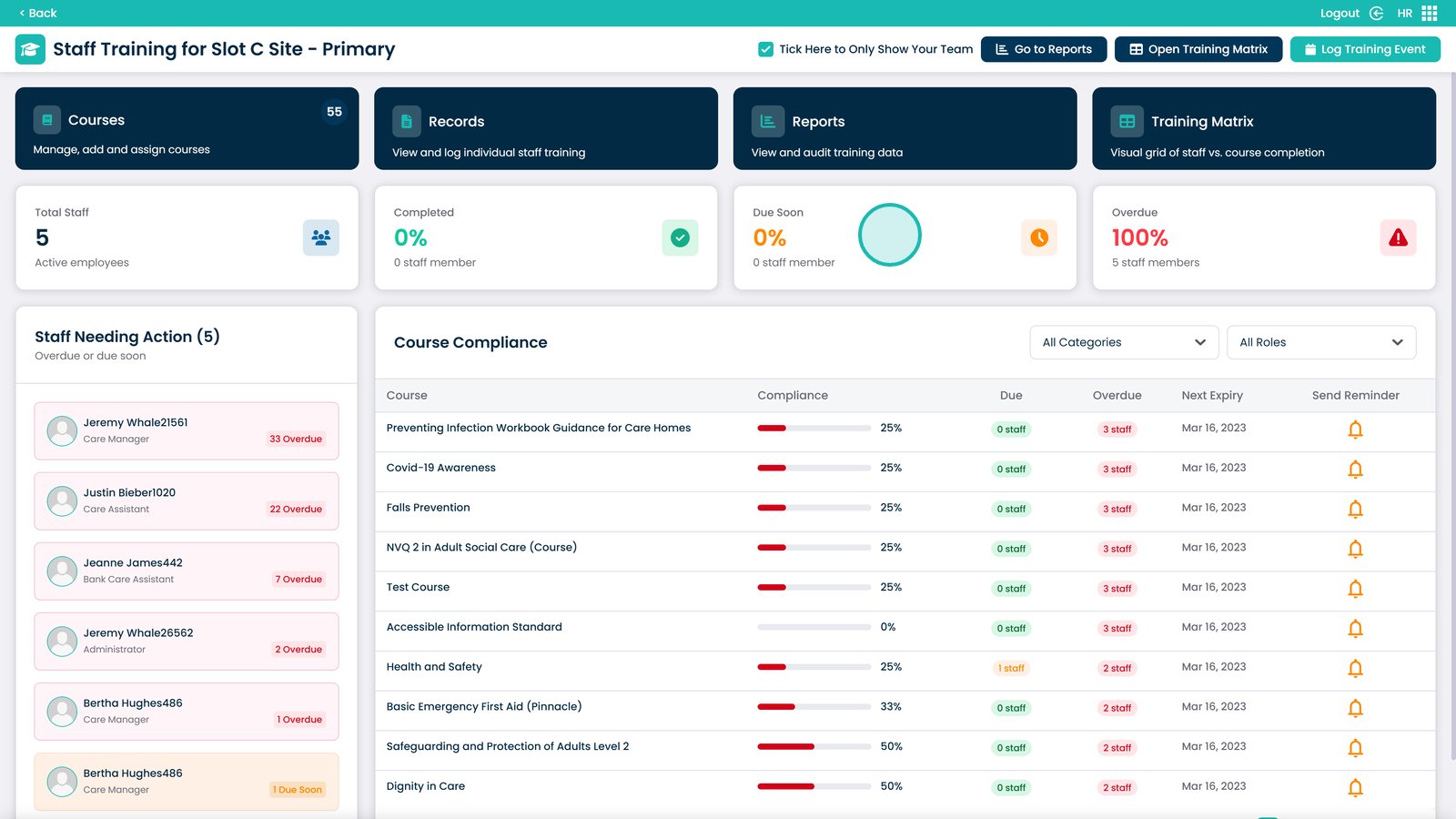
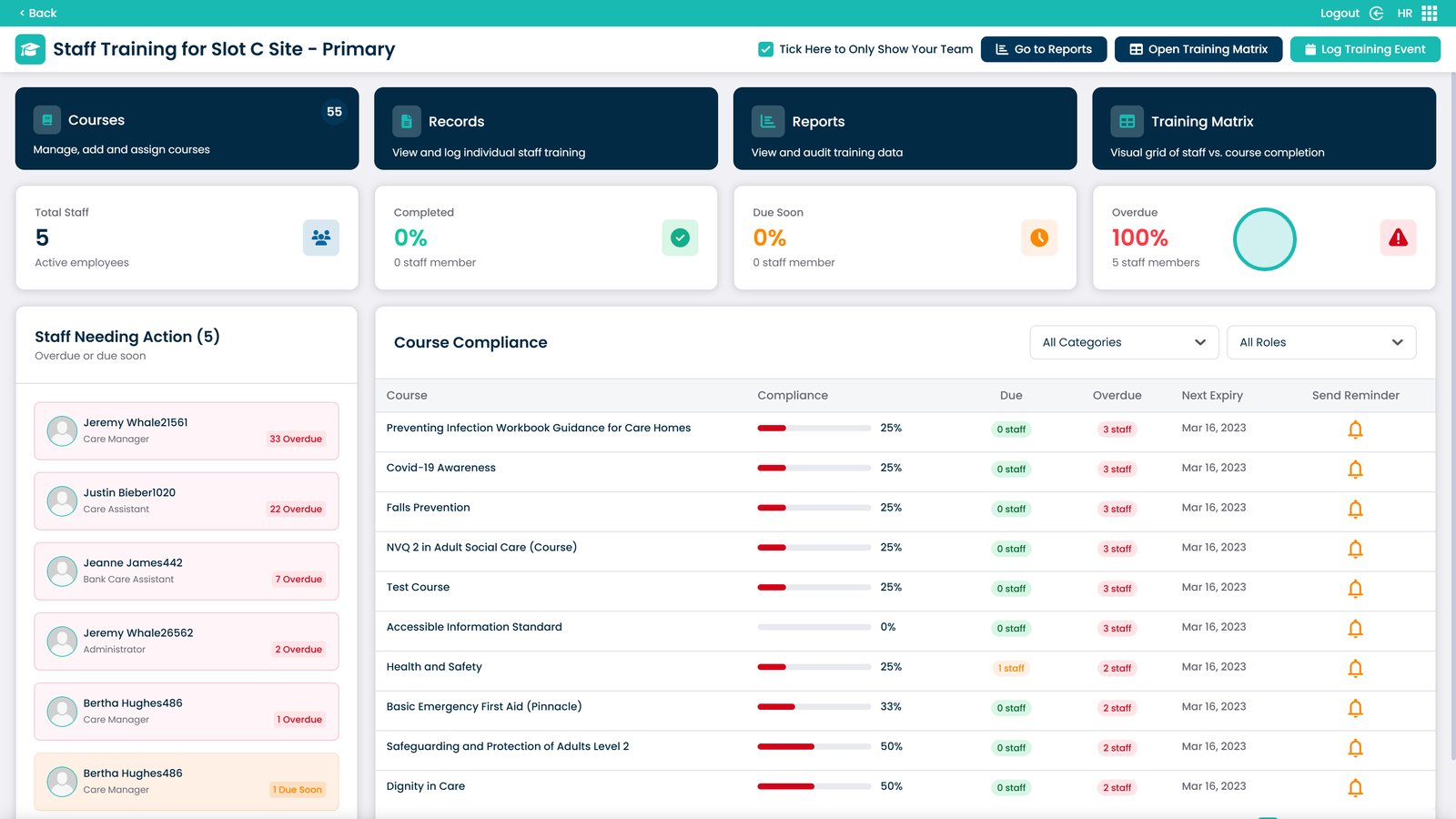
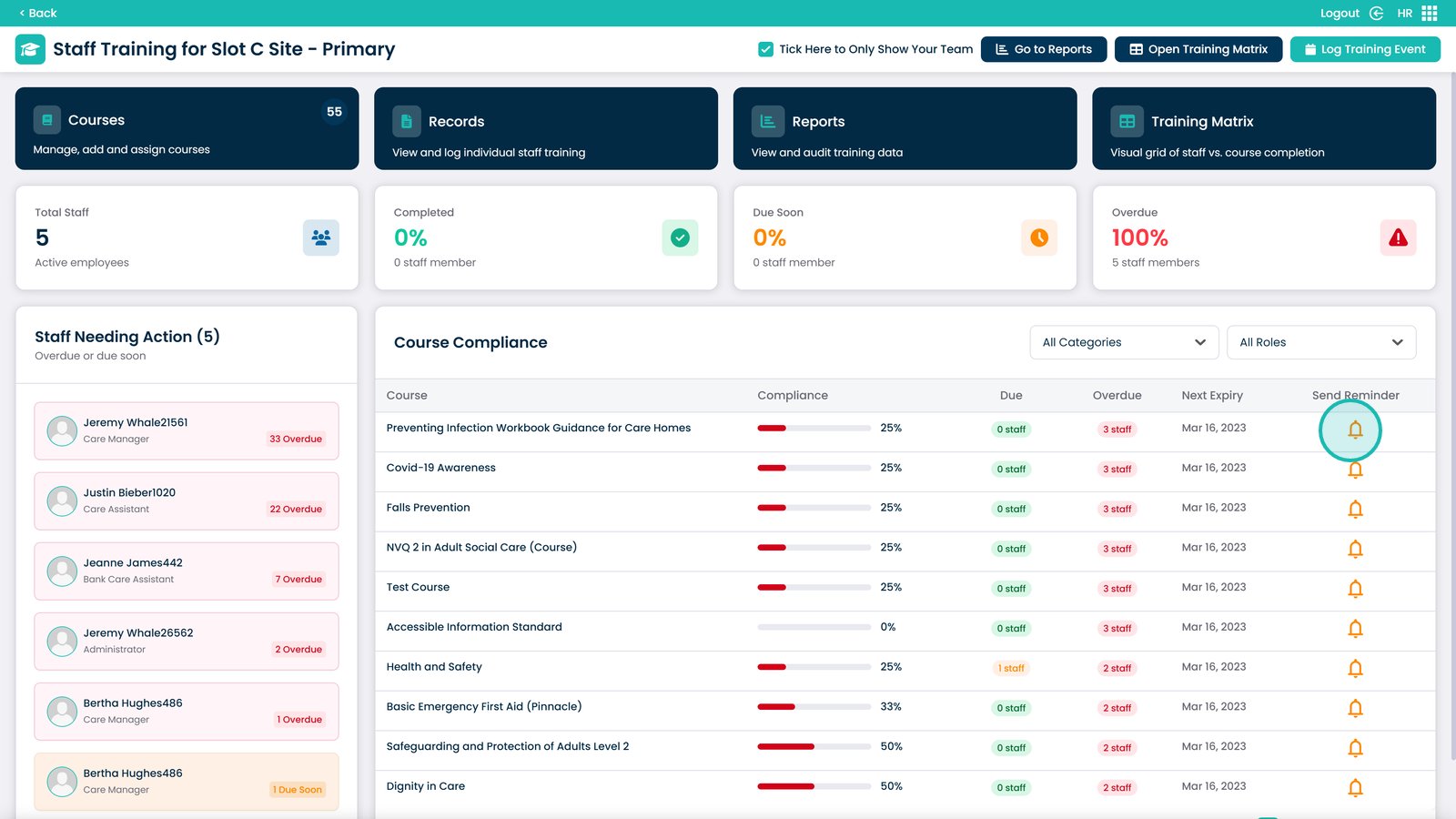
The dashboard displays key headline figures including the total number of staff, how many have completed their training, how many have training due soon, and how many are overdue — each shown with a percentage for quick reference. You can also filter the course compliance area by category or role, and drill down into specific courses to see exactly which staff members have completed them or are falling behind.
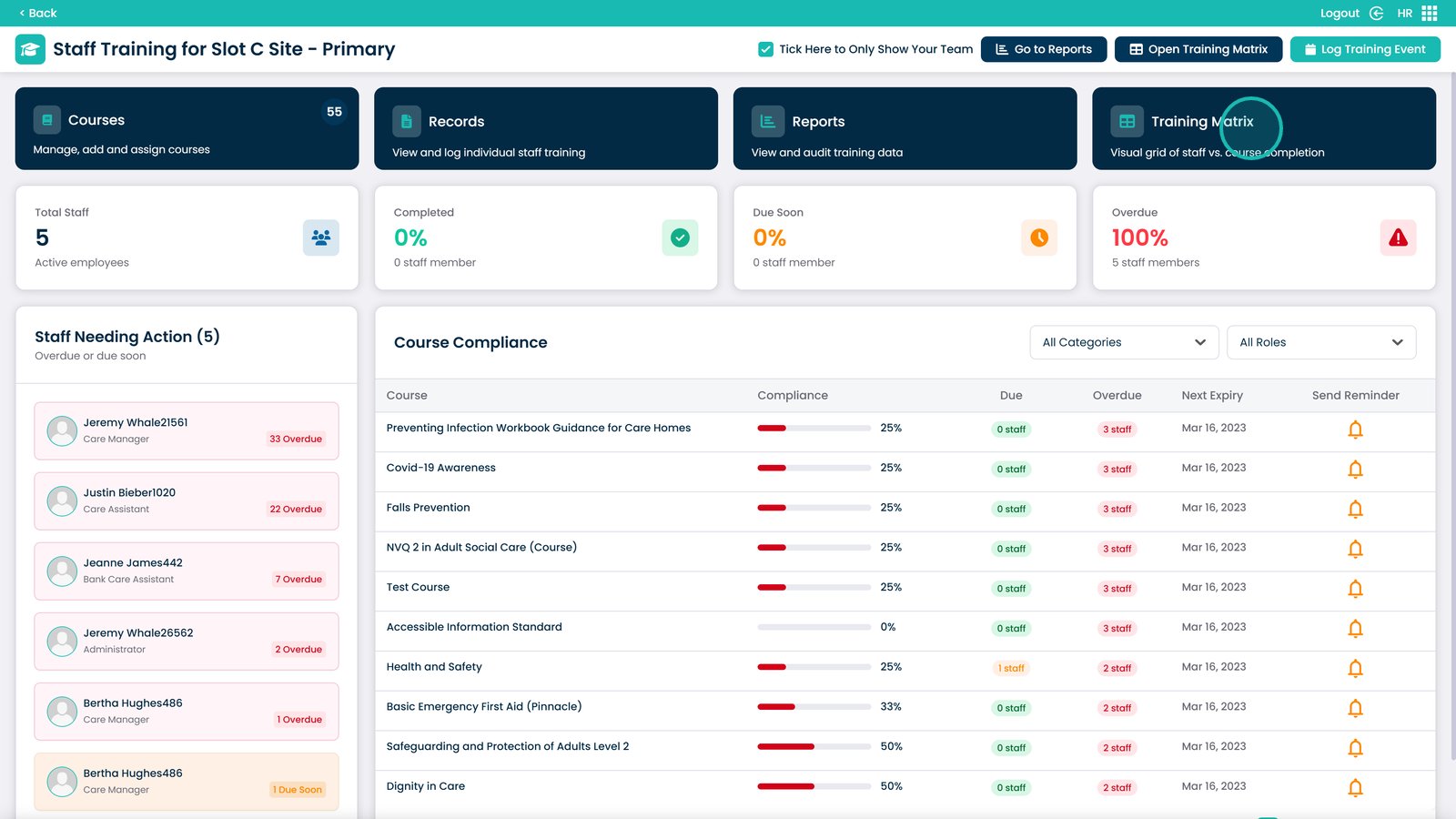
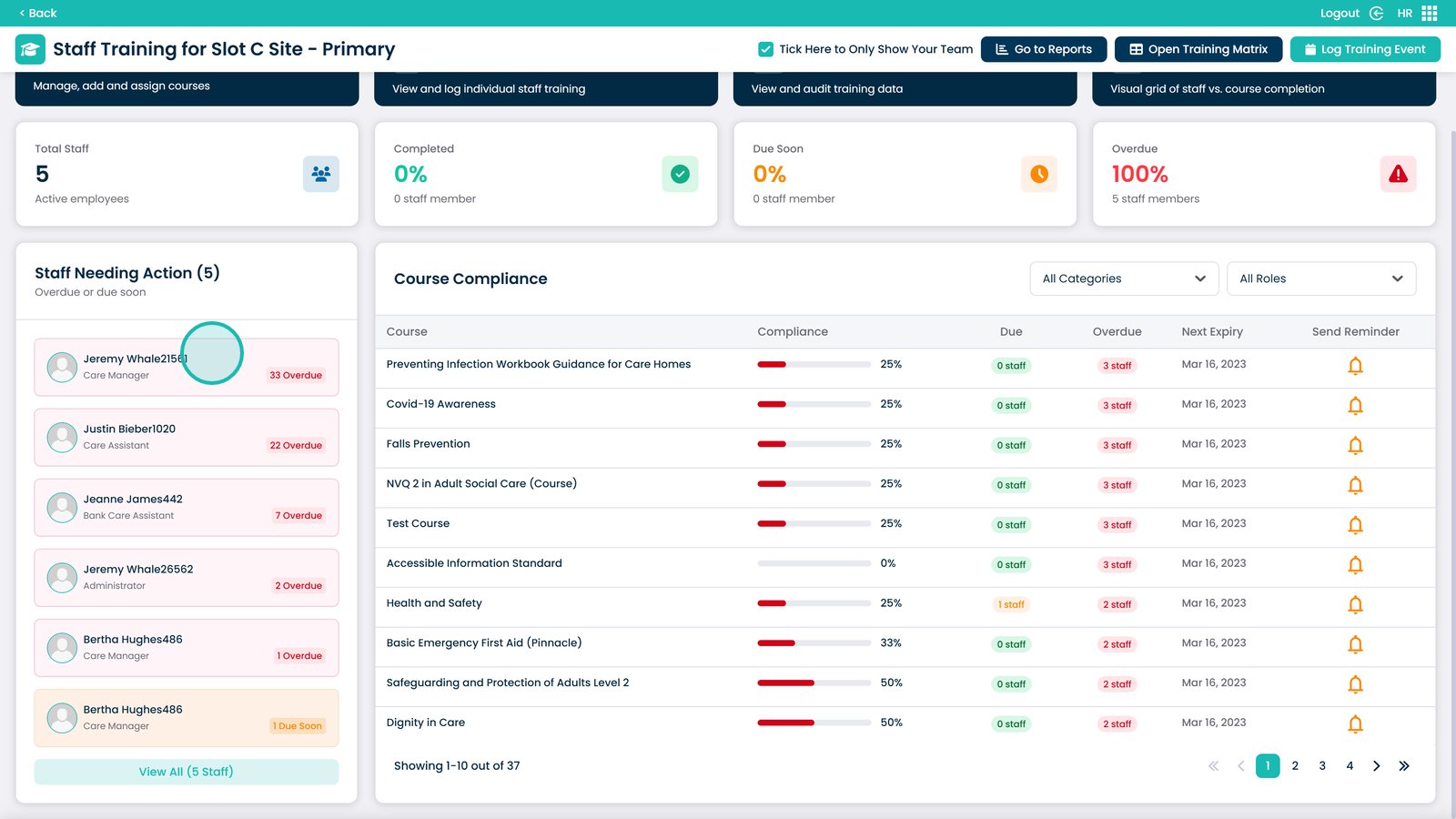
For staff with overdue or upcoming training, you can navigate directly to their individual records from the dashboard, or use the bell icon to send automated reminders to all affected staff in one action. The Training Matrix provides a full grid view of every staff member against their course completion status, giving you a clear picture of compliance across your team at a glance.
Interactive Guide
Text based guide
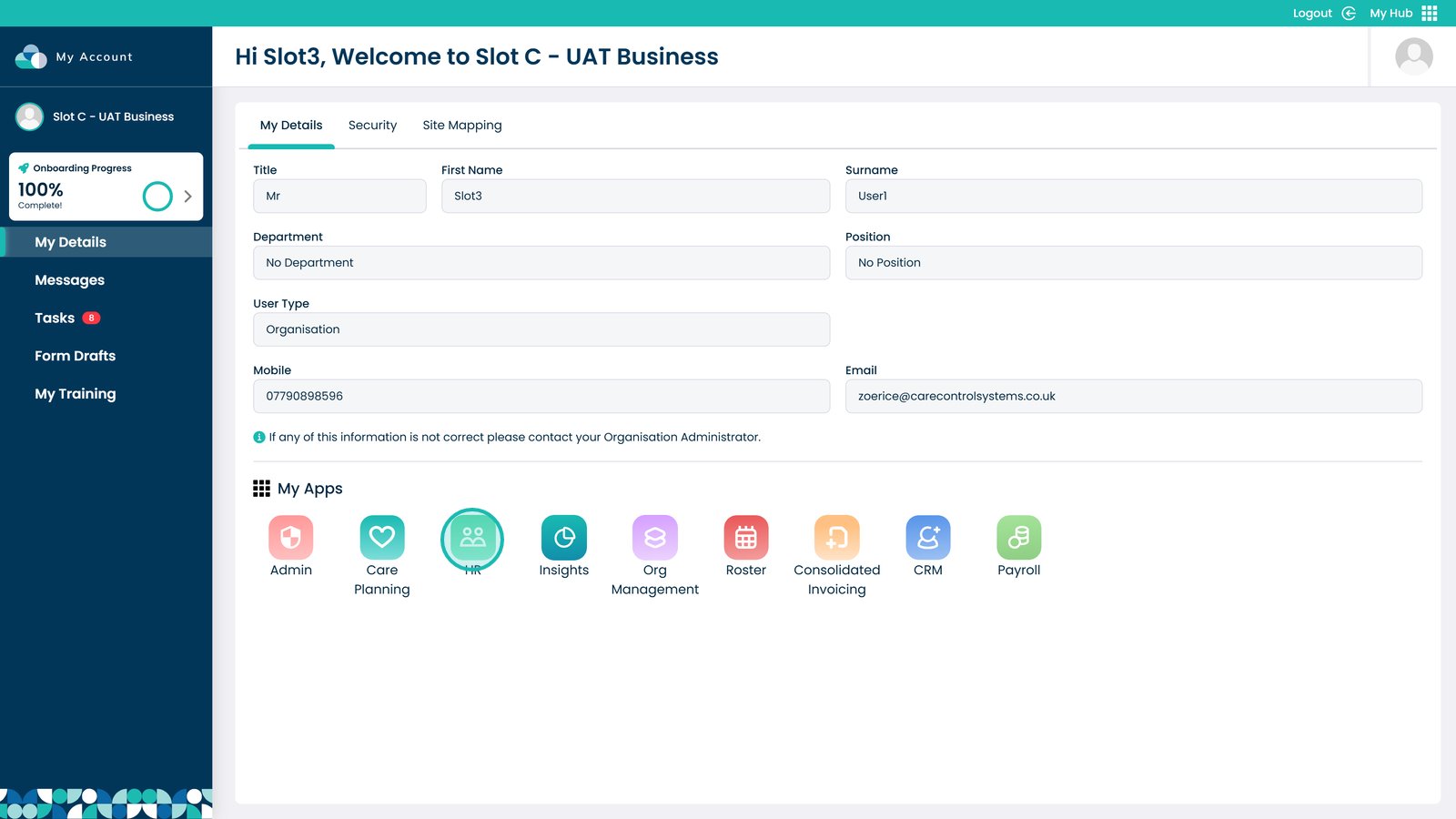
Enter the HR App

Â
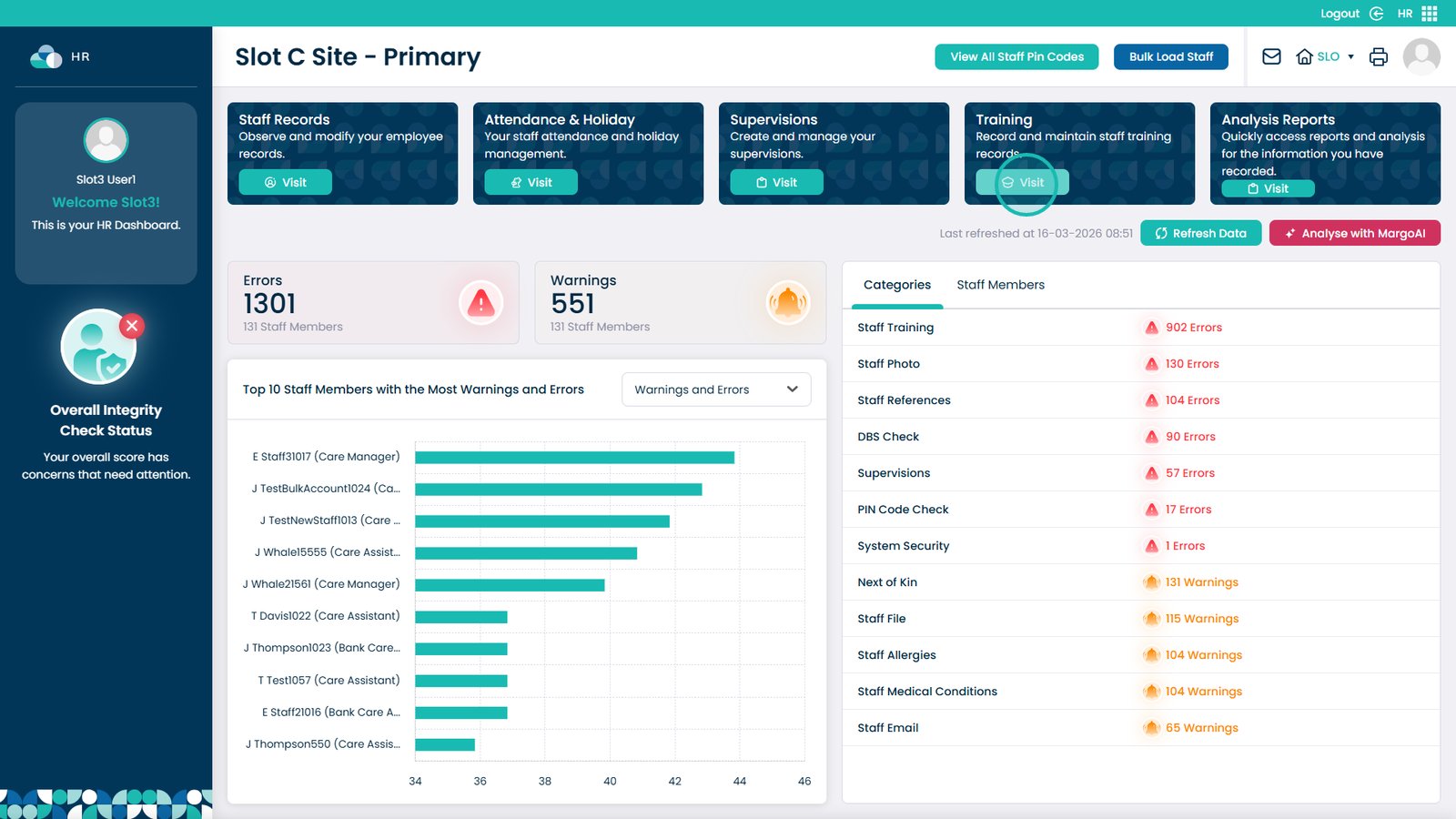
Click Visit on the Training Area

Â
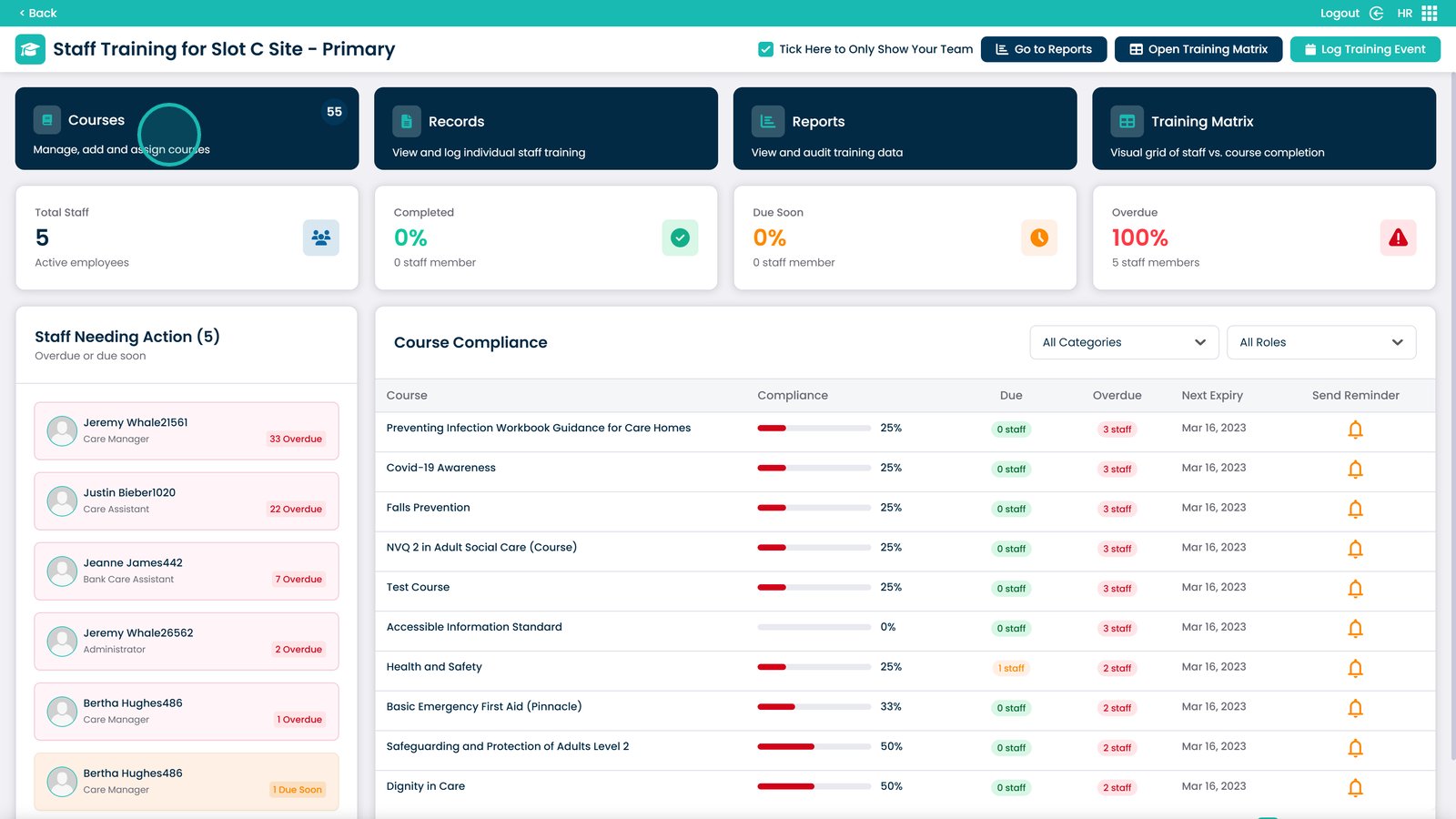
You can tick this box to only show members of your team on the dashboard

Â
In this area you can view all of the courses, add new ones and assign them

Â
This box will take you to the individual staff records

Â
This box will take you to review the reports for all staff training

Â
The Training Matrix is a grid that shows all staff against their course completion

Â
This will show you how many total staff you have

Â
This box shows how many staff members have completed training and the percentage

Â
This box shows how many staff members have training due soon and the percentage

Â
This box shows how many staff members have overdue training and the percentage

Â
You can view the staff needing action here and select them to view their issues

Â
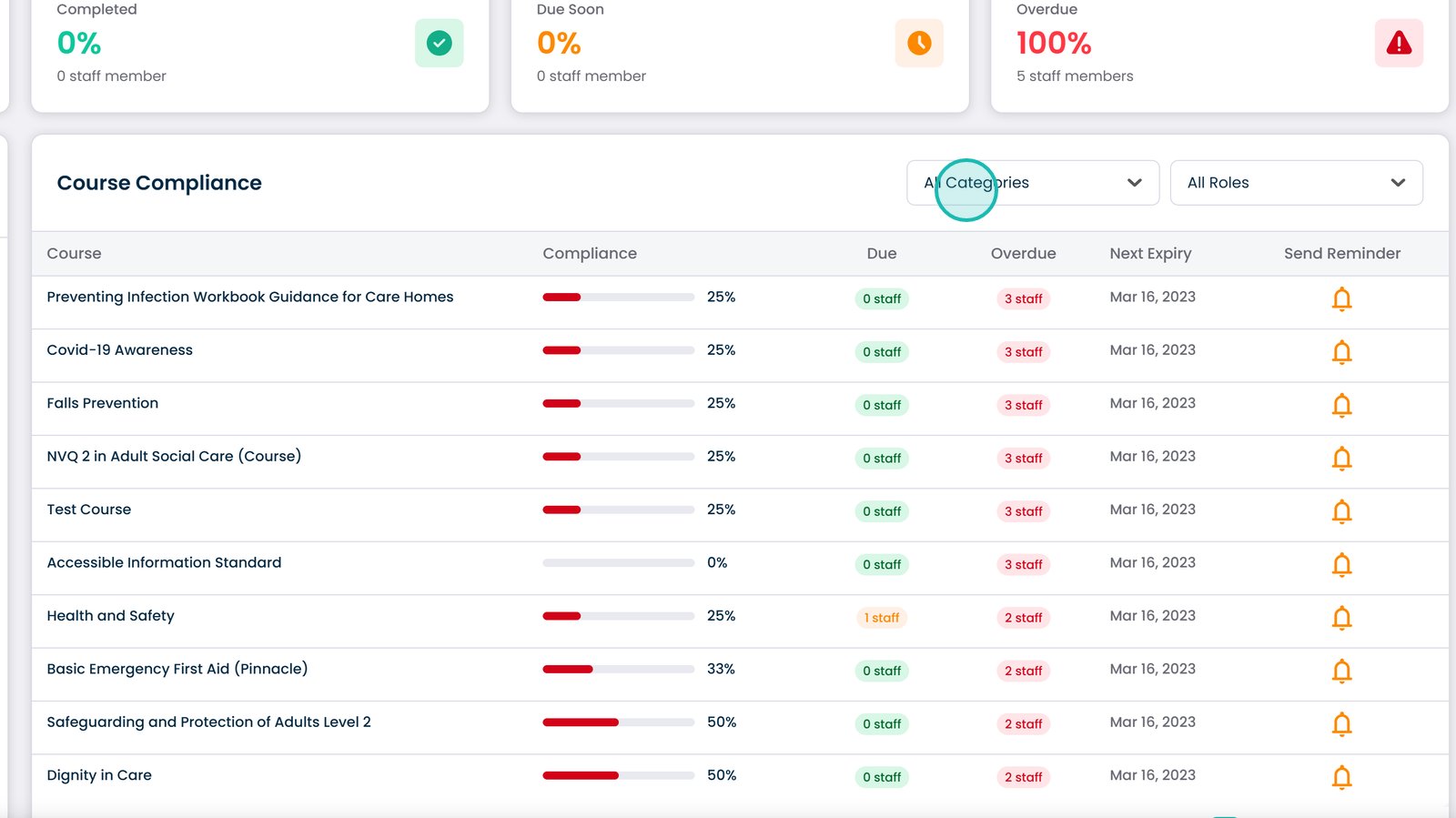
You can filter the course compliance area by category or role

Â
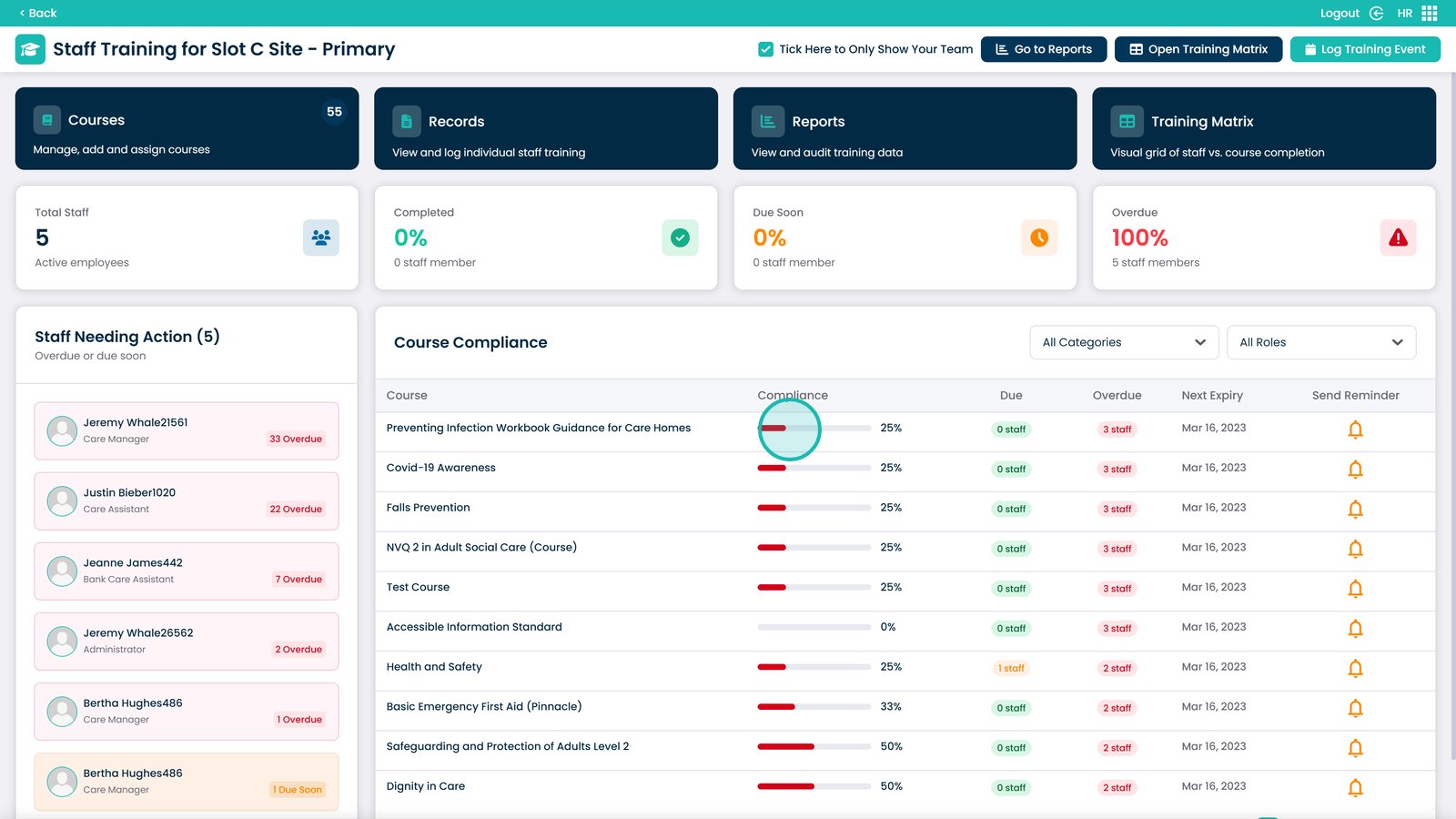
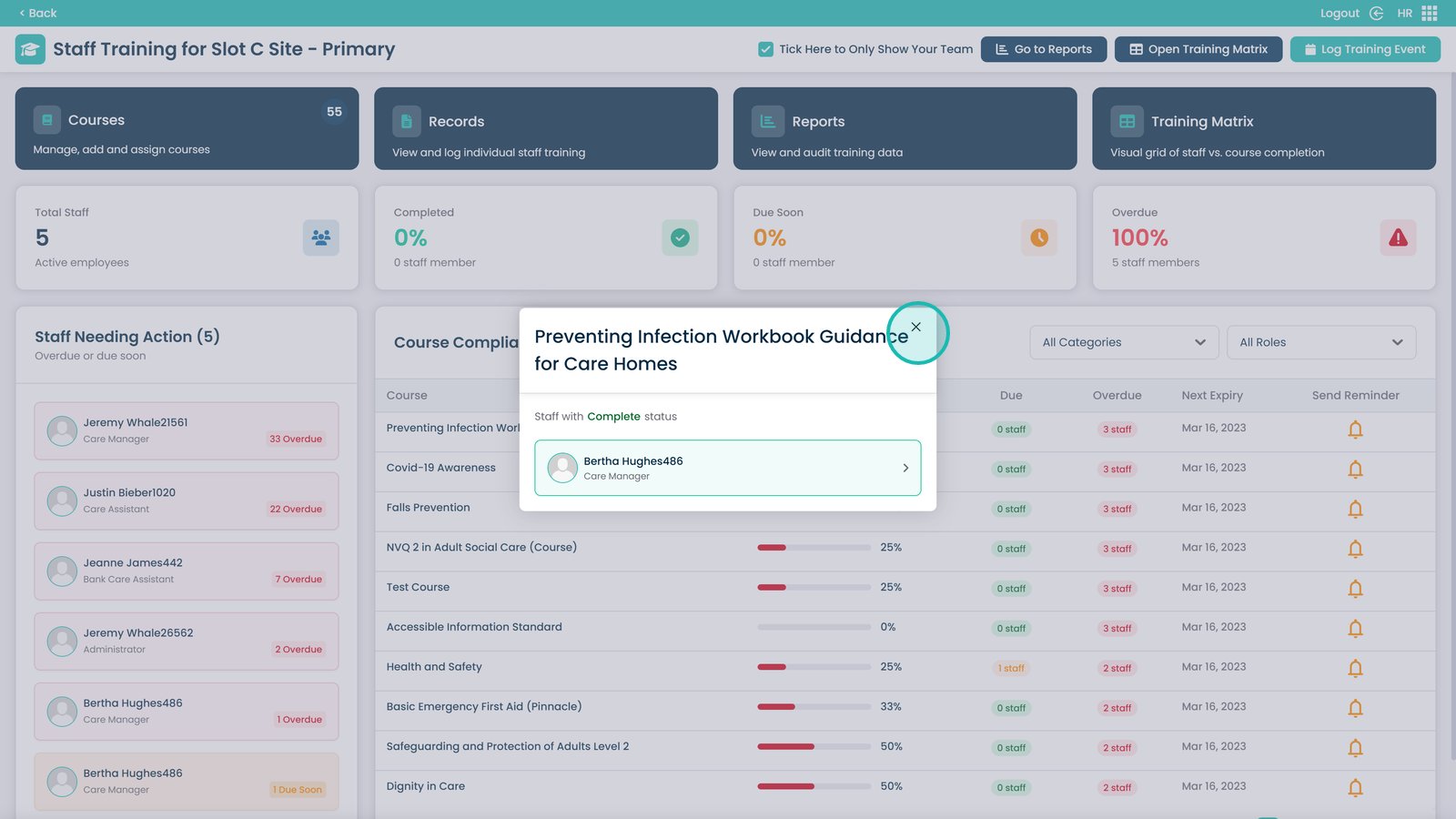
Selecting the Compliance line will show who has completed the course

Â
Close the box once you have viewed them

Â
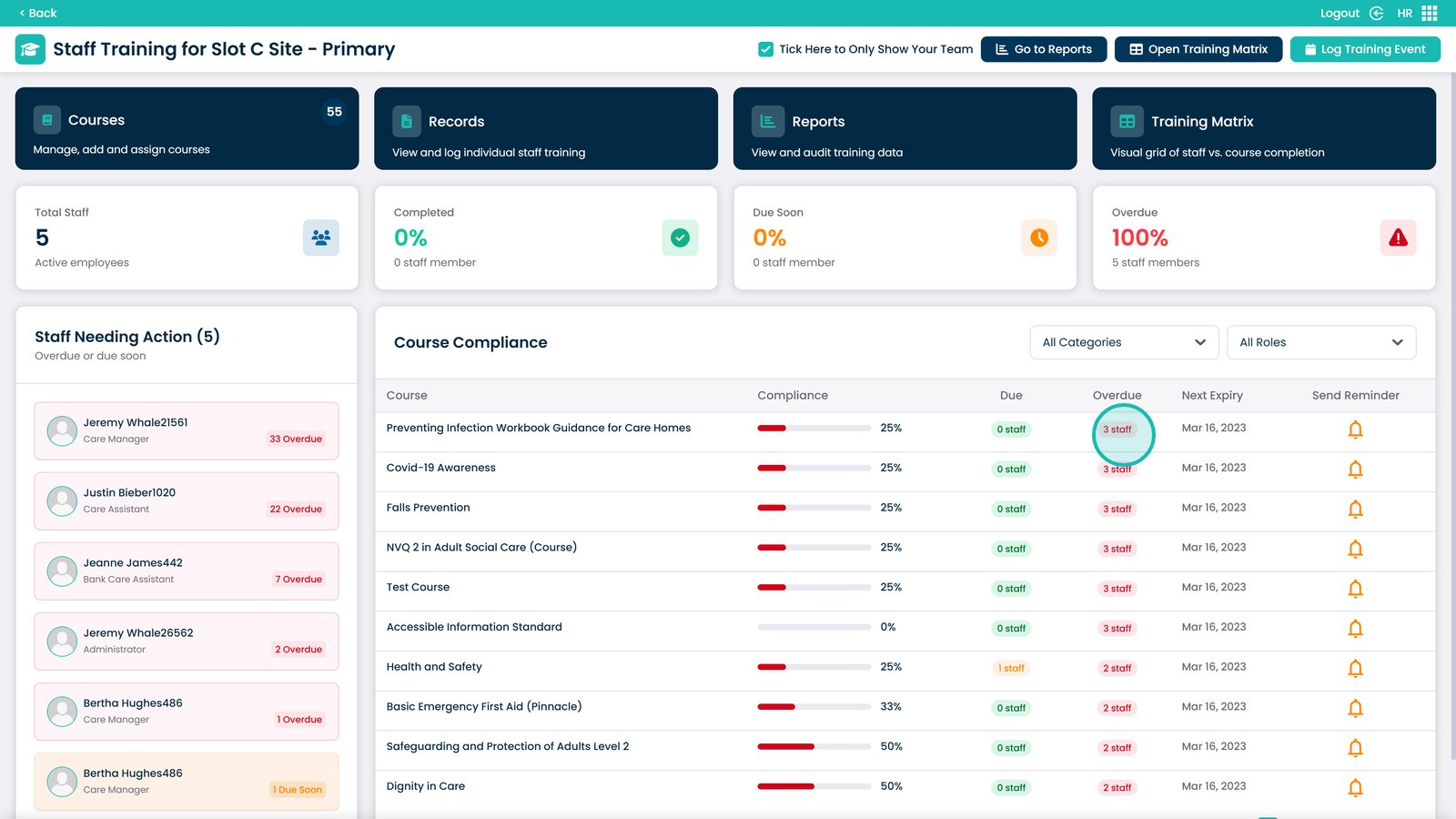
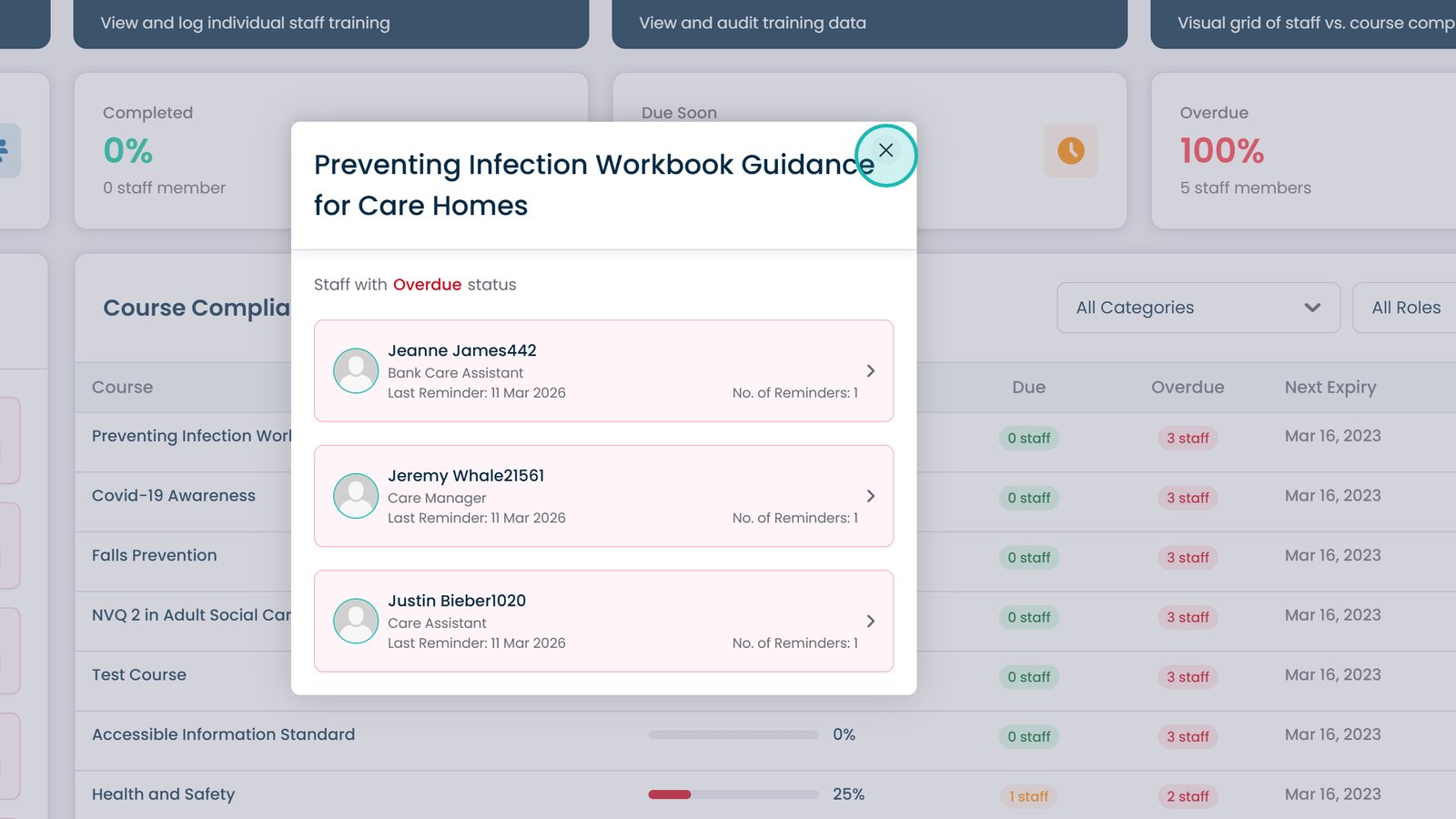
Clicking the Overdue and Due tabs will show the staff that are overdue on the specific course

Â
Clicking a staff member will take you to their individual page, otherwise click the x to close the box

Â
Clicking the bell icon will send a reminder to all staff that need to complete the course

Â
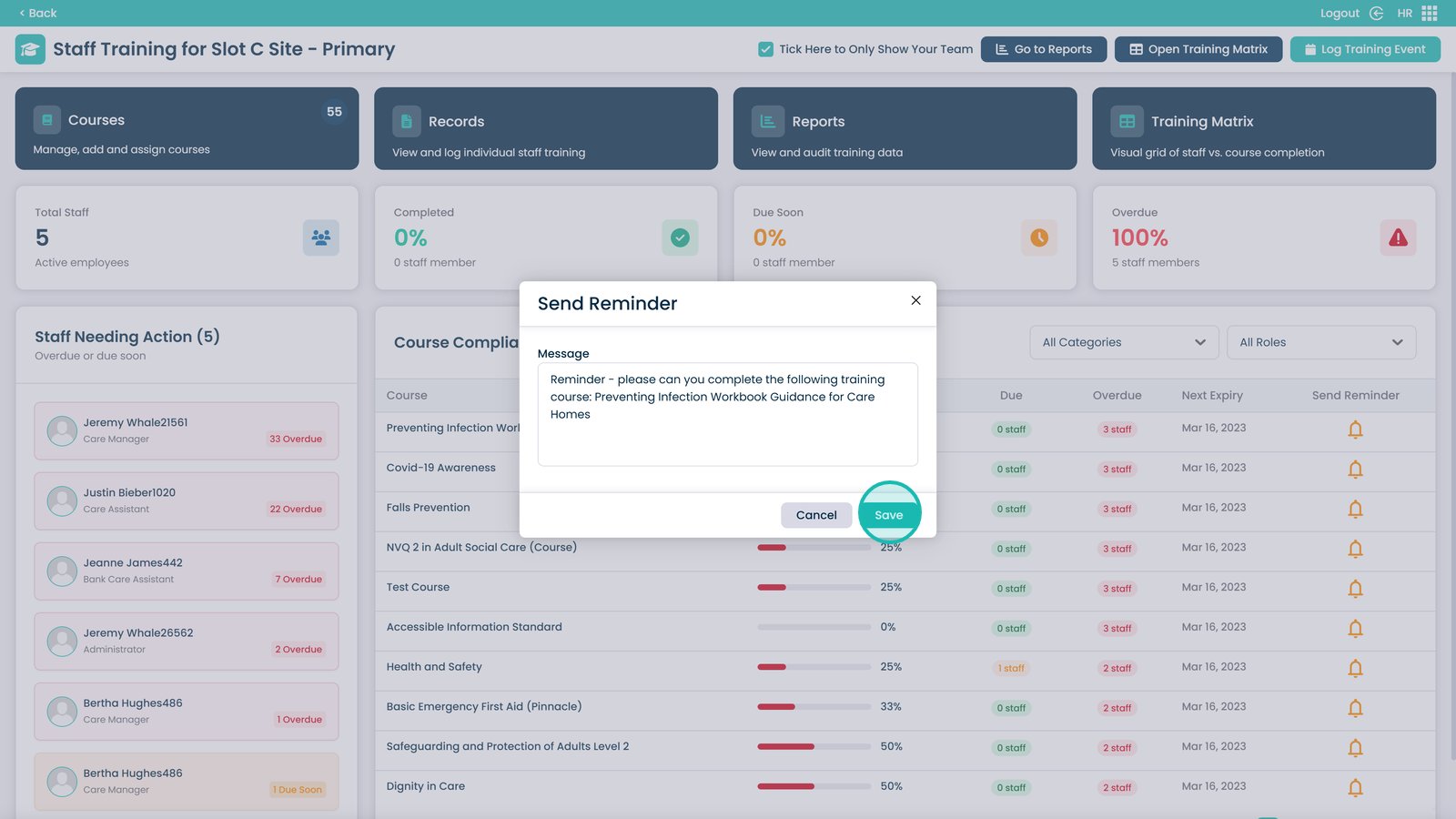
You can modify the message or leave it as is — click Save to send