
Ready to
make the move?
Moving from Care Control Windows to Cloud doesn’t need to mean rebuilding everything from scratch. We’ll take you through the few key steps needed to get your organisation set up, give your team secure access and start working confidently in Cloud.
Your staff have a simpler way into Cloud
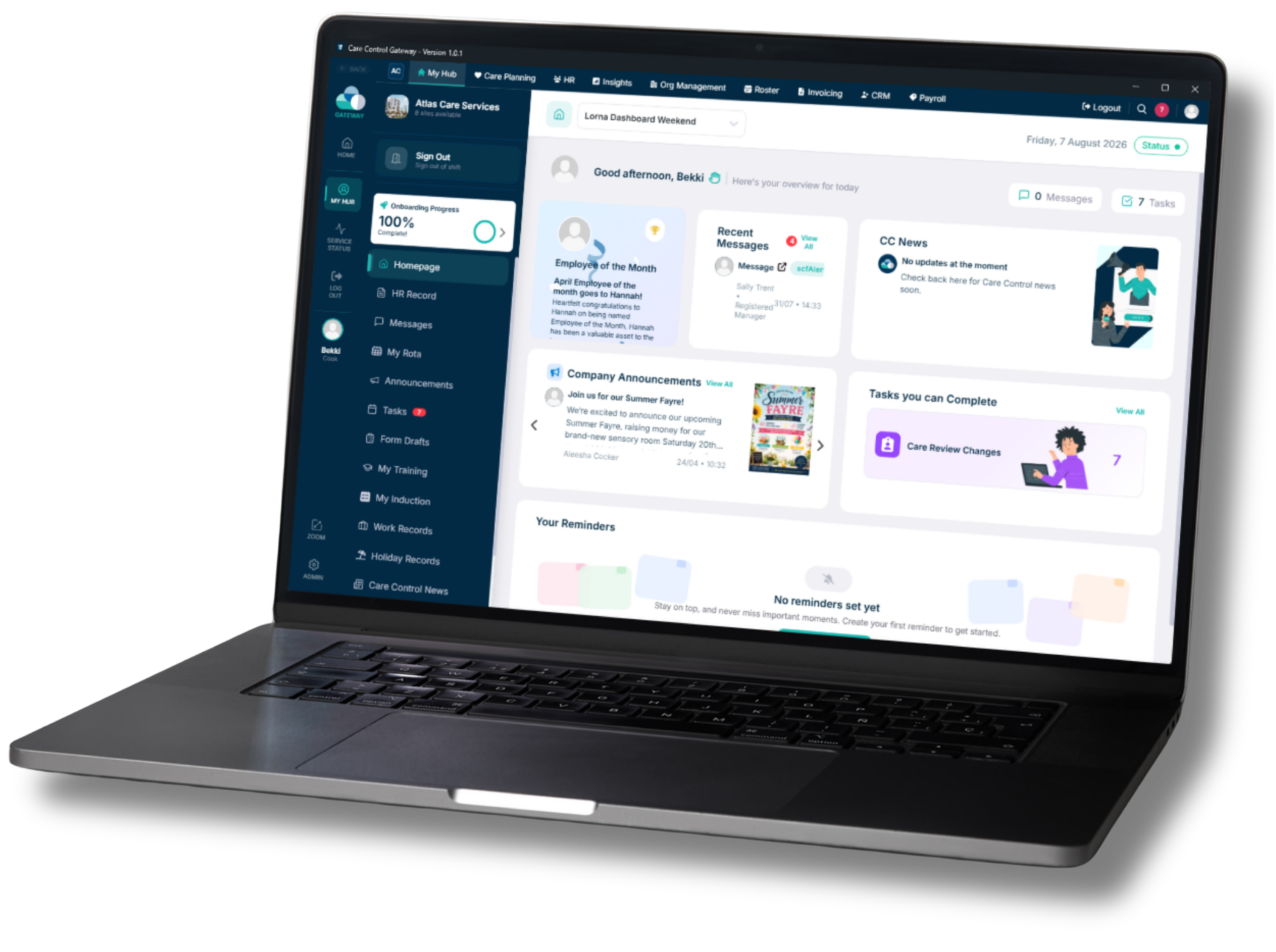
Care Control Gateway replaces Windows and Launcher with one secure app for accessing Care Control Cloud. It works on Windows and Mac and can be used on both shared and individual devices.
Five simple steps to get started
Set up your Cloud access
Get yourself set up as the initial Super Admin so you can manage your organisation in Cloud.
Set up Care Control Gateway
Install Gateway on the devices your team will use and securely connect each device to the correct site.
Get your team into Cloud
Staff can access Cloud through Gateway using their normal PIN, with accounts created or mapped where needed.
Review your permissions
Check that the access levels available in Cloud match how your organisation works.
Add additional administrators
Give another appropriate person Super Admin access so you’re not dependent on one user.
Start with your own access
Before you set up the rest of your team, you’ll need to complete your first-time Cloud setup and become the initial Super Admin.
This gives you access across Cloud so you can manage settings, permissions and users.
First time using Cloud?
Follow the first-time setup guide and get your access ready.
Complete First Time Set-UpSet up Care Control Gateway
Care Control Gateway is the new way your team accesses Care Control Cloud.
Once installed, Gateway is securely connected to a specific care site using a One Time Code generated in Cloud.
Each installed device is then visible in Cloud Device Management, making it easy to see and manage which devices are connected to each site.
Shared computers
Kiosk ModeIdeal for nurses’ stations, care rooms, staff rooms and other shared devices.
- Staff sign in using their normal 4 or 6 digit PIN.
- Cloud opens securely inside Gateway.
- Staff are automatically logged out after inactivity to help protect data.
Individual computers
Single User ModeDesigned for managers, head office teams, admin staff and senior team members using their own computer.
- Launch Cloud in a secure browser window.
- Supports longer Cloud sessions.
- Ideal for individual laptops or desktop computers.
Whichever mode you use, Gateway securely connects the device to the correct care site and gives you visibility of installed devices through Cloud Device Management.
Get your team into Cloud
Gateway makes it easier for staff to get into Cloud with the right access.
Staff use their normal PIN to sign in through Gateway. Where a mapped Cloud account doesn’t already exist, Gateway can create one and use their existing site access level as the starting point for permissions.
Once signed in, staff are taken directly into MyHub, where they can see messages, tasks, their dashboard and the information relevant to their role.
Staff use their normal PIN
The same familiar sign-in staff already use.
Gateway connects to Cloud
Gateway securely connects staff to the correct site.
Cloud account mapped or created
If needed, Gateway can create the Cloud account automatically.
Existing access sets the starting level
Permissions use the staff member’s existing site access.
Staff land in MyHub
Messages, tasks, dashboards and relevant site information.
Good to know
Gateway can handle much of the staff access setup for you. Where a mapped Cloud account doesn’t already exist, Gateway can create one and use the staff member’s existing site access as the starting point for their permissions.
Make sure the right people see the right things
Cloud permissions can be tailored to match how your service operates.
Gateway gives staff a starting level based on their existing access. You can then review and fine-tune permissions in Cloud to suit your organisation.
For most teams, this should be a review rather than rebuilding access from scratch.
Read Only
For people who only need to view information without making changes.
Basic
For staff completing day-to-day work who don’t need more advanced access.
Advanced
For senior staff who need additional functionality without full administrative access.
Administration
For owners, managers or senior staff who need administrative access.
Where to review permissions
Org Management → Permission Management → Select the relevant app → Review each access level.
Make sure there’s always someone who can manage Cloud
Once you’re set up, we recommend giving another appropriate person Super Admin access.
Having at least two Super Admin users means your organisation isn’t dependent on one person during leave, absence or busy periods.
Have at least two Super Admin users
Choose another appropriate owner, manager or senior team member who can manage Cloud when you’re unavailable.
You’re ready for Cloud
With your own access ready, Gateway set up, your team able to get into Cloud and your permissions reviewed, you’ve got the essentials in place to start making Cloud part of your everyday work.
Need some help with your move?
If you’re unsure where to begin or need additional support getting your organisation ready for Care Control Cloud, our team is here to help.